189
Polyend Tracker Manual
188
Polyend Tracker Manual
NOTESNOTES
Audio
8
Audio
8
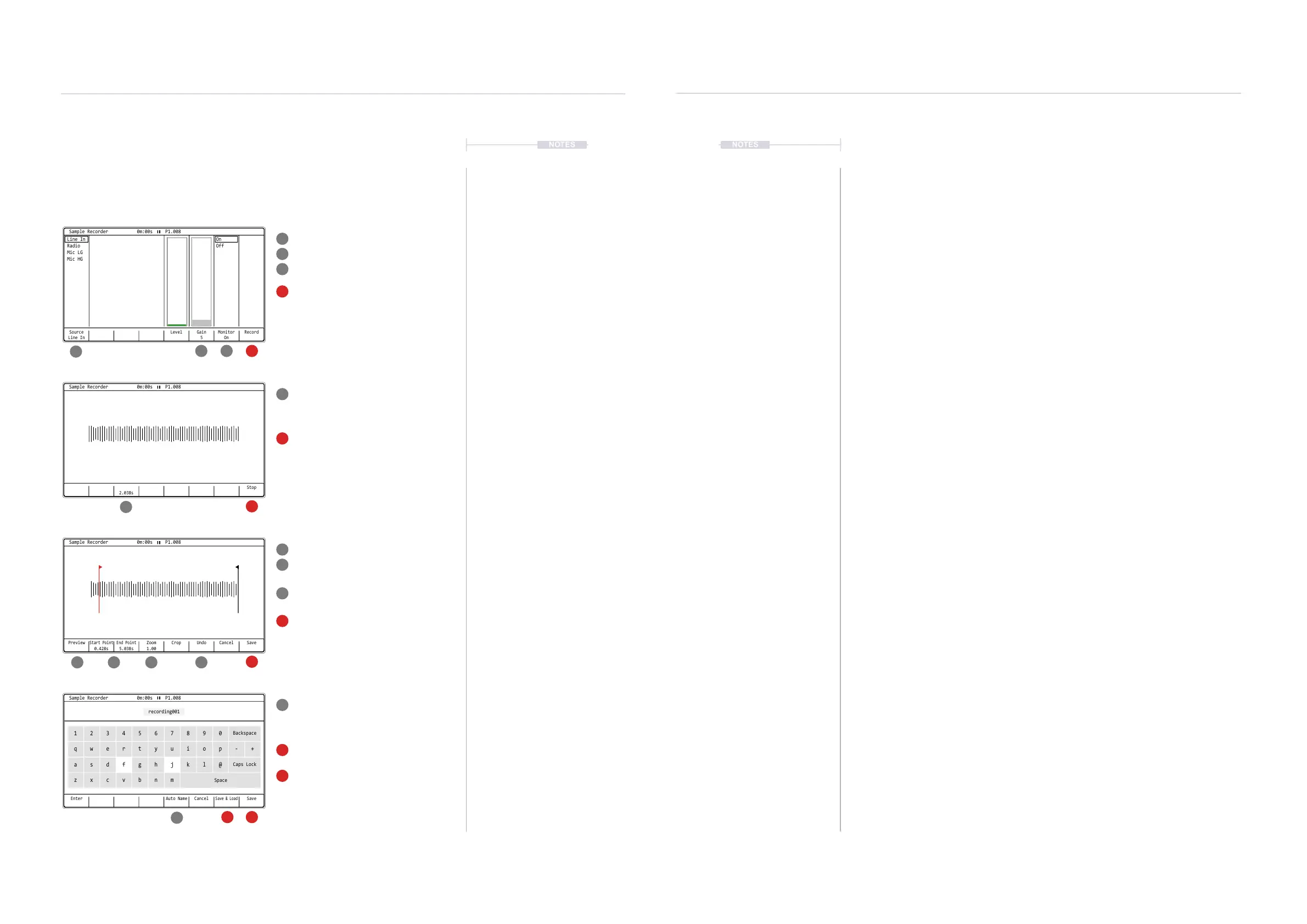
Sampling Process
Starting by selecting the [Sample Recorder] page
As pre-recording optional actions, select the
audio [Source], set [Monitor] to on and adjust
the [Gain] to establish a suitable recording
level. External devices should be auditioned
while adjusting the gain to hear the effect.
Press [Record]. 8th Screen Button, to start
sampling the incoming audio.
Play the external device.
Trim the [Start] and [End] points of the
recorded sample while previewing the audio
to get the positions correct. Also [Zoom] in or
out as a visual aid for precise editing.
The [Undo] option can reset previous state if
errors are made.
Press [Save] when editing is complete.
Alternatively Press [Cancel] to exit without
saving. Conrm cancel with [Yes].
The sampler will capture the audio into the
Tracker memory buffer and display the
recording time. Recording will automatically
stop if the memory is full at ~45 Secs.
Press [Stop]. 8th Screen Button, to manually
stop the sampling process.
Type in a name for the sample or use [Auto
Name] to generate a system name. Pads act
as the qwerty keyboard, [Enter] will enter a
highlighted character.
Press [Save], 8th Screen Button, to save the
le into the SD Card ‘Recordings’ folder.
Press [Save & Load], 7th Screen Button, to
save the le into the SD Card ‘Recordings’
folder and also load the sample into the
instrument list. The instrument list will open
with this option.
1
78 8 9
5
11
1
7
5
11
3
3
9
2
2
8
4
10
6
1213
4
10
6
12
13
Source
Line In
Gain
5
Monitor
On
RecordLevel
On
Off
Line In
Radio
Mic LG
Mic HG
Sample Recorder 0m:00s P1.008
Start Point
0.428s
Preview UndoCrop Cancel Save
End Point
5.038s
Zoom
1.00
Sample Recorder 0m:00s P1.008
2.038s
Stop
Sample Recorder 0m:00s P1.008
Enter CancelAuto Name
Save
&
Load
Save
Sample Recorder 0m:00s P1.008
recording001
1
q
a
z
4
r
f
v
7
u
j
m
0
p - +
@
2
w
s
x
5
t
g
b
8
i
k
Backspace
Caps Lock
Space
3
e
d
c
6
y
h
n
9
o
l
▌ SAMPLING IN THE SAMPLE RECORDER
1. Press [Sample Recorder] to open the sampler page.
2. Setup the input and levels.
• Ensure the correct input to record is selected, Press [Source], 1
st
Screen button to toggle selections.
• Select monitoring ON, Press [Monitor], 7
th
Screen button to toggle.
• Adjust gain to suit input level. Press [Gain] and Turn (Jog). Ensure
audio to record is audible and at a good enough level. The Level
meter should not be lit red but green / amber, approx 70%.
3. Press [Record], 8
th
Screen button or [Rec] to start sampling. It may be
useful to play the device to record before starting to record or after
depending on its nature. Recording time that has lapsed is displayed.
4. Press [Stop], 8
th
Screen button or [rec] to stop sampling. It may be
useful to also stop playing the recorded device. If stop is not initiated,
sampling will continue until the memory is full.
5. The sample can be cropped before saving. This allows removal of any
gaps or unwanted audio at the start end. The [Zoom], 4
th
Screen Button
+ (Jog) may help to get close up to areas to trim.
6. Press [Start], 2
nd
Screen button, then Turn (Jog) to set the start point.
Press [End], 3
rd
Screen Button, then Turn (Jog) to set the end point. It
may be an iterative process to set both as desired.
7. Press [Crop], 5
th
Screen button to trim the sample to the selected start
and end points. The sample is cropped and option to save presented.
8. Save the sample, Press [Save], 8
th
Screen button.
9. The sample can be manually named in the text editor window using the
Pads as the keyboard (Slower - but text is more relevant to the sample
type). Alternatively, Press [Auto Name], 5
th
Screen Button to set a
system generated name (quicker - but less relevant).
10. Press [Save & Load], 7
th
Screen button. This saves to the SD Card
‘recordings’ folder and also loads to and opens the instrument list.
11. Alternatively, Press [Save], 8
th
Screen button. This saves directly to the
SD Card ‘recordings’ folder only.



 To Next Page