1. Click the [Start] menu on the computer.
2. From [All Programs], select [Ricoh], [Interactive Whiteboard Remote Viewer].
3. Click [Interactive Whiteboard Remote Viewer].
The Remote Viewer screen appears.
4. Click [Join] from , the Share icon.
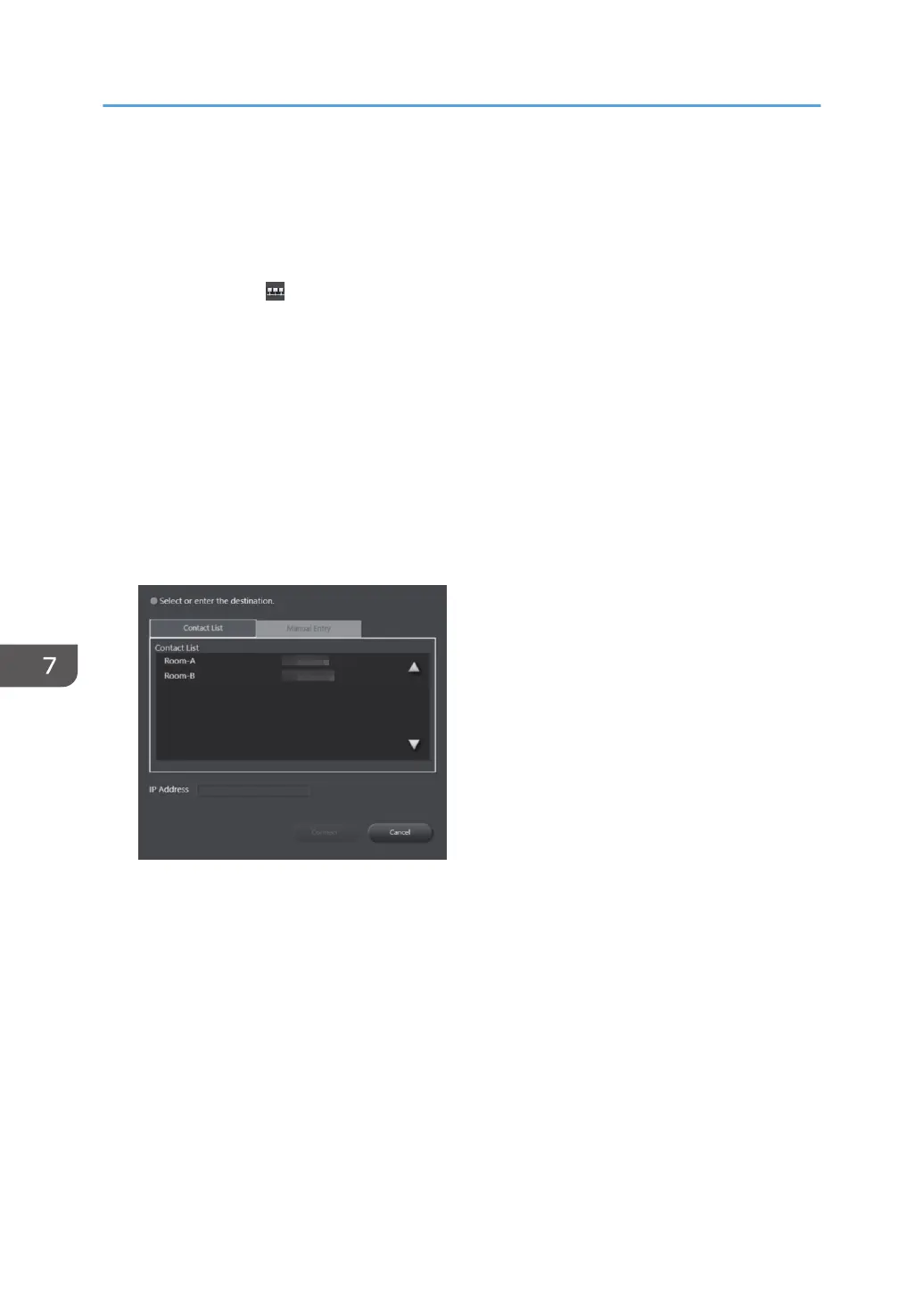
5. Specify the IP address of the host whiteboard on the displayed screen.
6. Click [Connect].
The host whiteboard is imported.
7. If a passcode is set by the host whiteboard, enter the passcode.
8. If a connection is established, the time to import pages of the host whiteboard is
displayed. Click [OK].
There are two methods for specifying a host whiteboard. The first is to select from the contact list, and the
second is to enter the IP address manually.
[Contact List] tab
Specify the IP address of the host whiteboard by selecting it from the "Contact List".
A contact list can be added with "Add Remote Contact List" in General Settings of Remote Viewer.
See page 309 "Creating a Remote Contact List".
7. Using a Remote Whiteboard to Share the Screen
152


 To Next Page