• When hosting or participating in a remote whiteboard session, the result of the operation you
perform is applied to all the devices.
Changing the display magnification using your fingers
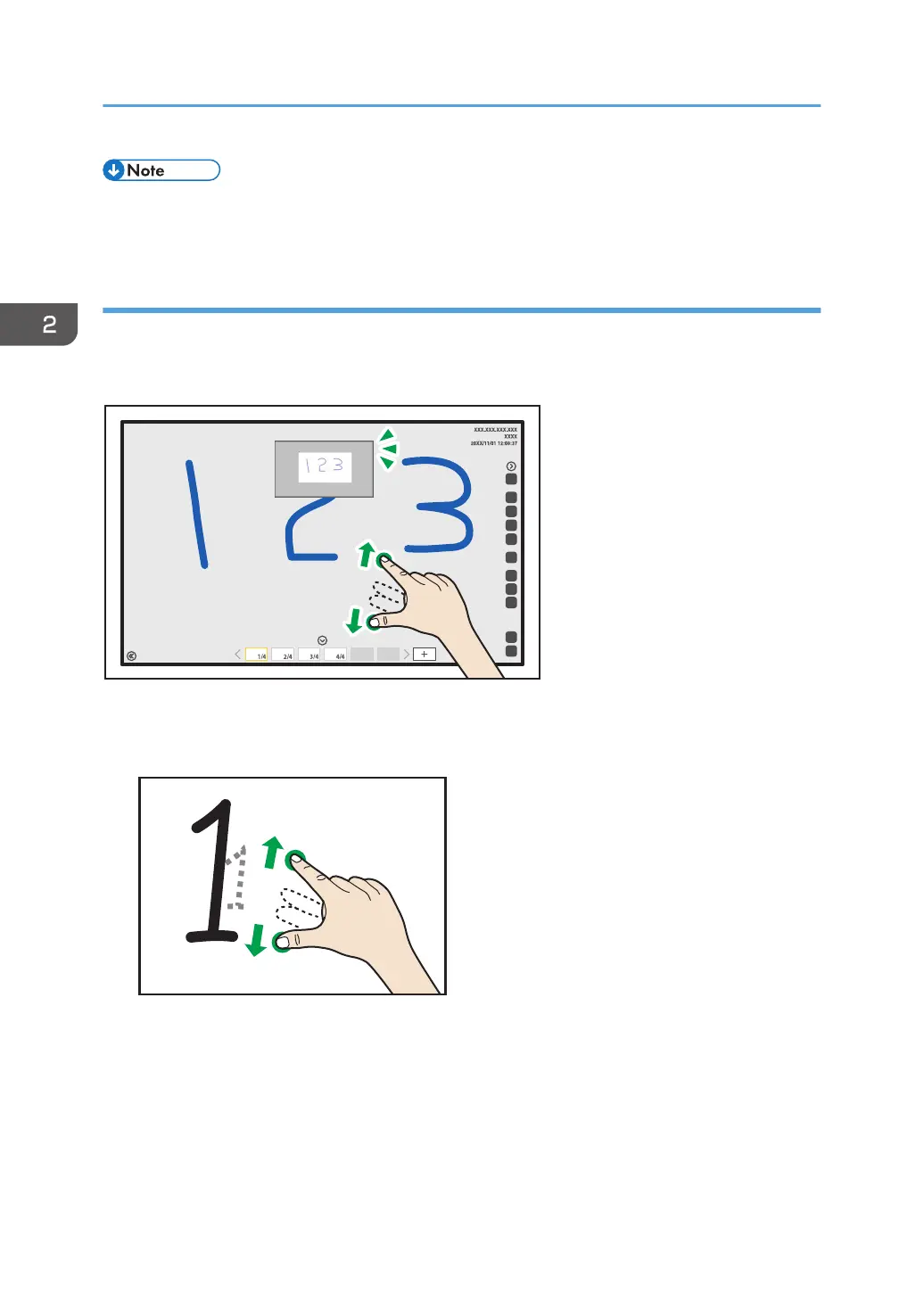
When you change the display magnification or move the display area with your fingers, a zoom
navigator appears in the top center of the screen. The zoom navigator shows the area displayed on the
screen.
Changing the display magnification
Touch the screen with two fingers and spread or pinch them together.
• When you spread your fingers apart, the screen is enlarged, centering on where you
originally touched.
• When you pinch your fingers together, the screen is reduced, centering on where you
originally touched.
2. Using a Whiteboard
52


 To Next Page