1-35
Environment Settings
1
ComColor Series User’s Guide 09
■ Configuring the Paper Size Manually
1
Click [Custom paper entry].
The [Custom paper entry] dialog box is displayed.
2
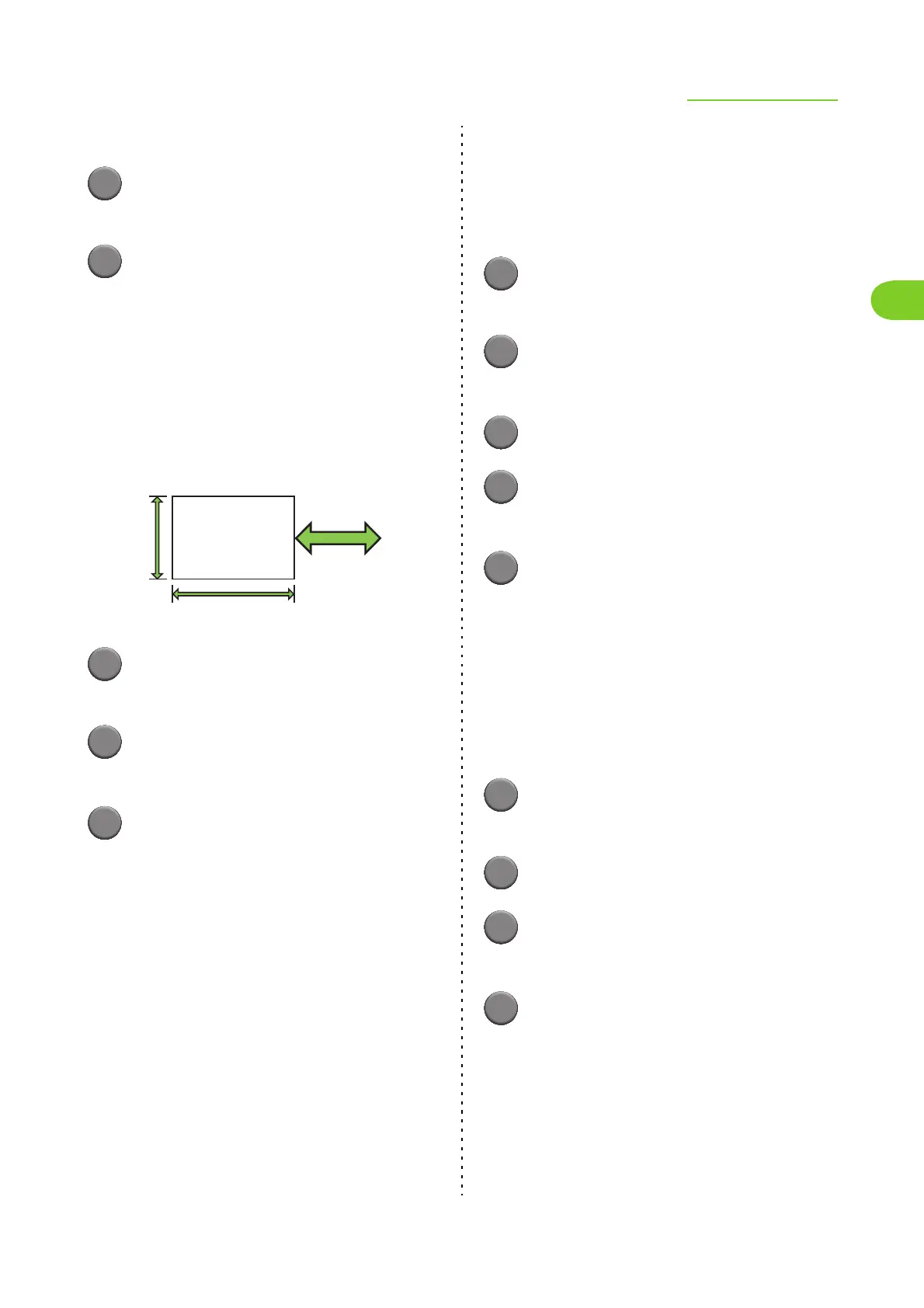
Enter the paper width and length.
Specify a width between 90 mm - 340 mm (3 9/
16"-13 3/8").
Specify a length between 148 mm - 550 mm (5 13/
16"-21 5/8").
• The size of paper that can be fed into the
machine is different when a multifunction
finisher has been connected. (p. 6-11
"Multifunction Finisher II (Optional)" in
"Specifications")
3
Enter a name for the paper size.
Enter a name of up to 30 characters long.
4
Click [Add] to register the paper
size.
5
Click [Close].
The paper size information is saved.
■ Saving the Paper Size to a Computer
You can save the registered paper size to a computer.
It is useful to save settings to a computer when, for
example, you want to share the registered paper size
among multiple users or reinstall the printer driver.
1
Click [Custom paper entry].
The [Custom paper entry] dialog box is displayed.
2
Select the paper size to save from
the list box.
3
Click [Save in file].
4
Specify the destination folder and
file name.
5
Click [Save].
The selected paper size is saved.
■ Reading a Paper Size from a
Computer
You can read and use a paper size saved to a
computer.
1
Click [Custom paper entry].
The [Custom paper entry] dialog box is displayed.
2
Click [Open file].
3
Select the file with the paper size
setting on the computer.
4
Click [Open].
The read paper sizes are displayed in the list on
the [Custom paper entry] dialog box.
Paper feed and
output direction
Width
Length












 To Next Page