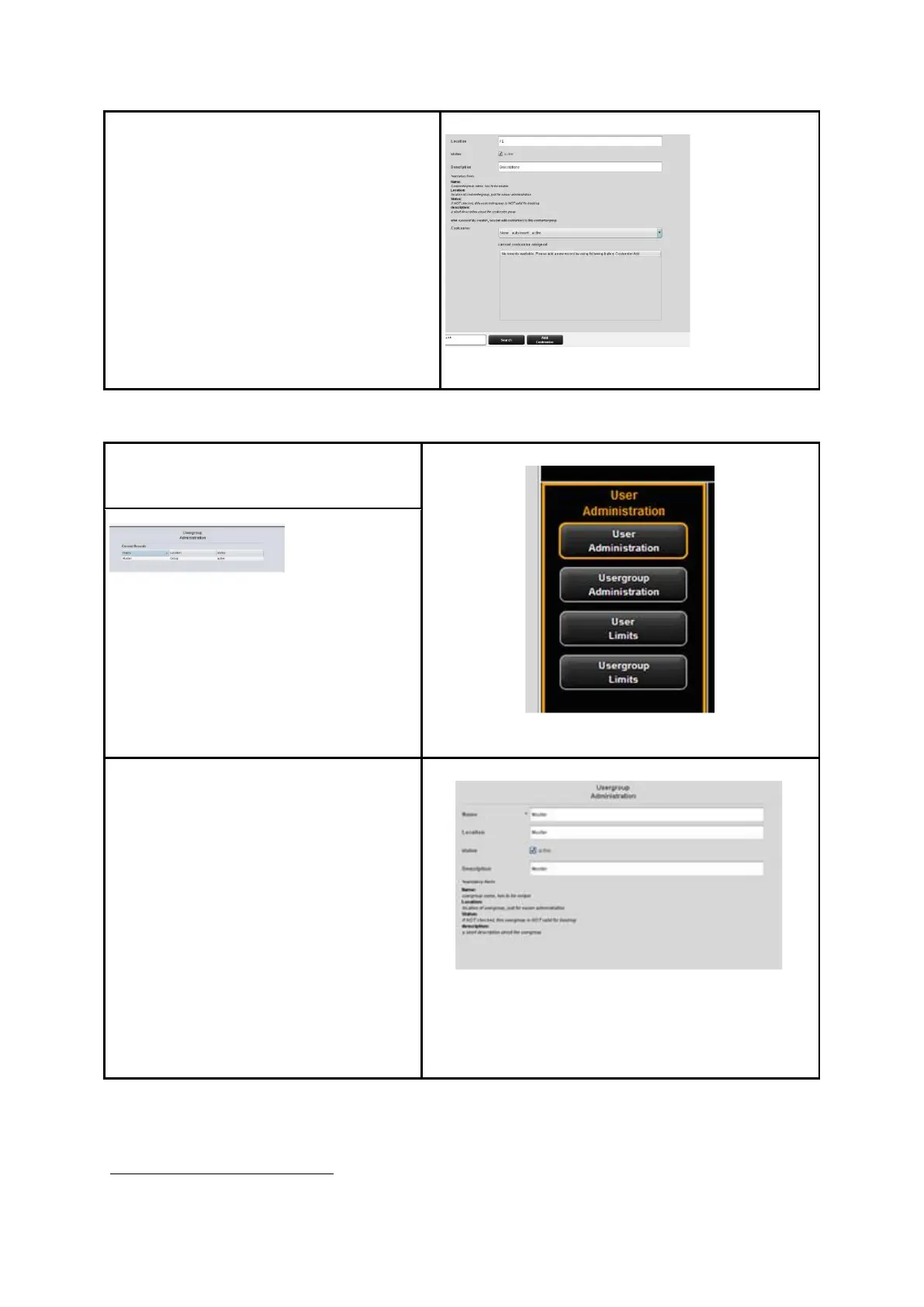
After successful creation of a user
account, cost centers can be allocated to
that user.
If cost centers are available, a list of all
cost centers appears which can be
allocated by means of the button
Add cost center
4
.
Cost centers already allocated are listed
in alphabetic order and can be removed
by means of the button Remove account
if required.
Figure 9.9: Add cost centers to user
9.4.2 User Group Administration
By clicking User group administration
a list with all user groups available in
the system pops up.
Figure 9.10: User group administration
Figure 9.11: User group list
By double-click the user group
selected before opens to make
changes or to view a list of the users
currently allocated.
By pressing the Add button, the menu
for a new entry opens.
The name of a user group has to be
unique.
The fields Location and Description
only serve ease of administration.
By means of the field Status an
allocated limit can be suspended
temporarily; i.e. NO job category limits
can be booked for this user group.
Figure 9.12: Create user groups
The buttons Add cost center and Remove account are located under the main window
and replace the button Add.



 To Next Page