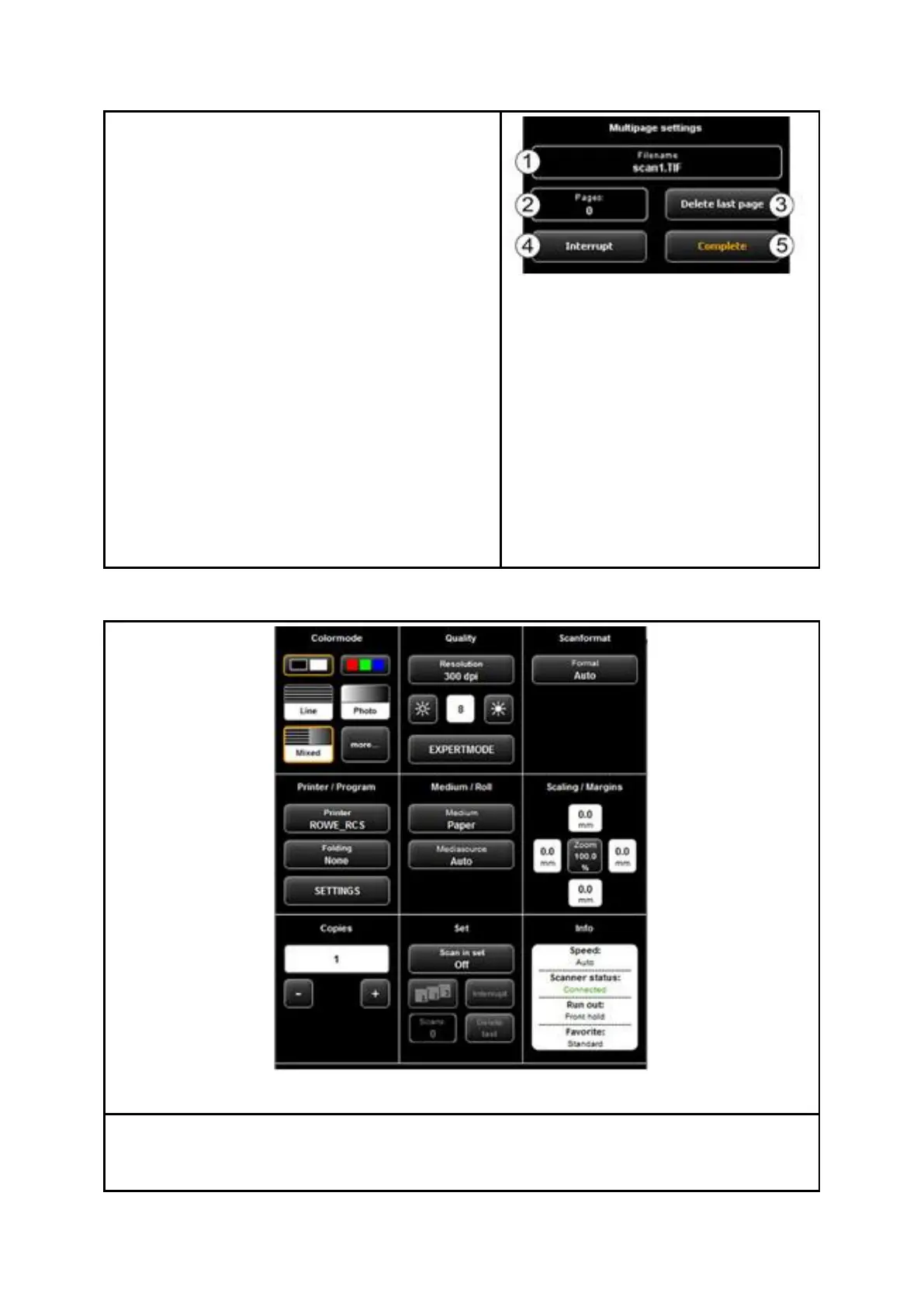
In order to create a Multipage TIFF/PDF file, first
select the file name and then file format
Multipage TIFF/PDF. Each scan or saving
operation effected subsequently will then be
added as additional page to the multipage file.
1. File name: The previously entered file
name is displayed.
2. Pages: The pages already added to the
multipage file are shown.
3. Delete last page: Press this button if you
want to delete the page added last.
4. Interrupt: With this button you can
perform a normal scan (or saving
operation) in between which will not be
added to the multipage file; afterwards
you can add pages to the multipage file
again by selecting Multipage TIFF and/or
PDF as file format again.
5. Complete: Press this button after having
scanned the last page for the multipage
file.
When you are in ROWE COPY APP, the settings are as follows:
Color mode: see 7.10.3.1



 To Next Page