8.1 Starting ROWE ConfigManager
First, make sure that the scanner is connected to
the PC and switched ON.
After installation of the software, an icon named
"ConfigManager" can be found on the desktop.
It is easiest to start ConfigManager by double-click
on this icon.
Figure 8.1: Desktop link
ConfigManager
8.2 Main View of ROWE ConfigManager
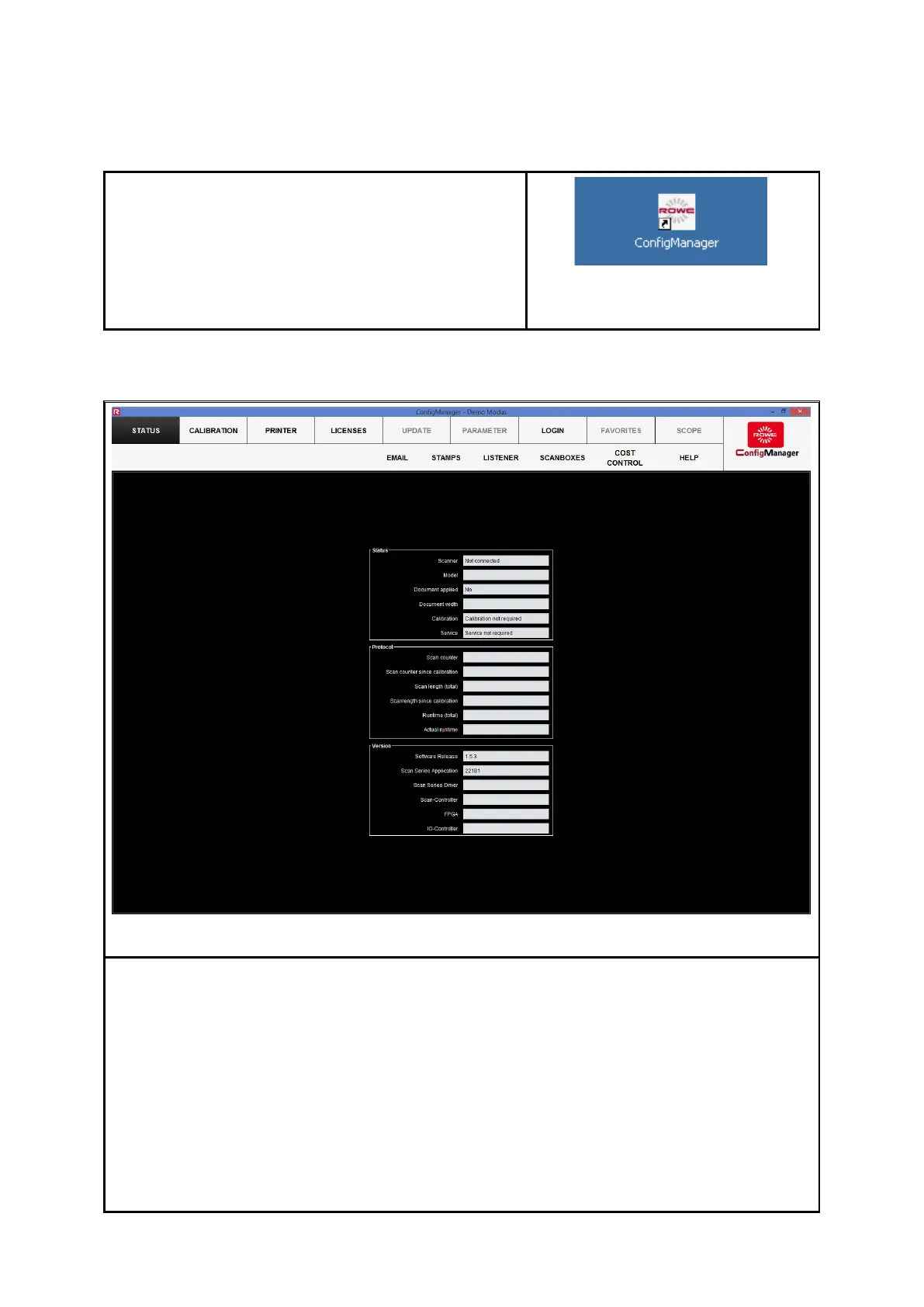
Figure 8.2: ConfigManager - Overview
The ConfigManager layout is similar to that of ROWE SCAN/COPY APP. Similar to them the
provided configuration options in the ConfigManager are divided into different functions
by topics:
Status: Different status information on the scanner is displayed (see 8.3).
Calibration: Here, you can calibrate the scanner again (see 8.4).
Printer: Management of printers which can be used in ROWE COPY/PRINT APP
(see 8.5).
Licenses: Display of existing license options, loading of license upgrades (see
8.6).
Update: Here you can check whether a new version of the ROWE Scan 850i



 To Next Page