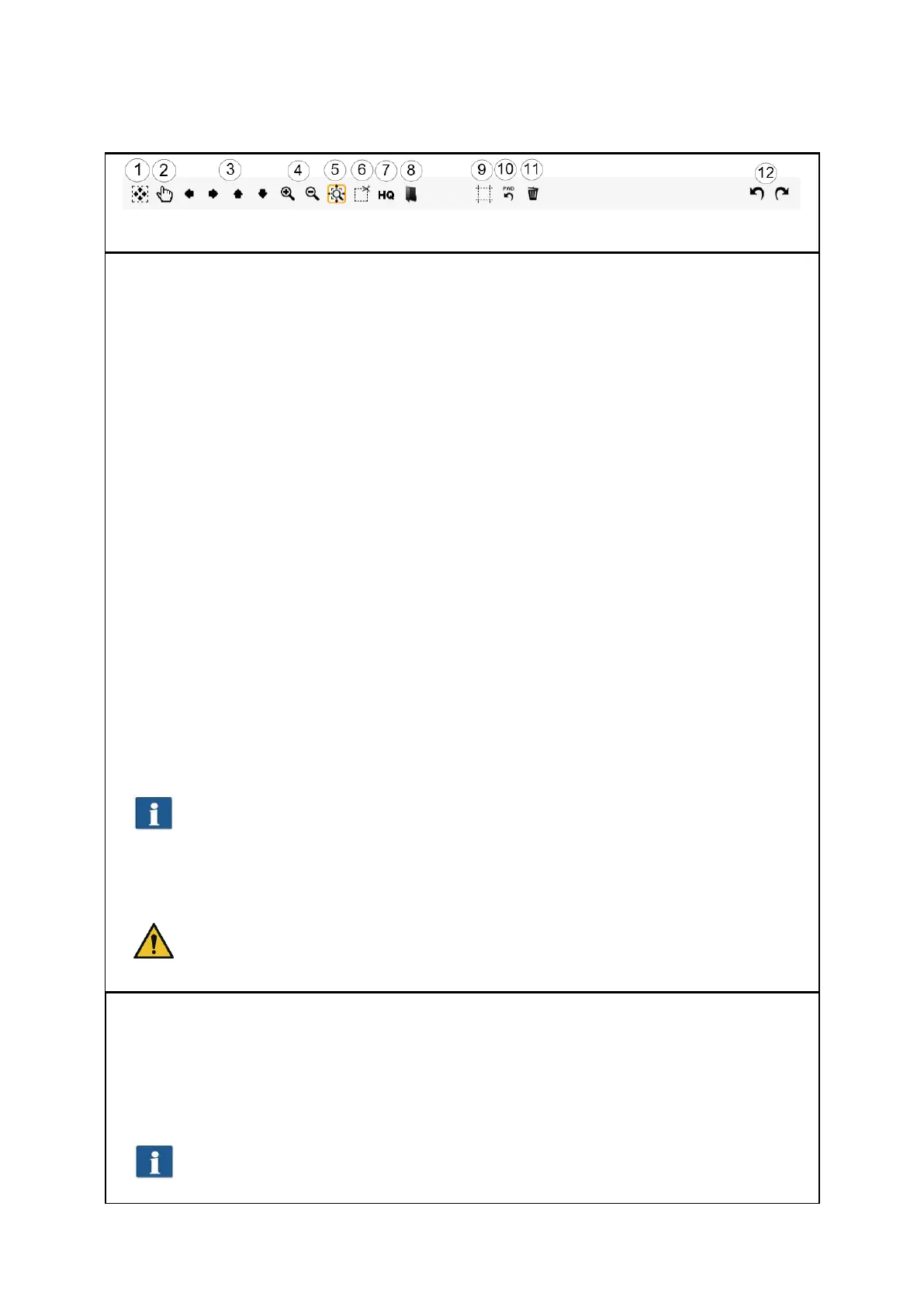
The toolbar above the Main Viewer includes the following buttons:
1. General view: Shows complete image in Viewer. This button is particularly useful
if you selected a section for being zoomed before and now want to return to the
general view.
2. Manual shift: The currently displayed detail can be shifted in all directions by
means of the mouse; however, a section needs to be zoomed in before. Manual
shift does not work if the Enhanced cutting function is active.
3. Arrow keys: The currently displayed detail can be shifted in the respective
direction if a section has been zoomed in before.
4. Zoom +/-: Zooming a detail shown in the Viewer in or out.
5. Expanding detail: By means of this button you define the behavior of the display
of a detail when you expand a detail by means of the mouse: If the button is
active (orange frame) at least the selected detail is always displayed in the
Viewer so that the area of the Viewer is filled best. If you want only the selected
area to be displayed, activate 5.
6. Cut detail: Similar to 4., but exactly the selected detail is displayed in the Viewer.
The detail is then enlarged in a way that either the entire width or the entire
height of the Viewer is used.
7. High Quality Modus (HQ) ON/OFF: You can select whether the image shall be
displayed in a higher quality in the Viewer. In particular, when processing
drawings with very fine structures, they are possibly not displayed completely in
the Viewer (in particular in the General View) as the image has to be scaled down
to "fit" into the Viewer. The HQ mode reduces this effect considerably but results
in the fact that it takes a little bit longer until the picture is fully displayed.
When loading an image file, the image displayed in the Viewer before gets lost
because it is not possible to open several files in the Viewer simultaneously.
However, you can save the image first (see 7.7).
9. Enhanced cutting function: By means of this function you can easily cut the
edges of an image and position cutting edges pixel by pixel. When you activate
the button, red lines appear on the four sides in Main Viewer which are first
located on the outside. Now, you can "grab" these lines by means of the mouse
and pull them into the image. When you start the output now, you are asked
whether you want to output the marked detail or the entire image.



 To Next Page