scaling to default format).
Scale Mode: According to the
three options, the document is
positioned on the printout
and/or adjusted.
Original: Maintain original size.
Fit: If required, the document
is scaled down to the selected
format.
Assimilate (bigger or smaller):
Document completely utilizes
the selected format.
Page position: Not available if
Assimilate (bigger or smaller)
was selected. Otherwise, the
position of the document on
the roll is defined. E.g.
"Center".
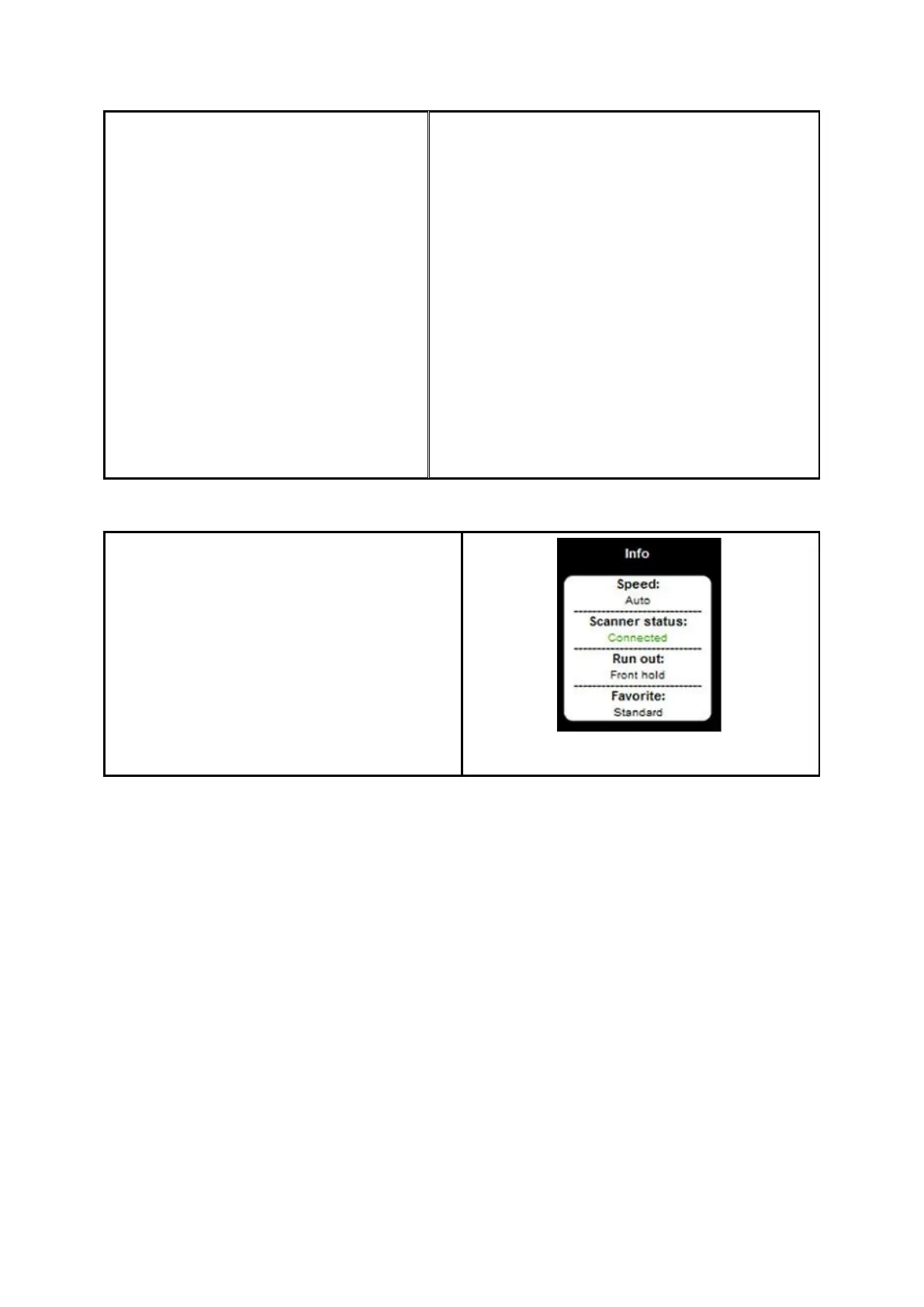
7.10.3.5 Info
In the area "Info", useful status information
is given. The contents of the area "Info" can
be selected in the ROWE SCAN/COPY APP
settings (see 7.13.5).
7.11 Favorites
ROWE SCAN/COPY/PRINT APP provides a vast range of settings to adjust scans and copies
according to individual requirements. Often a manageable number of settings and/or
combinations of settings are used over and over again. In order that you do not have to
set and adjust each option individually again, you can save settings once made as so-
called Favorites. These settings can then simply be loaded again by a few clicks and are
always available. For this purpose, click the "Favorites" function. In each favorite you can
save all scan and print settings described in Chapter 7.10. The set function as well as the
file format Multipage TIFF/PDF present the only exception from the above.



 To Next Page