Direct printing of postscript level 2 and 3,
PDF, PDF-A, Multipage PDF/PDF-A files on
ROWE printer or inkjets.
Table 7.1: ROWE APP CENTER
ROWE Scan 850i scanners can be operated with a desktop computer with
mouse and keyboard or with a touch screen. For touch screen operation, there
is a specially optimized version of ROWE SCAN and COPY APP are available
while the other variants are not intended for touch screen operation (i.e.
without mouse and keyboard). The figures given in the following chapters
refer to regular versions, which are not optimized for touchscreens. However,
appearance and operation of vary only slightly. For detailed information
please refer to Chapter 7.15.
For being able to use all functions of ROWE SCAN/COPY APP, you have to
connect the scanner to the PC and switch it ON. Otherwise, the APP can be
used in a limited demo mode only.
The ROWE COPY APP is supplied with one printer driver each for an inkjet
printer and a ROWE printer only. Drivers for further printers are to be
purchased as an option.
7.1 Starting ROWE SCAN APP / ROWE COPY APP
First, make sure that the scanner is connected
to the PC and switched ON.
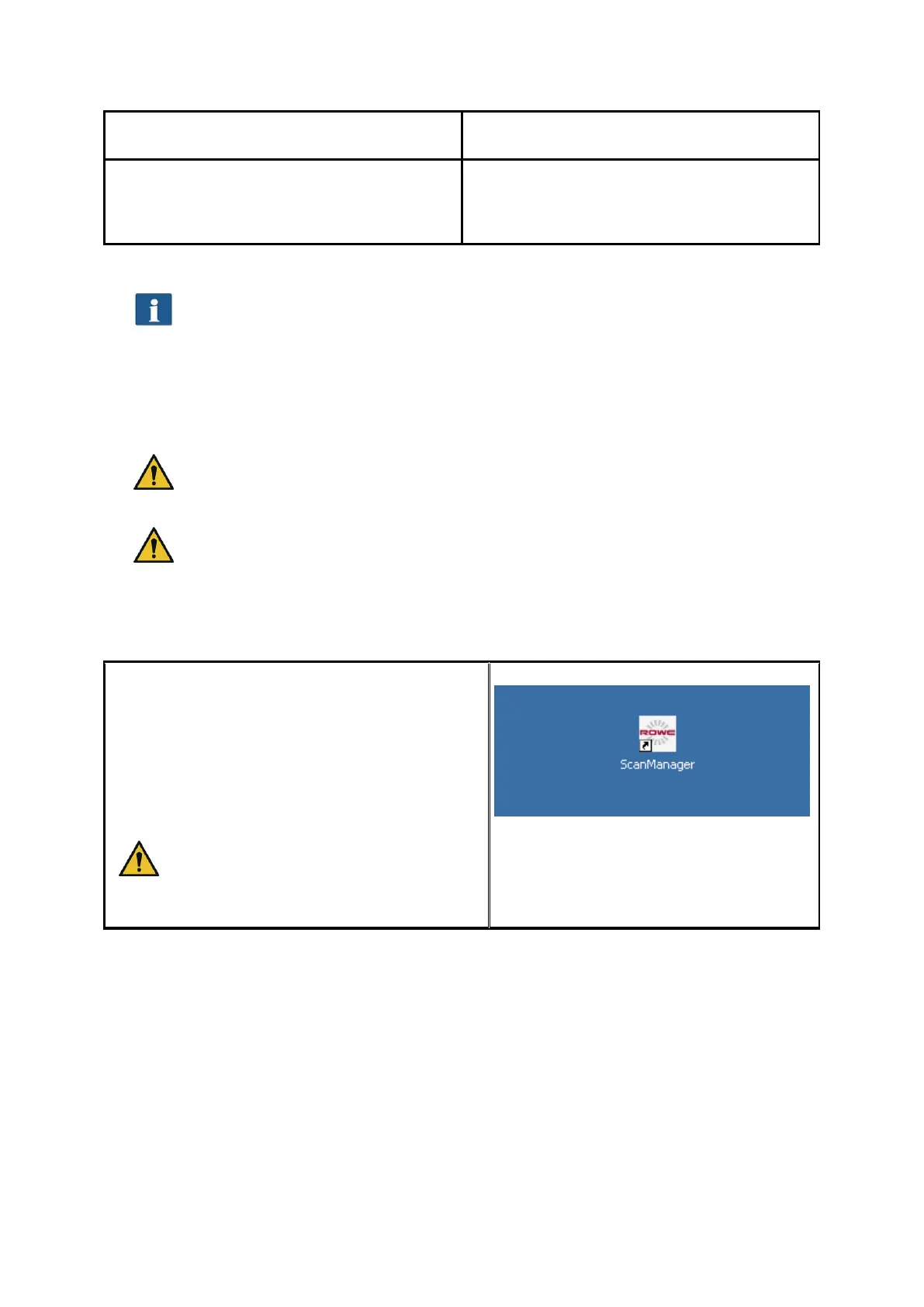
After installation of the software, an icon
named "ScanManager" can be found on the
desktop.
It is easiest to start the ROWE SCAN APP by
double-click on this icon.
Should you prefer operation by touch
screen and have a ScanManager
TOUCH license, you have to use the
Icon "ScanManager Touch" instead.
Figure 7.1: Desktop link ROWE
SCAN APP



 To Next Page