for the first page, only.
2. Selection of page (available for TIFF/PDF files with several pages, only):
By means of the arrow keys, you can browse the pages of the document
in the preview. As an alternative you can also enter a page number in the
text field and press the Enter key to move to the desired page
immediately.
3. Position in file list: This is to show in which position of the file list the
depicted document is. If 1 / 3 is shown, this means that the displayed
document will be printed first as one of three files.
4. File information: Here, useful information on the depicted file is given:
Dimensions, color mode, file format, and resolution.
5. Browse file list: By means of the arrow keys left/right you can easily
switch to the next/previous file within the file list in the preview.
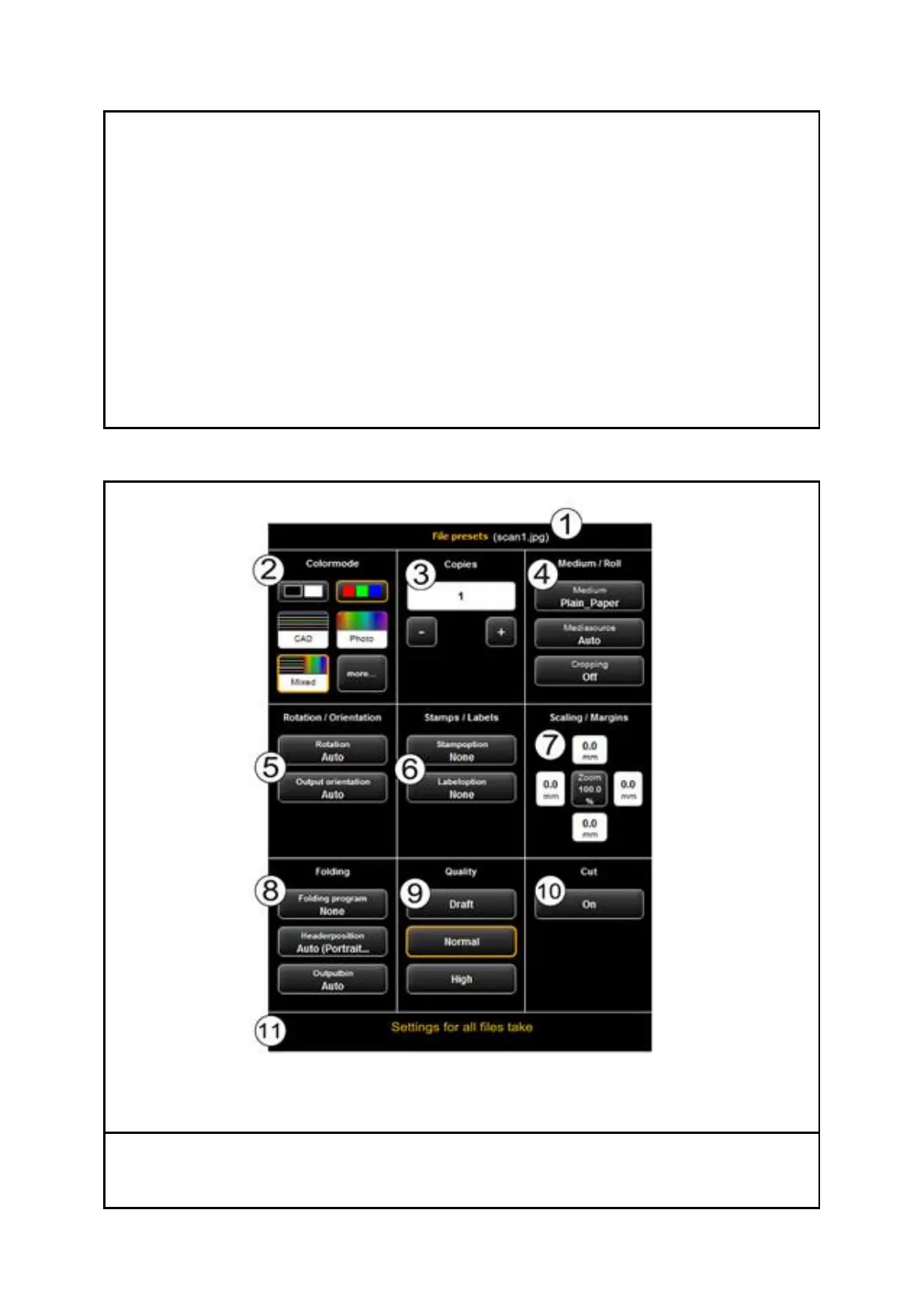
All settings made in the section File presets always apply to the file selected (highlighted)
in the file list. If you selected several files in the list, the settings made are adapted to all
highlighted files. In this way, you can easily define settings for larger sets which shall



 To Next Page