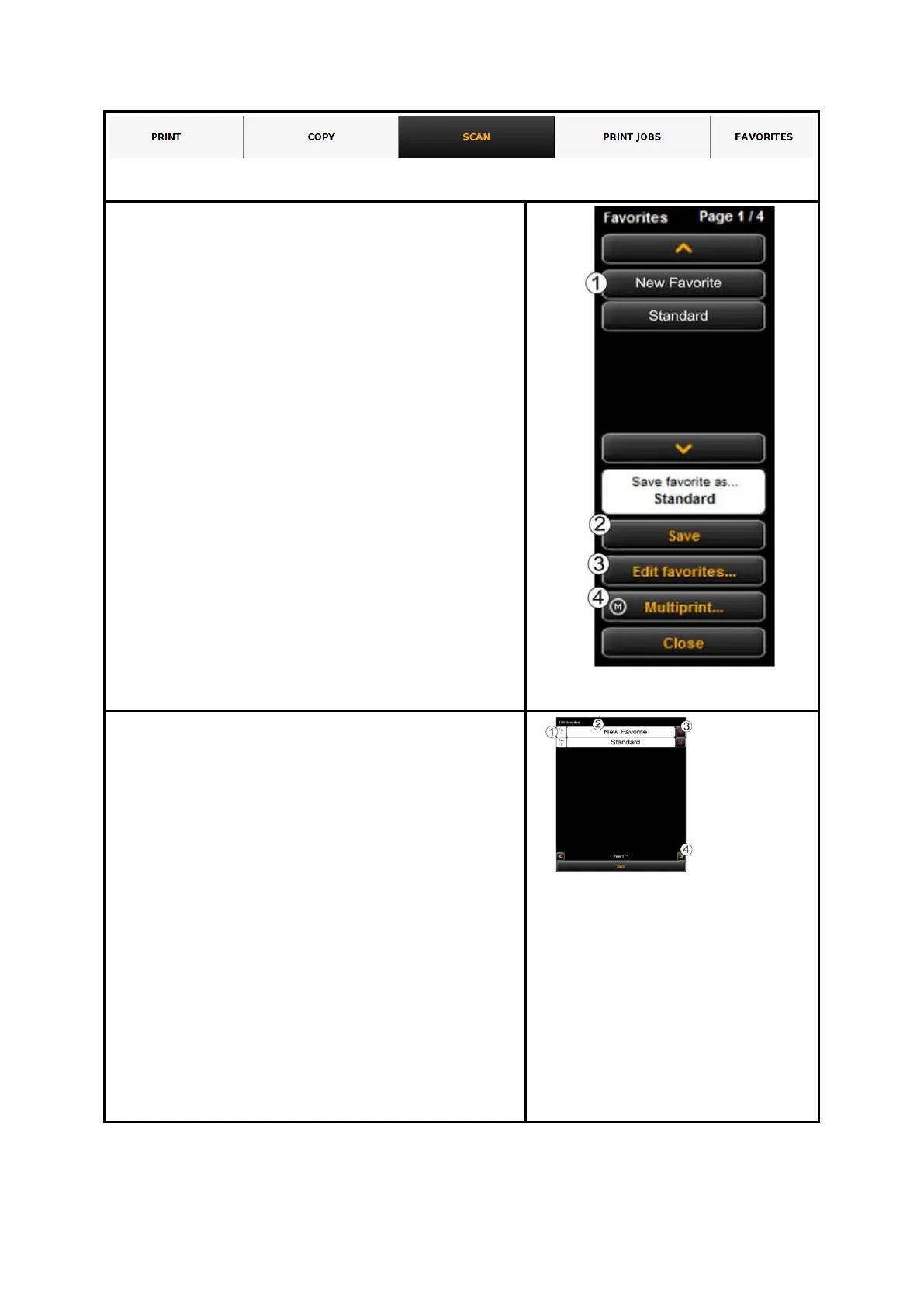
Figure 7.1: Functions - Favorites
When clicking the "Favorites“ function, the depicted
menu pops up:
1. List of favorites: Here, all favorites already
saved are listed. In order to load and
activate the saved settings, simply click on
the entry in the list.
2. Save favorite: If you want to save the
current settings as favorite, press the
"Save“ button. Prior to this enter a name in
the text field. If a favorite with this name
already exists, you are asked whether to
overwrite the latter.
3. Edit favorites: Here, you can rename
favorites and/or allocate them to numeral
keys on the control panel of the scanner
(see Fehler! Verweisquelle konnte
nicht gefunden werden.).
4. Multiprint: This function is useful if you
want to issue copies on several output
devices. The Multiprint function is
described in a separate chapter (see
Chapter 7.11.1)
If you press the "Edit favorites" button (see Fehler!
Verweisquelle konnte nicht gefunden
werden.), the depicted menu pops up:
1. Allocate favorite key: Here, you can
allocate a favorite to a numeral key on the
control panel of the scanner. For this
purpose, enter the number of the key (1-4)
into the text field (1). The favorite settings
are then loaded if you actuate the
corresponding key on the device.
2. Rename favorite: If you want to rename an
existing favorite, enter the new name in the
text field and confirm by pressing Enter.
3. Delete favorite: Actuate this button if you
want to delete the corresponding favorite.
4. Browse: The arrow keys serve to browse
the favorites list if it contains so many
entries that they do not fit the displayed
area.
Figure 7.37: Edit favorites
7.11.1 Multiprint Favorites
By means of the so-called Multiprint function you can output documents simultaneously
on any number of output devices – and namely with individual print settings for each



 To Next Page