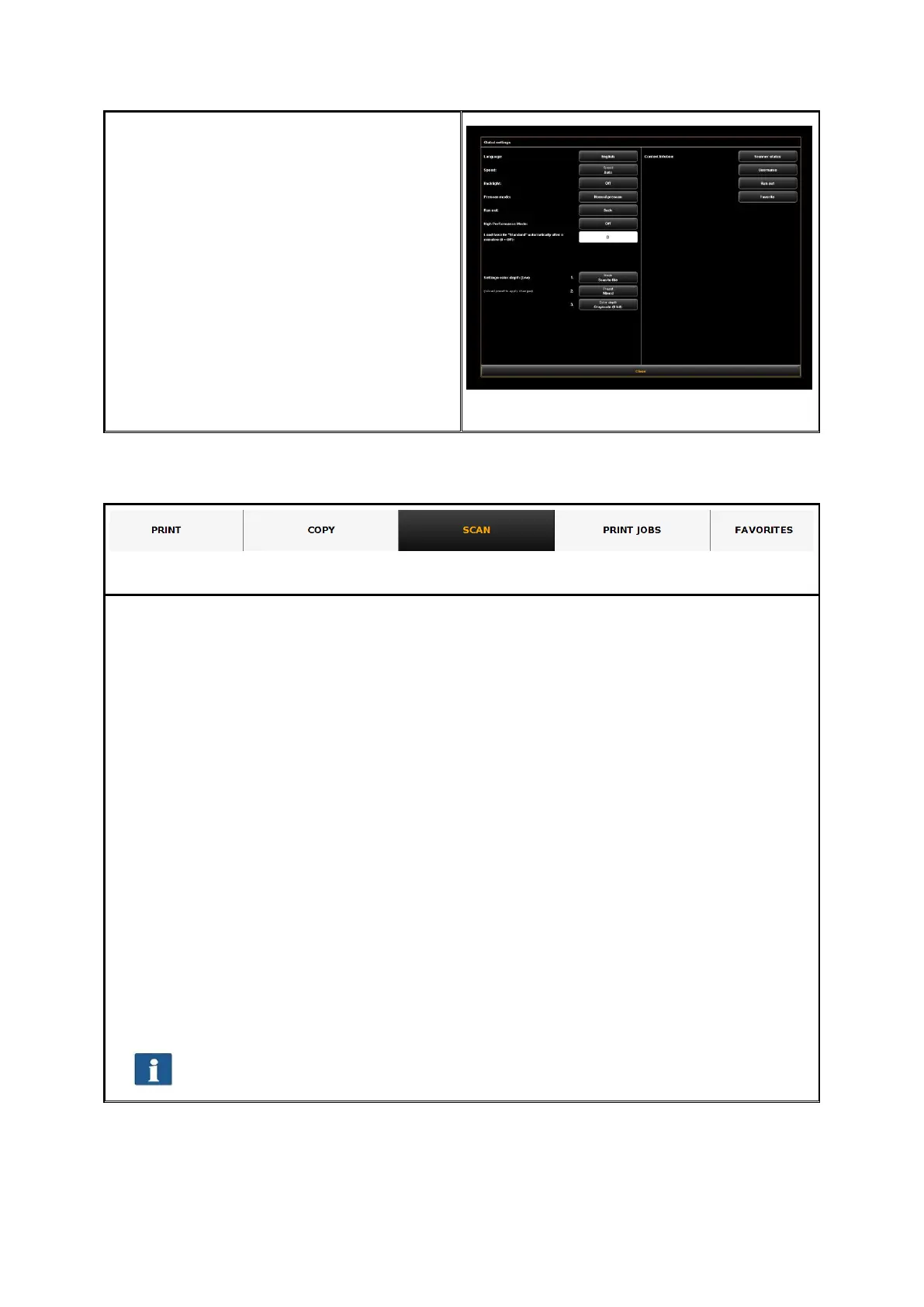
Press the "Language“ button and select the
requested language.
After having selected the respective
language in the list, the selection is
accepted; however, the new language is
activated only after a restart of ROWE SCAN
APP.
By pressing "Close“ you return to the main
window.
In order to render your work as easy as possible, the control elements of ROWE APP
CENTER are divided into so-called functions so that only the required functions are
available.
By selecting one of the buttons in the top line of ROWE APP CENTER you can switch
between different functions. You thereby determine what to do next. The functions have
the following meaning:
Copy: Select "Copy" if you want to output copies of originals on a printer. For
detailed information see chapter 7.10.2, page 48. This function can only be used
by purchasing ROWE COPY APP.
Scan: Select "Scan" if you want to scan originals and save them as image files.
For detailed information see Chapter 7.10.1, Page 45. This function can only be
used by purchasing ROWE SCAN APP
Job list: Select "Job list" if you want to monitor or control current print jobs. For
detailed information see Chapter 7.12, Page 63. This function can only be used
by purchasing ROWE COPY APP or ROWE PRINT APP.
Print: Select this function if you want to print files and/or prepare complex print
jobs / sets. For detailed information see chapter 7.13, page 64. For being able to
use this function, you ROWE PRINT APP.
Favorites: Select "Favorites" to manage frequently used settings. For detailed
information see Chapter 7.11, Page 59.



 To Next Page