8.5.2 Deleting Printer
If you want to remove a printer already
installed, select „Delete printer“ under
"Printer". Afterwards, you are prompted to
select the printer to be deleted. The list
shows all printers already installed. After
having selected the printer to be deleted,
click "Next" and confirm the safety query.
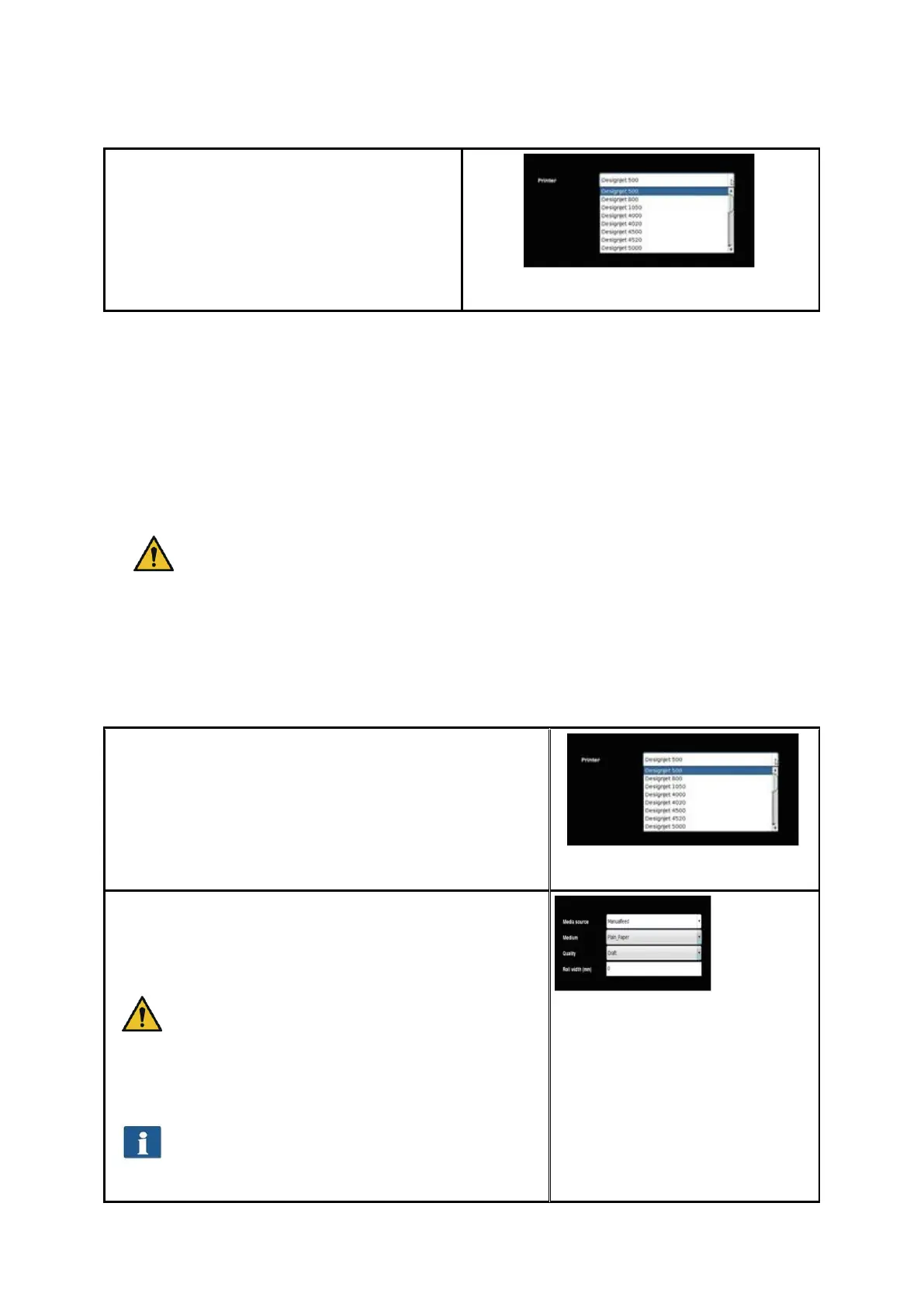
Figure 8.11: Printer selection
8.5.3 Creating a Printer Profile
The color reproduction quality on color printers can be optimized by so-called ICC color
profiles. This optimization is necessary because each printer shows colors differently.
Even if directly comparing two identical printer models, different results may be
produced. All in all, the color reproduction is dependent upon a number of factors, mainly:
1. Printer model but also the device itself,
2. Medium to be printed on (e.g. normal paper, high-gloss photo paper),
3. Age and condition of ink.
The factors printer model and medium have a great influence. In the following
steps of creation of a color profile therefore make sure that the appropriate
medium is actually available in the printer.
In order to achieve a reproducible reproduction of color, ROWE ConfigManager offers the
"Closed loop calibration" option. This means that the printer prints a specific color pattern
(a so-called target) about which the precise color values are known. Afterwards, this
target is scanned with the printer and the actual color values of the individual color fields
are established. An ICC profile is then calculated on the basis of the measured data and
the reference data which compensates "color errors" as well as possible.
In order to optimize the color reproduction for a color
printer you can also have a so-called ICC profile be
calculated automatically. For this purpose, select the
option "Profile printer" under "Printer". Afterwards, you
are prompted to select the printer to be profiled. The
list shows all printers already installed.
Figure 8.12: Printer selection
In the following dialog select the medium for which you
want to create a profile. As some color printers have
several rolls, you further have to indicate on which roll
the medium can be found.
Make sure that the appropriate medium is
actually available on the selected roll.
Afterwards, enter roll width as well as desired quality
level for the target to be printed. Then press "Print
chart“.
If your printer has several rolls which are
provided with different media and if you want
to create a profile for further media, you can
click "Back" afterwards and print the target
Figure 8.13: Selection of
paper grade



 To Next Page