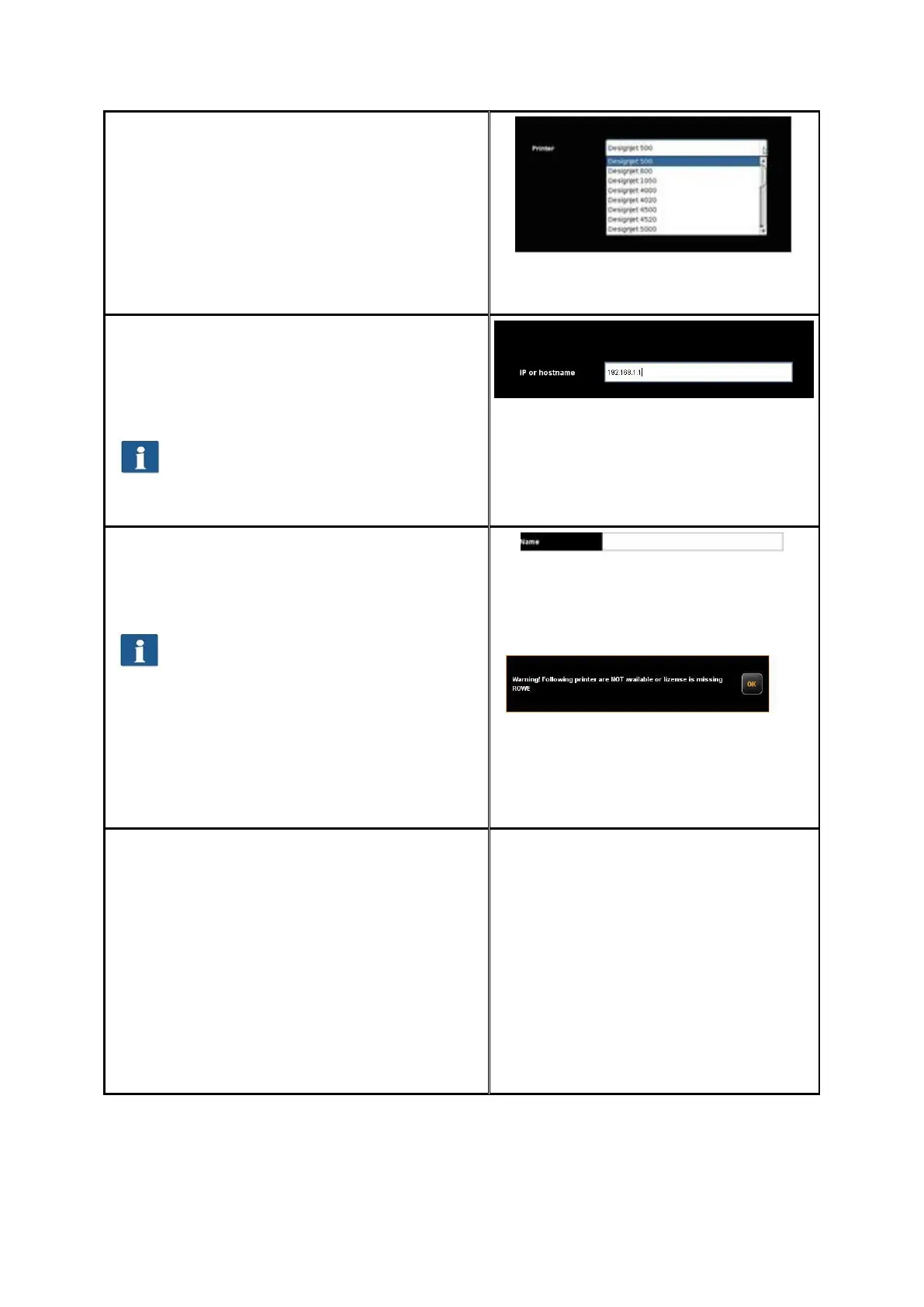
In the next step you are prompted to select the
printer model from the list. Here too, the
available selection is dependent upon the
existing license options.
Press "Next" afterwards.
Figure 8.7: Selection of printer
model
After having selected the printer model, you
have to indicate how to access your printer in
the network. For this purpose, enter the IP
address of the printer or its host name in the
text field.
Should you have problems regarding
the availability of the printer in the
network, check the network settings of
your computer and the printer.
Figure 8.8: Printer IP / host name
Enter any designation for the printer to be set
up in the following text field. The APP then
identifies the printer on the basis of this name
(see printer selection, Chapter 7.10.2.1 ).
The printer name is also saved under
the favorites. Should a printer be saved
in a favorite which is NOT available
(name changed, not available, license
invalid, etc.), a corresponding message
is displayed when starting ROWE
COPY/PRINT APP. In this case, the
loaded favorite should be modified!
Check for: Correct name, network
connection, license, etc.
Figure 8.9: Printer name
Figure 8.10: Warning - printer name
If the printer just added is a color printer, you
are asked whether you want to perform a color
calibration. If yes, click "Start profiling". For the
further steps, please refer to Chapter 8.5.3 as
from Figure 6.13.
If you do not want to affect color profiling, click
"Skip" whereby the printer installation is
completed. You can also perform the color
calibration of the printer later.
If the added printer is not a color printer, the
installation has now been completed
successfully.



 To Next Page