the order given in the list.
2. Move file in list up/down: You can change the print order subsequently by
highlighting the respective file in the list and afterwards pressing the
corresponding arrow key.
3. Preview: By means of this key you open a preview of the file selected in the list
(highlighted in dark gray). You can also open the preview by double-click on the
respective entry in the list. For details on preview see Fehler! Verweisquelle
konnte nicht gefunden werden..
4. Delete file(s): By means of this button you can remove one or several file(s) from
the list.
5. Undo/redo key: By means of this button, various settings can be undone, such as
printer selection.
6. Listing of files: In addition to the file name, further information is given:
Dimensions in mm
Number of pages (for TIFF/PDF files with several pages).
By pressing and holding the Shift and/or Strg key, you can also highlight
several files in the list – as in Windows explorer.
As soon as you highlight a file in the list by clicking, the corresponding settings
are shown under File presets (see 7.13.3).
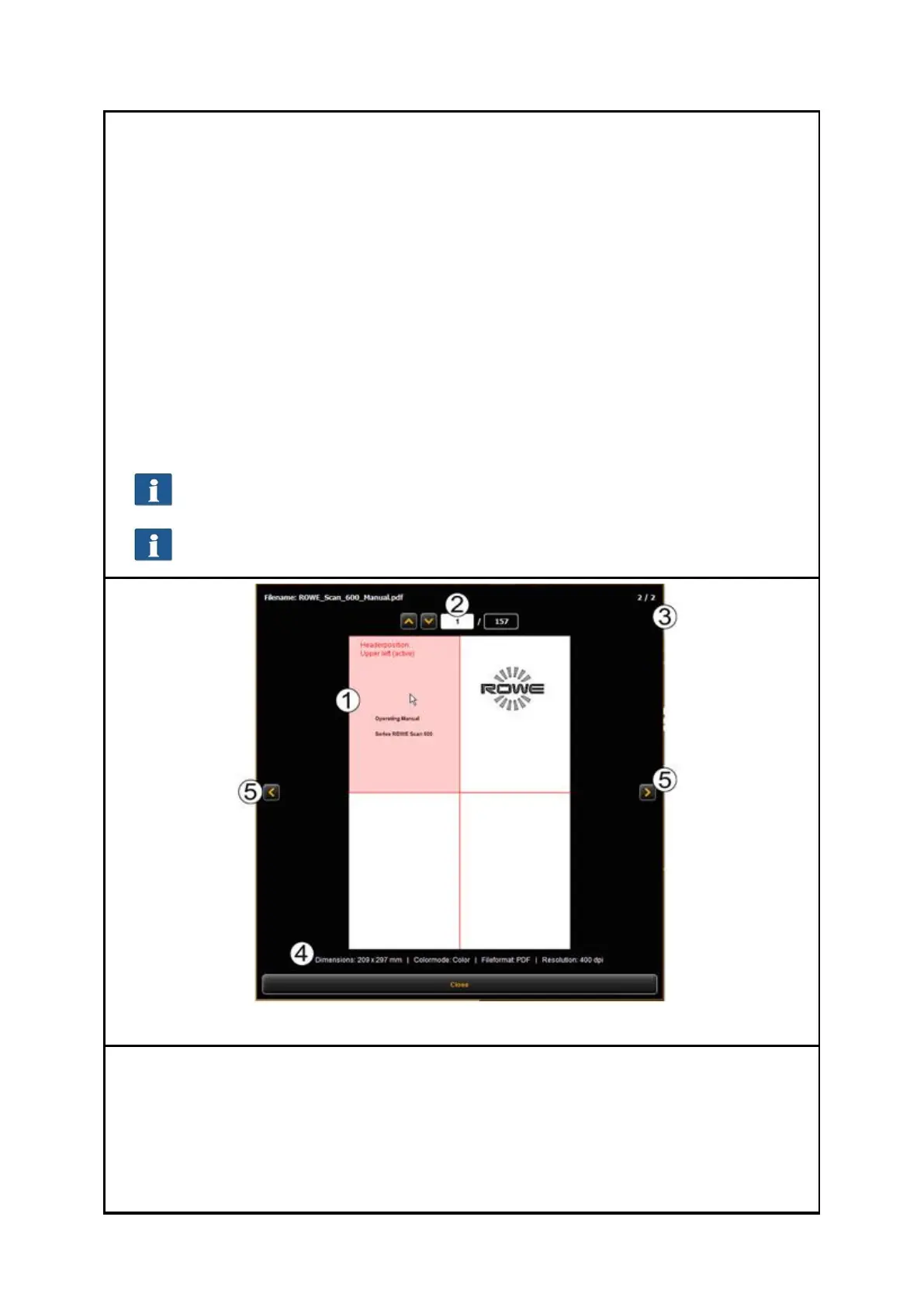
Figure 7.46: File preview
The file preview provides the following options:
1. Set header position: By clicking one of the four quadrants top left, top
right, bottom left, or bottom right you can select where the header shall
be positioned. If you output the file on a ROWE printer and set a folding
program (if a folding machine is available), the file is rotated
automatically in a way that the header is at the top and visible after
folding. For documents with several pages, the header position can be set



 To Next Page