Table of Figures
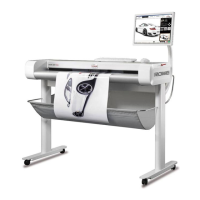
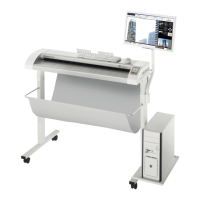
Figure 3.1: ROWE Scan 850i ............................................................................................... 14
Figure 3.2: Control panel ROWE Scan 850i ........................................................................ 15
Figure 3.3: Back of ROWE Scan 850i .................................................................................. 16
Figure 3.4: Unpacking of ROWE Scan 850i ......................................................................... 16
Figure 4.1: Installation screen ............................................................................................ 20
Figure 4.2: Selection of language ....................................................................................... 20
Figure 4.3: Welcome dialog box ......................................................................................... 21
Figure 4.4: Selection of folder ............................................................................................ 21
Figure 4.5: Installation process .......................................................................................... 22
Figure 4.6: Windows logo testing ....................................................................................... 22
Figure 4.7: Driver installation completed ........................................................................... 22
Figure 4.8: Homepage for installation of plug-ins .............................................................. 23
Figure 4.9: License agreement for plug-ins ........................................................................ 23
Figure 4.10: Complete installation of plug-ins ................................................................... 23
Figure 4.11: Prompt to shut computer down ..................................................................... 24
Figure 4.12: USB plug (connection scanner) ...................................................................... 24
Figure 4.13: Disable Windows update ................................................................................ 25
Figure 4.14: Installing driver automatically ........................................................................ 25
Figure 4.15: Continuing driver installation ......................................................................... 25
Figure 4.16: Driver installation finished ............................................................................. 26
Figure 4.17: Start Setup Wizard ......................................................................................... 26
Figure 4.18: Connection establishment .............................................................................. 26
Figure 4.19: License installation ......................................................................................... 27
Figure 4.20: Calibration of scanner .................................................................................... 28
Figure 5.1: Position connector power unit .......................................................................... 30
Figure 5.2: Control panel .................................................................................................... 30
Figure 6.1: Desktop link ScanManager ............................................................................... 32
Figure 6.2: How to position the document ......................................................................... 32
Figure 6.3: Start button control panel ................................................................................ 32
Figure 6.4 Control Panel ..................................................................................................... 33
Figure 7.1: Desktop link ROWE SCAN APP .......................................................................... 36
Figure 7.2: ROWE SCAN APP overview ............................................................................... 37
Figure 7.3: Settings button ................................................................................................. 37
Figure 7.4: ROWE SCAN APP - Settings .............................................................................. 38
Figure 7.5: ROWE APP CENTER: SCAN/COPY/PRINT APP .................................................... 38
Figure 7.6: Main viewer ...................................................................................................... 39
Figure 7.7: Interaction General Viewer - Main Viewer ........................................................ 40
Figure 7.8: Toolbar with action keys .................................................................................. 40
Figure 7.9: Toolbar above Main Viewer .............................................................................. 42
Figure 7.10: Toolbar under Main Viewer ............................................................................ 43
Figure 7.11: Scan settings .................................................................................................. 45
Figure 7.12: Settings Storage location ............................................................................... 46
Figure 7.13: Target folder ................................................................................................... 46
Figure 7.14: "Scan to Mail" - E-mail address ...................................................................... 46
Figure 7.15: Storage location - USB data carrier ................................................................ 47
Figure 7.16: Settings - File format ...................................................................................... 47
Figure 7.17: Multipage settings .......................................................................................... 48
Figure 7.18: Settings – ROWE COPY APP ............................................................................ 48
Figure 7.19: Printer selection ............................................................................................. 49
Figure 7.20: Folder settings ................................................................................................ 50
Figure 7.21: Extended settings for ROWE printer .............................................................. 50
Figure 7.22: Output settings for inkjet printer ................................................................... 51
Figure 7.23: Set function .................................................................................................... 52
Figure 7.24: Query whether set shall be printed immediately........................................... 52
Figure 7.25: Color mode ..................................................................................................... 52
Figure 7.26: Quality settings .............................................................................................. 53
Figure 7.27: Expert mode – Image settings ....................................................................... 54
Figure 7.28: Expert mode – Color settings ......................................................................... 55
Figure 7.29: Scan format .................................................................................................... 57
Figure 7.30: Autoformat ..................................................................................................... 57


 To Next Page