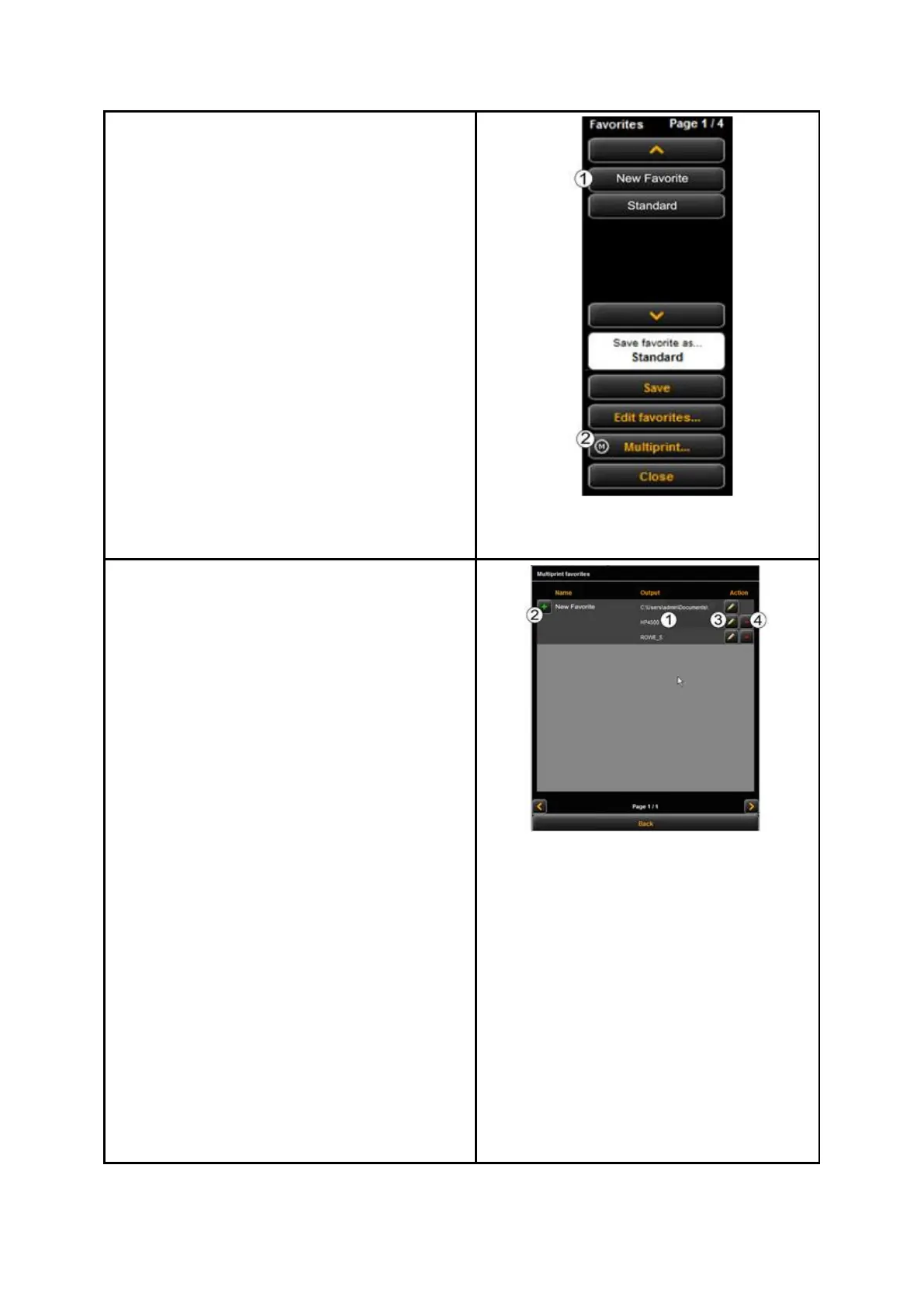
In the list of favorites (1) (click function
Favorites), a Multiprint favorite is marked
with an (M).
In order to create a Multiprint favorite or to
extend a favorite by another output
configuration, make all requested settings in
the ROWE COPY/PRINT APP.
Afterwards, you have to add the respective
settings as additional output configuration to
an existing favorite. In this respect, it is
irrelevant whether this favorite already has
several output configurations (M) or not.
Press the Multiprint (2) button. Afterwards,
the dialog depicted in Figure 72 pops up.
In this dialog box, you can see how many
output configurations the favorite has and to
which output devices they refer (1) (for "Scan
to File" the target folder is indicated). In the
shown example, the favorite "New favorite" is
a Multiprint favorite with three output
options: Scan to File on drive C:\, copy/copies
on printer HP5500 as well as copy/copies on
printer RCS6000. Now, you have the following
options:
Add new output configuration (2):
Another output configuration is
added. The new configuration
includes the parameters currently set
in the ROWE COPY/PRINT APP.
Edit output configuration (3): Here,
you can subsequently change the
settings for the respective
configuration. When pressing the
button, you move automatically to
the ROWE COPY/PRINT APP settings
where you can make the desired
changes. At the top edge of the
Viewer an additional bar with the
buttons "Save" and "Cancel" is
depicted. Click "Save" after having
effected all changes.
Delete output configuration (4): Click
here if you want to remove an output
configuration from the favorite.


 To Next Page
 Loading...


