Chapter 7
Database Screen
If there was no footscan database present during the installation of
footscan 9, the installer has copied a demo database.
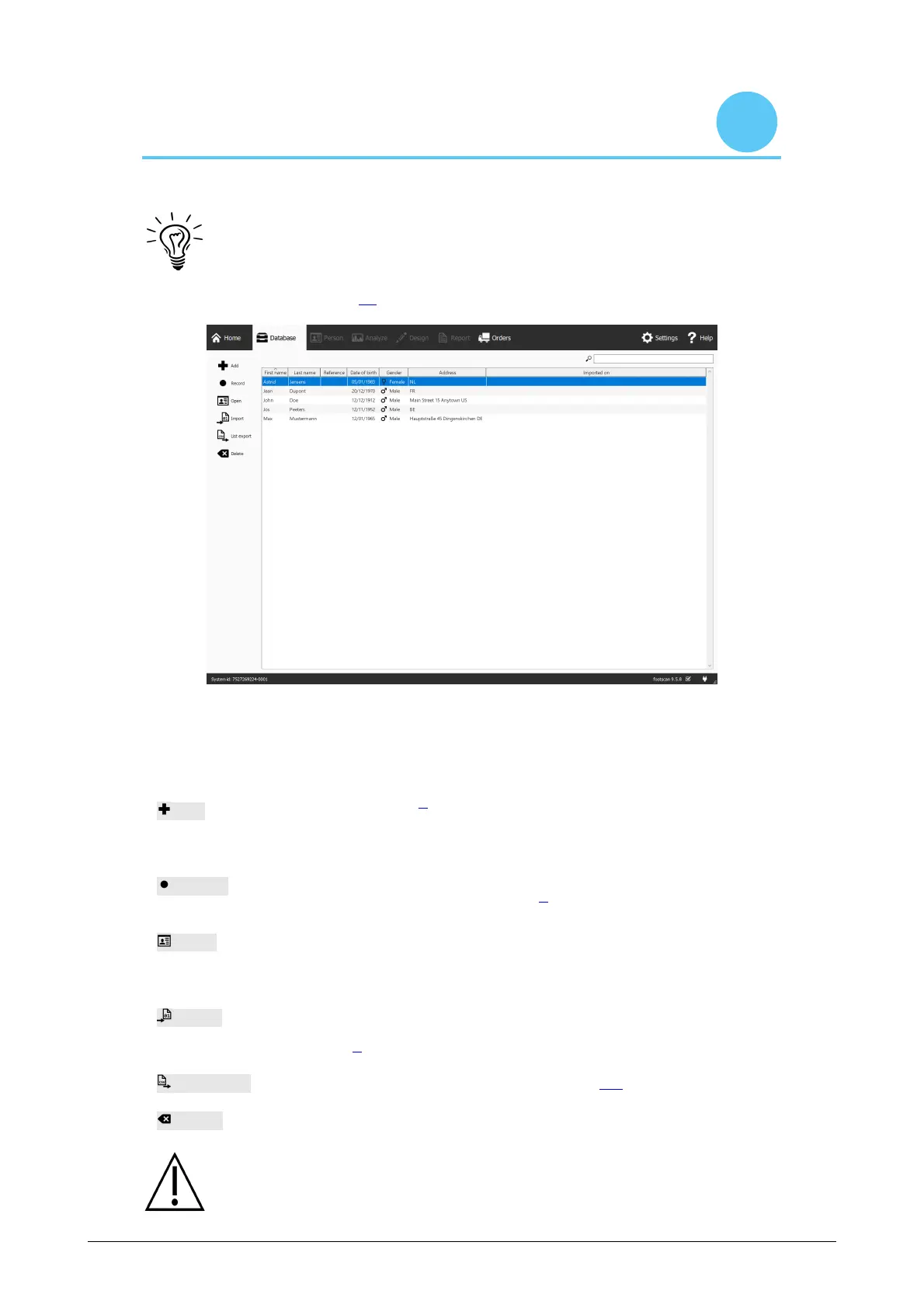
The Database screen (Figure 25) lists all clients stored by footscan 9.
Figure 25: The Database screen lists all clients stored by footscan 9.
At the left there are buttons to edit the contents of the clients table:
Add
Add a client to the table. The application navigates to the Client
screen (Chapter 8). The Client screen has the appropriate user
interface to complete all relevant personal information about a new
client.
Record
Record a new measurement for the selected client. The application
starts the Record wizard (Chapter 9).
Open
Open the Client screen to edit the personal information of the
selected client. Alternatively double-click the selected client.
Import
Import a client and its sessions into the application. Provide
footscan 9 with a valid exported database when asked. Upon
completion the table shows the newly imported client. Refer to
Chapter 8 to learn how to export a client's sessions.
List export Exports a list of all clients as text (Chapter 7.1).
Delete Delete all data of the selected client, including all measurements.
Deleting a client is permanent! Please make 100% sure the selected client's
data and measurements are no longer needed.
®
®
®
®
®


 To Next Page