Chapter 9
Record Wizard
The Record wizard assists you in creating a measurement session. A measurement
session may hold four measurements: a 3D scan, a static, a balance and a dynamic
measurement.
Note that while in the Record wizard other screens are inaccessible. As a reference the
name, picture and birth date of the client is at the left of the screen. At each step in the
wizard there is at least a button to skip the current stage.
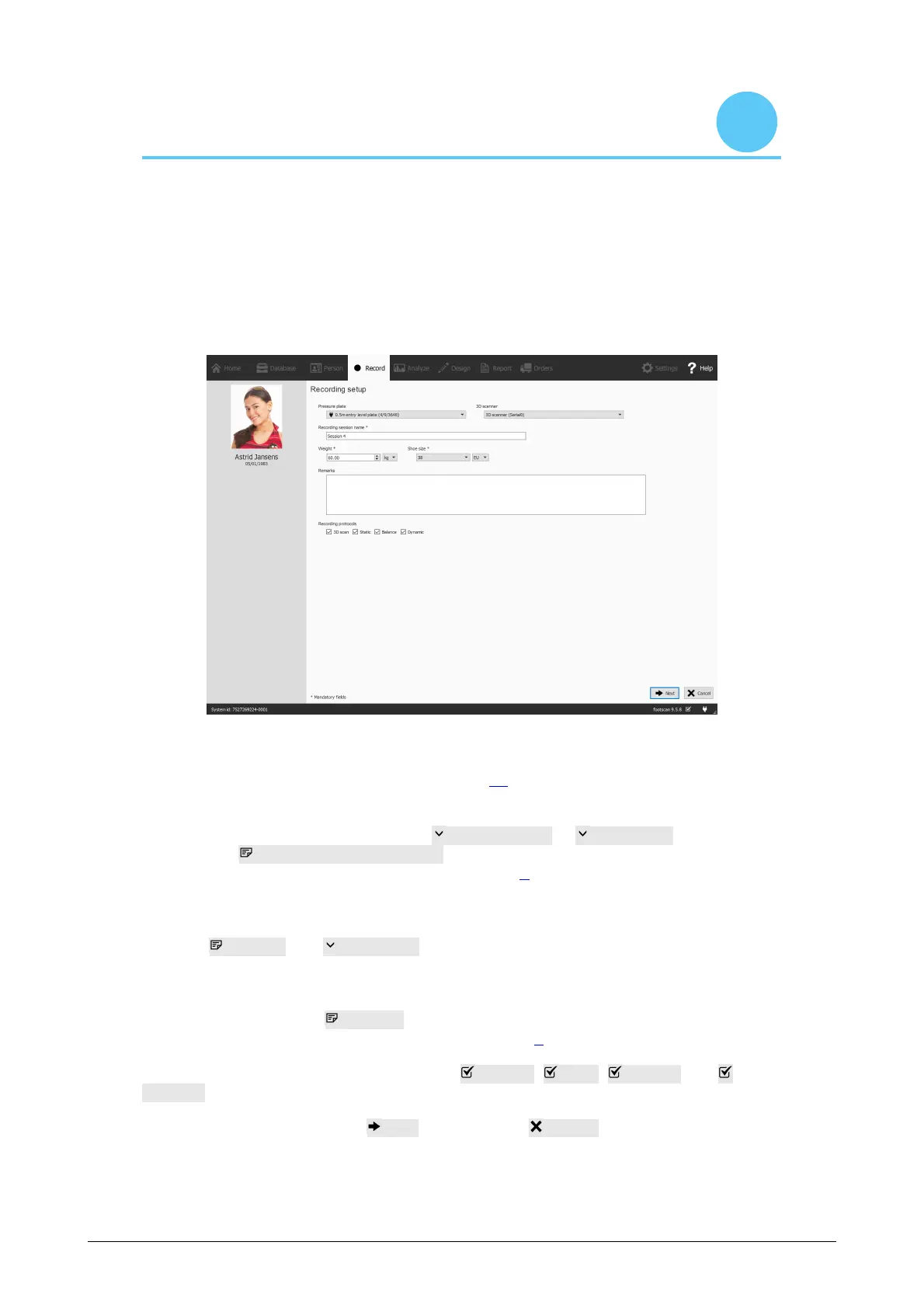
Figure 30: The Record setup asks for information about the client and the session
which is required by the Record wizard to proceed.
Recording setup The Recording setup (Figure 30) needs information about the client
and session before it can proceed. Fields in the form marked with a * are mandatory.
First of all the Record wizard requires a Pressure plate or 3D scanner with which to
record and a Recording session name *. This name is useful to identify the
measurement session in the Client screen (Chapter 8). The Recording setup suggests a
name when initiating the Record wizard.
Furthermore the foot recognition algorithms used during the measurements need
accurate Weight * and Shoe size * of the client for optimal results. footscan 9
remembers the values of the client's latest measurement session and uses them
initially.
Optionally, one may add Remarks to the measurement session. These remarks
appear in the Client screen's list of sessions (Chapter 8).
By selecting or deselecting the checkboxes 3D scan, Static, Balance and
Dynamic one can choose which recording(s) will be performed.
After completing the form click Next to proceed, or Cancel to exit the record wizard
without creating a measurement session.
3D scanner recording The 3D scanner recording creates a 3D representation of the
client's feet.
®


 To Next Page