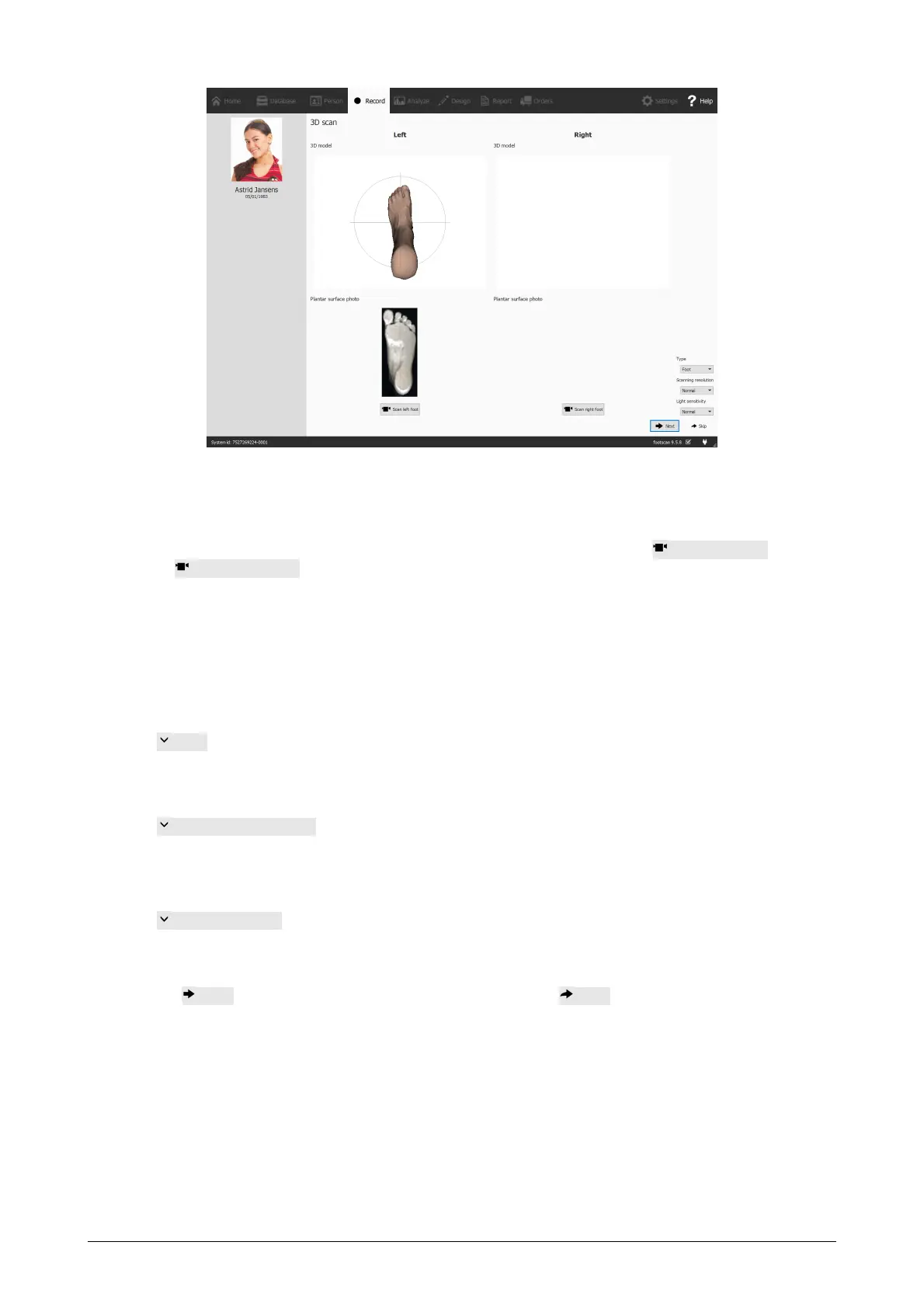
Figure 31: The 3D scanner recording creates a 3D representation and makes a plantar
surface photo of the client's feet.
The 3D Scanner Recording stage shows a preview window for the 3D model and
plantar surface photo of the scanned left and right foot. The 3D Scan Recording is
performed on each foot separately and can be initiated by clicking the Scan left foot
and Scan right foot buttons. For an accurate recording, it is important to stand as still
as possible in the center of the 3D scanner while it is scanning. The result of the 3D
scan will be shown as a top-down 3D view and plantar surface photo of the scanned
foot as soon as the 3D data has been processed.
The following scanning options are available:
Type
Controls the type of scan. Can either be "Foot" or
"Foambox". Choose "Foot" to scan regular (convex)
objects like feet. Choose "Foambox" to scan foam
impression boxes or other objects that are concave.
Scanning resolution
Controls the scanning resolution. A higher scanning
resolution will result in a more detailed scan, while a lower
resolution will result in a faster, but less detailed, scan.
Light sensitivity
Controls the sensitivity to light of the 3d scan. The light
sensitivity needs to be increased when scanning dark
objects. Also note that when the light sensitivity is higher,
the scans will be more affected by the lightning conditions
of the room or environment.
Click Next to save the 3D scanner measurement. Click Skip to discard it.
Static recording The static measurement captures a static picture of the pressure
distribution under the client's feet while standing on the plate.


 To Next Page