DBP Digital Beltpack Create an Intercom connection | en 17
Bosch Security Systems, LLC
Technical Manual
2021-06 | 01 | F.01U.380.825
Notice!
If you are connecting a DBP or Keypanel in order to power it up on this port, choose Channel
1. Any other port is an Aux port and the DBP has only two channels.
1. Enter the device name of the partner device to connect to this port.
2. Select the type of partner device.
3. Select the channel number on the partner device to connect to.
4. (Optional) Change the Rx Latency for the connection.
The default is recommended.
5. When finished, press ENC1 to exit.
6. Choose Save to save the changes.
6.2.2 Configure ODIN to make a connection offer
Notice!
For more information, see the ODIN manual found at www.rtsintercoms.com
To connect a DBP to an ODIN, do the following:
1. Navigate to the OMNEO icon.
2. Click the right encoder knob.
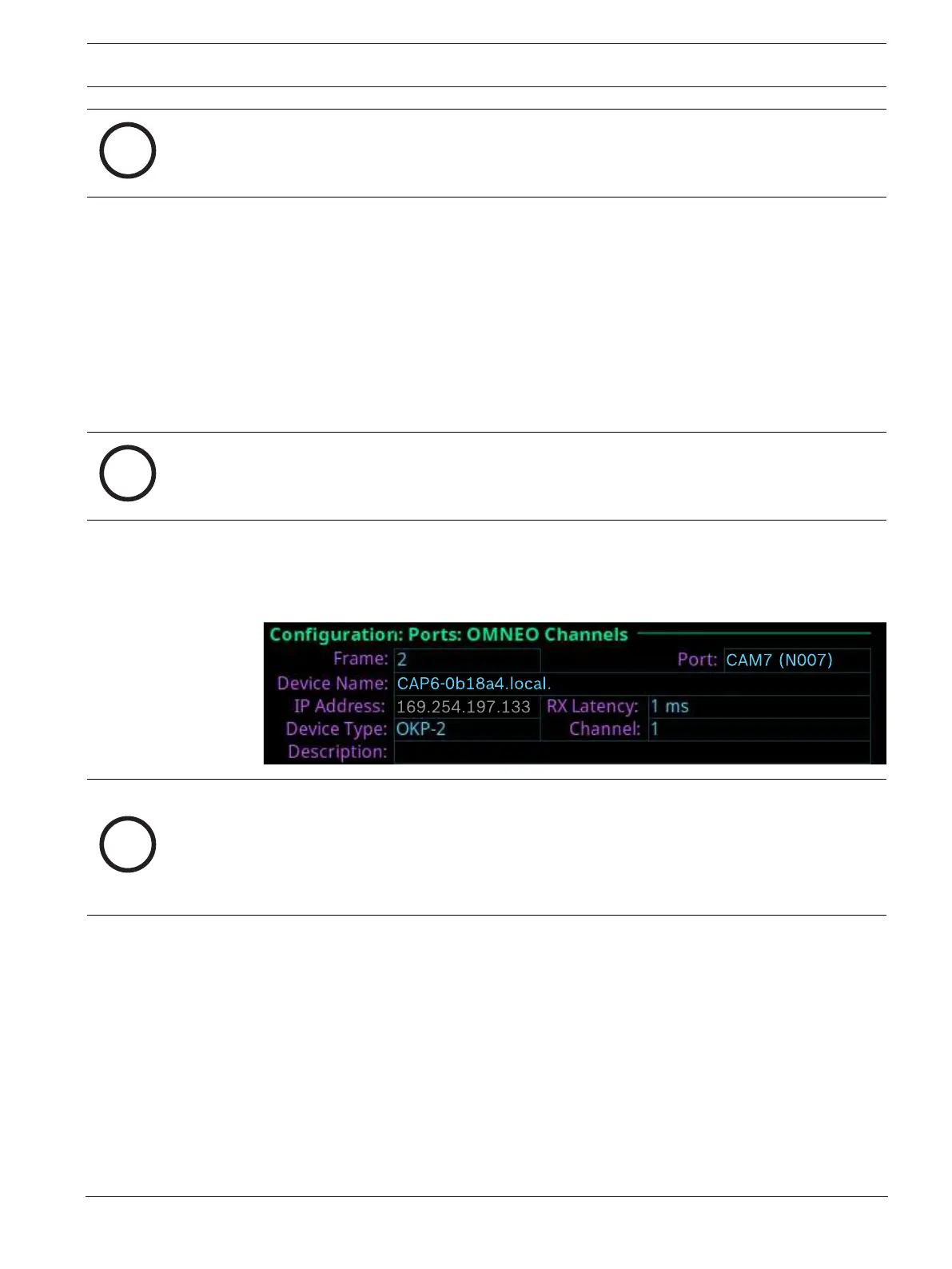
The OMNEO Channels screen displays.
Notice!
If the intercom system contains only one ODIN frame, the Frame field is not displayed. If the
intercom system contains multiple ODIN frames, the Frame field activates and allows ports in
other frames to be selected and configured. While the Frame field is highlighted, press the
right encoder knob to activate the field. Once activated, turn the right encoder knob to select
another frame in the system.
3. Navigate to the Port field.
4. Click the right encoder knob.
The Port field becomes active.
5. Scroll to the desired port.
6. Navigate to the Device Name field.
7. Enter the device name of the partner device to connect to this port.
8. Navigate to the Device Type field.
9. Scroll to the OMNEO device type of the partner device.
10. Navigate to the channel field.
11. Scroll to the desired channel on the partner device.
12. (Optional) Enter a description for this connection.



 To Next Page