18 en | Create an Intercom connection DBP Digital Beltpack
2021-06 | 01 | F.01U.380.825
Technical Manual
Bosch Security Systems, LLC
13. (Optional) Select the latency to use for this connection. (1 ms is recommended for best
quality).
14. Click the left encoder knob to exit the screen.
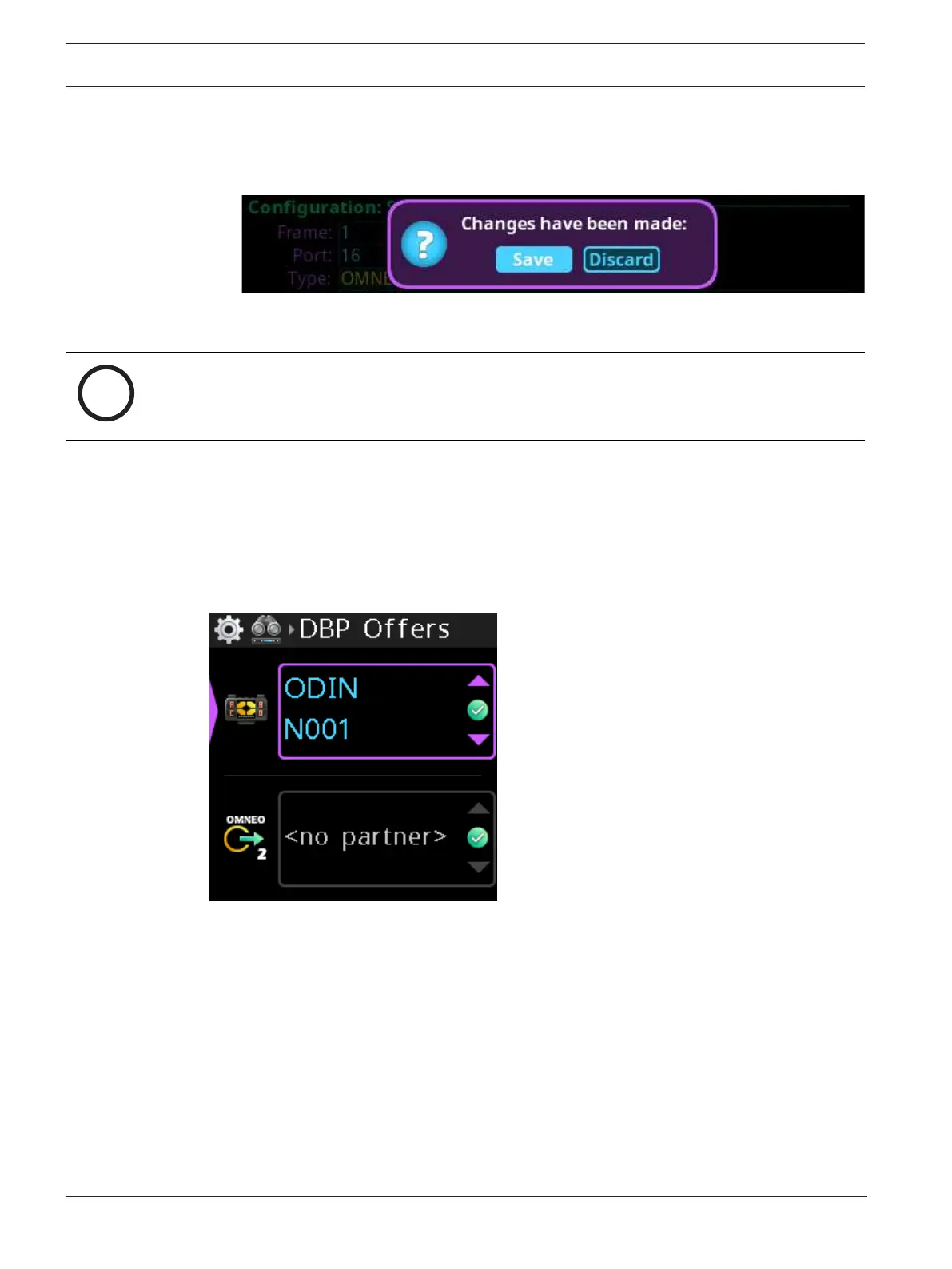
A Changes Made confirmation message displays.
15. Navigate to the desired action.
16. Click the right encoder knob to confirm.
Notice!
Alternately, the left shaft encoder can be clicked or the CLR button can be pressed to cancel
this prompt and go back to editing the underlying screen.
17. Click the right encoder knob to confirm the selection.
6.3 Accept a connection offer on DBP
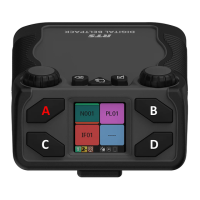
To accept a DBP Offer, do the following:
1. Navigate to the DBP Offers menu item (Setup | Offers | DBP Offers).
2. Press the SEL/MENU button.
The field highlights.
3. Rotate either shaft encoder to scroll through the available offers.
4. Press the SEL/MENU button to confirm the change, or press the CLR/BACK button to
abort changes.
6.4 Create connections using IPedit
6.4.1 Add DBP to IPedit
To add a DBP to IPedit, do the following:
1. Open IPedit.
2. Select Add from the Device menu.
The Add Devices screen displays.



 To Next Page