76 en | Menu Structure DBP Digital Beltpack
2021-06 | 01 | F.01U.380.825
Technical Manual
Bosch Security Systems, LLC
5. Press the SEL/MENU button to confirm the change, or press the CLR/BACK button to
abort changes.
9.12.3 Headset Right
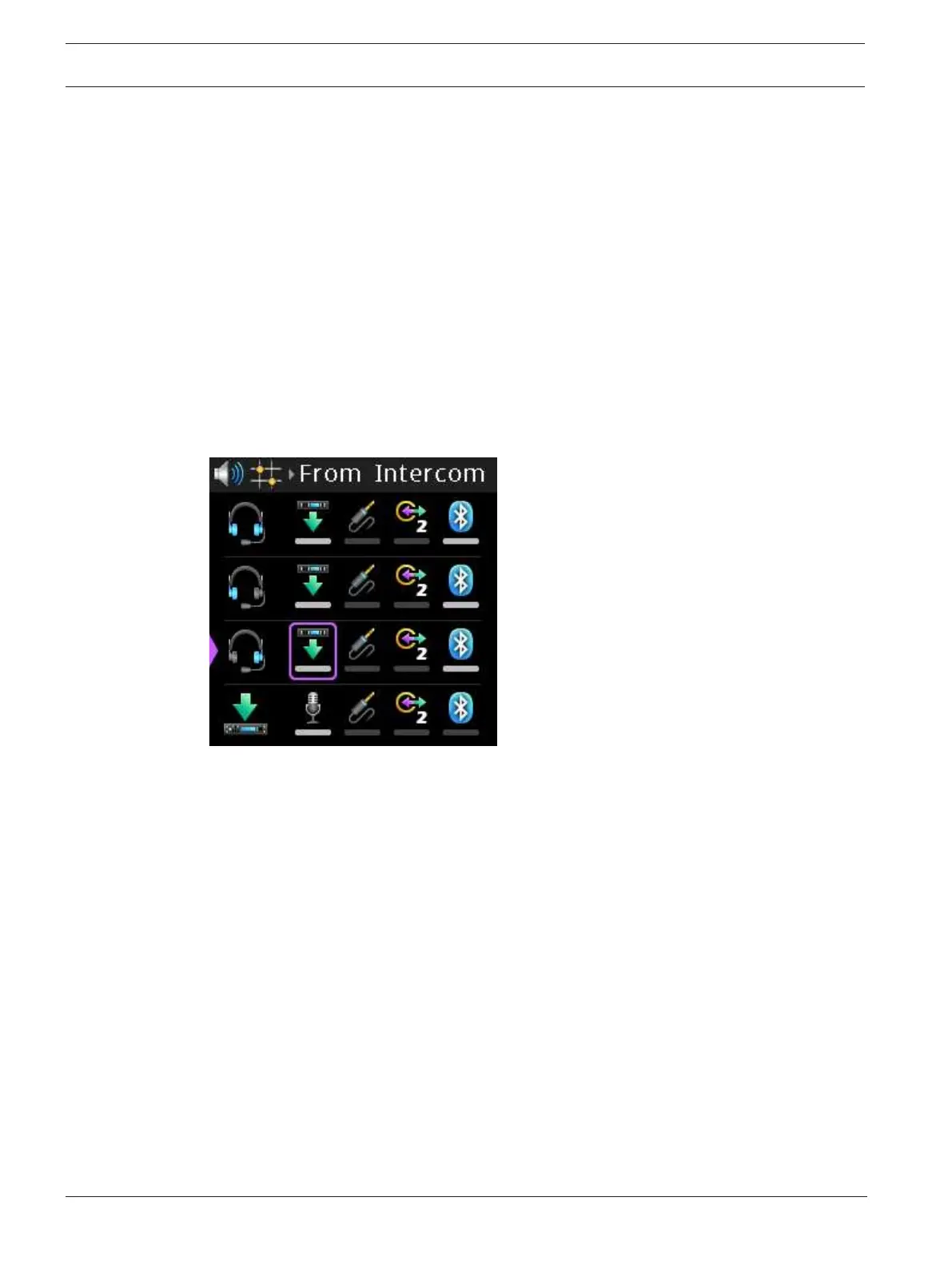
Use the Headset Right menu item to select which input sources are routed to the right
channel of the headset independently to those routed to the left channel
By default, From Intercom is selected. If Bluetooth is installed, then From Intercom and BT are
selected.
Available options for this field are From Intercom, 3.5mm Aux In, OMNEO Ch2 In, and
Bluetooth In (if installed).
To select which input sources are routed to the right channel of the headset, do the
following:
1. Navigate to the Headset Right menu item (Audio | Mixers | Headset Right).
2. Press the SEL/MENU button.
The field becomes active.
3. Rotate the A/C shaft encoder to scroll through the selections.
4. Rotate the B/D shaft encoder to select or deselect the item.
5. Press the SEL/MENU button to confirm the change, or press the CLR/BACK button to
abort changes.
9.12.4 To Intercom
Use the To Intercom menu item to select the input sources routed to the intercom.
By default, the Active Mic resource is selected.
Available options for this field are Active Mic, 3.5mm Aux In, OMNEO Ch2 In, and Bluetooth In
(if available).
To select the input sources routed To Intercom, do the following:
1. Navigate to the To Intercom menu item (Audio | Mixers | To Intercom).
2. Press the SEL/MENU button.
The field becomes active.



 To Next Page