95
Service Manual
7 Settings Import/Export
Caution:
Copy USB to hard drive will replace
all user setting in the system
including patient database. Please
use it wisely.
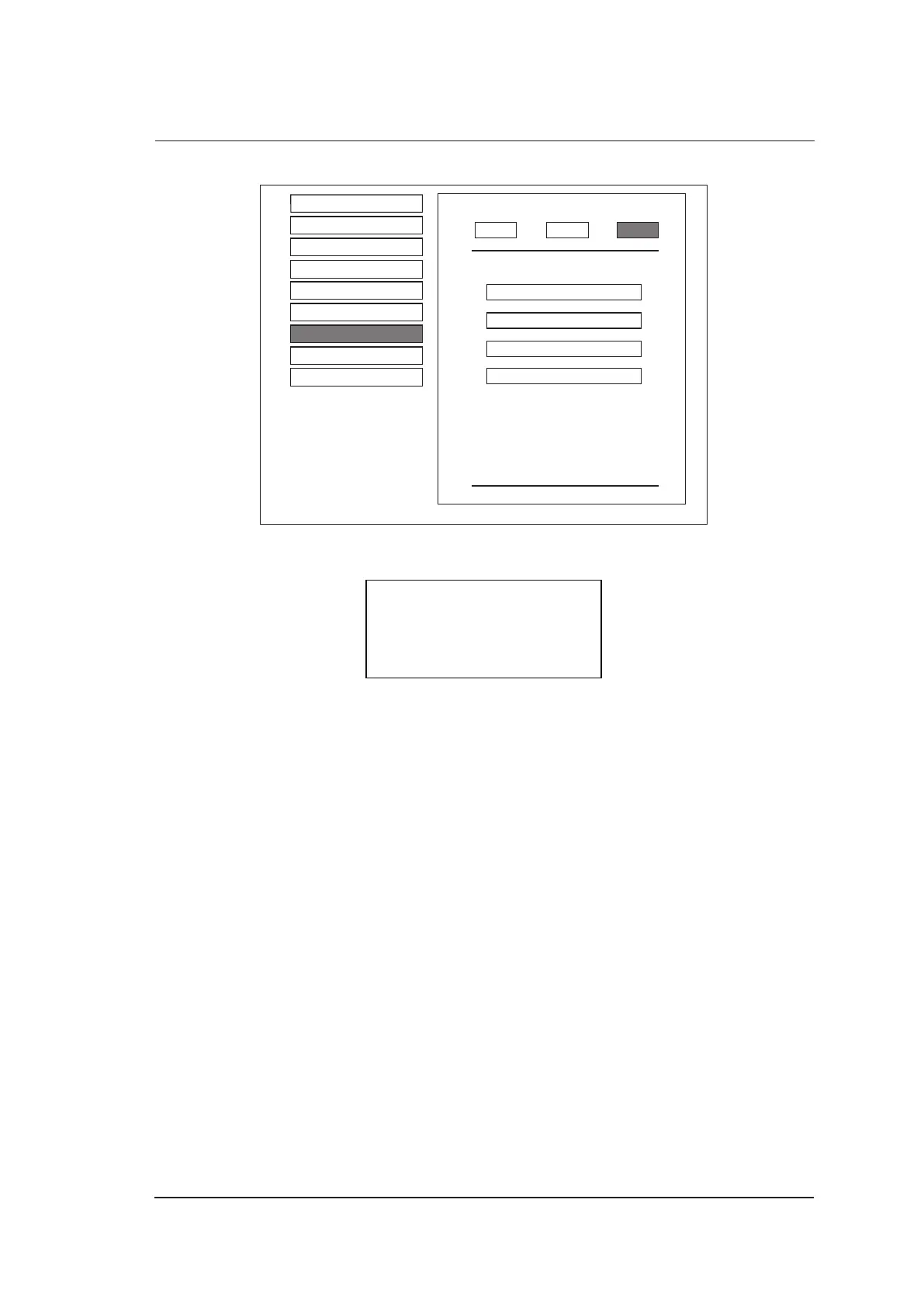
Load Create Retrieve
Make sure USB drive in the USB slot
Copy user setting to USB
Copy user preset to USB
Load USB user setting to system
Load USB user preset to system
General Settings
Set Printer
Set Calculation Menu
Set Measurement Method
Annotation Edit
Define Quick Key
Load Default
DICOM Settings
Exit
3. Select Copy user setting to USB, and then press Y in the following dialogue box to export
settings to the USB drive.
!Make sure USB driver ready!
Copy setting?
Continue? [Y/N]
7.2.2 System Settings Import
1. Copy the system settings file into the root directory of the USB drive, and ensure its version is
consistent with that of the ultrasound system. Otherwise, a failure prompt Version is not match
is displayed.
2. Start up the ultrasound system, and connect the USB drive to the system when the Exam screen
is displayed.
3. Choose Menu -> System Settings -> Load Default -> Retrieve -> Copy user setting to USB ->
Y to confirm.
4. Remove the USB drive from the system when Load userdata successful pops up.
NOTE:
Ensure only one
userdataX.X.X.X.-oo.tar.gz
file is in the USB drive. Otherwise, a failure import
may result or the imported file cannot be recognized.



 To Next Page