86 Service Manual
6 Software Installation and Upgrade
To write the update file to USB drive through ultrasound system
1. Start up the ultrasound system, and connect the USB keyboard to the system when the user
interface displays.
2. Long press the Delete key for 5 seconds to enter the BIOS screen.
3. Place the CD written with kernel files on the PC drive, and then connect the USB drive to the
system.
4. Set First Boot Device of Advanced BIOS Features to CDROM on the BIOS screen.
6.2 Touch-Screen Software Update
1. Back up the touch-screen software to the USB drive.
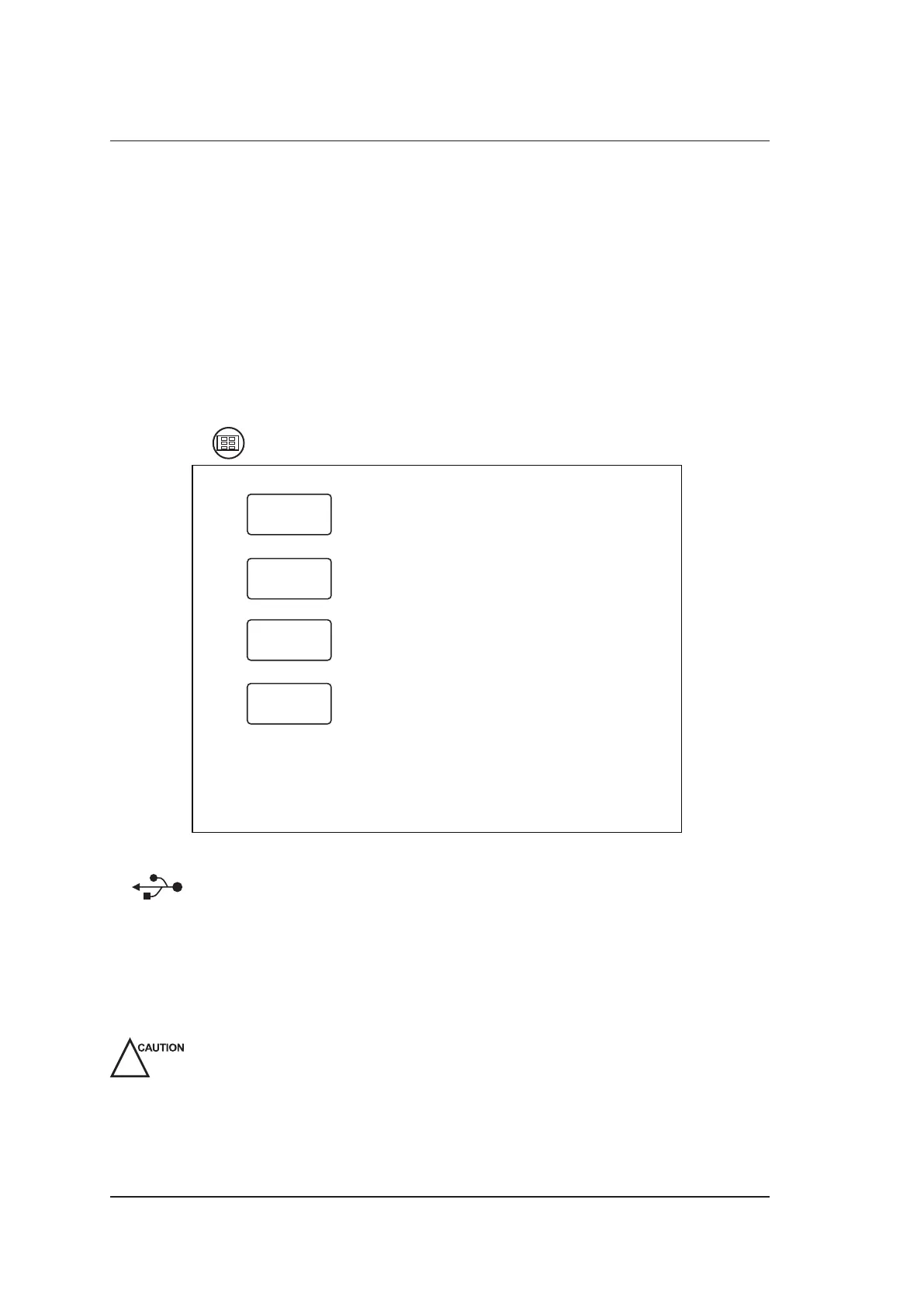
2. Long press to display the following screen.
Exit
Version
Touch
Adjust
System
Update
3. Connect the USB2.0 drive written with kernel files to the system.
4. appears if the USB drive is detected.
5. Select System Update on the touch screen to upgrade the system with a prompt Updating
Standby.
6. The upgrade needs several minutes, and it completes when Update Finished, Restart! pops up.
You can remove the USB drive and reboot the system for future use.
If Illegal Update File pops up, select OK to back to the above screen.
During the system update, messages or icons are displayed to indicate that the system
is busy. You should wait and not to shut down the system until the system update
completes. Otherwise, the system cannot be started up.



 To Next Page