14215700-IG, Edition 15.0
May 2020, Original document
133
Configuring Security Settings and Changing System
Password
It is recommended to change the password for the devices. To change the password and other
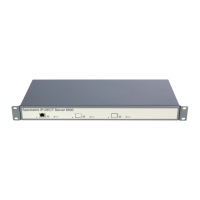
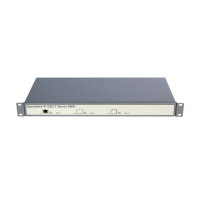
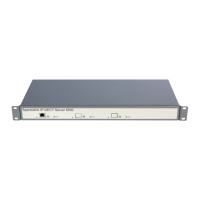
security settings from the web based Administration Page of the different devices (server, base sta-
tions and media resources):
1. Click Configuration, and then click Security.
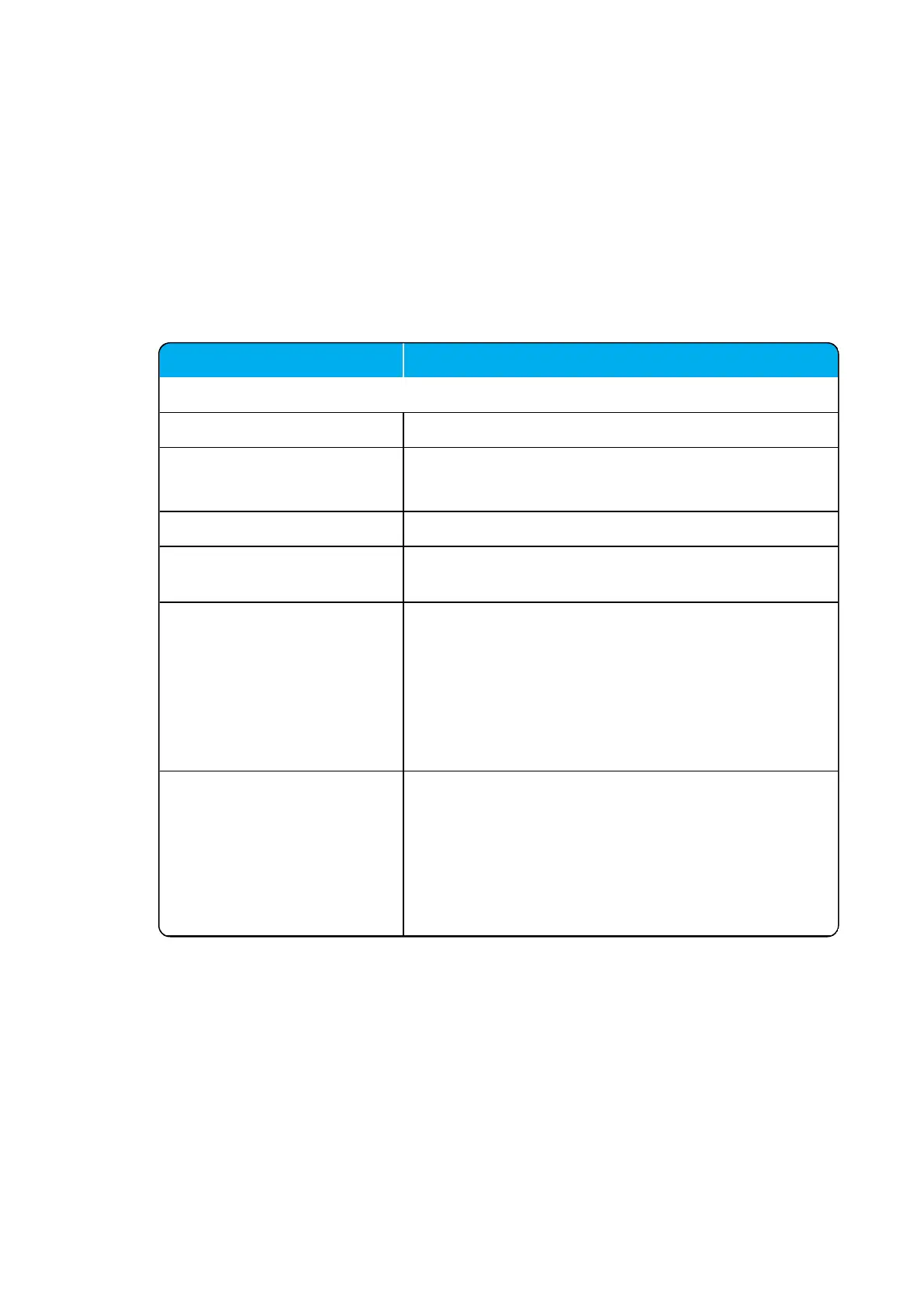
2. On the Security Configurationpage, enter the following data:
Field Setting
Security Configuration - Administrator Authentication
Current password Enter the current password.
New username Enter a new username.
Note: Requires a reboot of the server.
New password (Optional) Enter a new password.
New password again
(Optional)
Enter the new password again to confirm.
Strict password requirements
(Optional)
If enabling strict password requirements, the device can
be configured to enforce certain security rules and naming
conventions. For more information, see "Strict Password
Requirements" on page135.
Note: Once enabled, this setting can only be disabled by a
factory reset (Configuration > Factory Reset) that will
remove all configuration and user data.
Password expiration (Optional) Select when you want the password to expire.
Possible values: Never, 30 days or 90 days.
Default value: Never
Note: Once enabled, this setting can only be disabled by a
factory reset (Configuration > Factory Reset) that will
remove all configuration and user data.
Spectralink IP-DECT Server 200/400/6500 and Virtual IP-DECT Server One Installation and Configuration Guide



 To Next Page