14215700-IG, Edition 15.0
May 2020, Original document
174
Signing a Host Certificate with the CA Certificate
The following describes how to sign the host certificate from Microsoft Active Directory Certificate
Services. If not using Microsoft Active Directory Certificate Services, please refer to the vendor doc-
umentation.
1. Open Microsoft Active Directory Certificate Services in your browser.
E.g.: https://ca.example.org/certsrv/
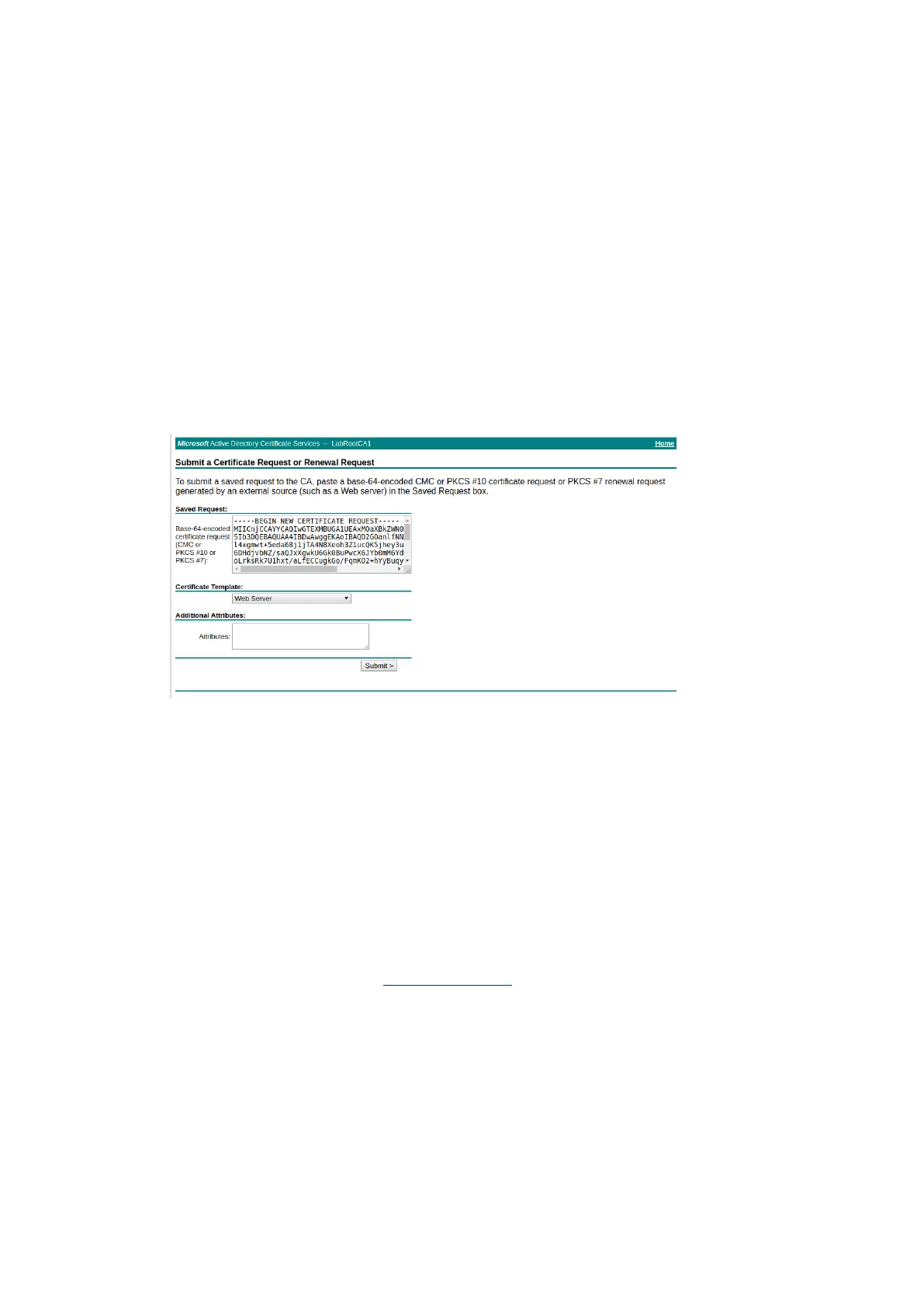
2. Select Request a certificate.
3. Select Advanced certificate request.
4. Paste the content of the host certificate request file previously downloaded from the Spec-
tralink IP-DECT/Virtual IP-DECT Server into the Saved Request text box.
5. From the Certificate Template list, select Web Server or any applicable locally defined tem-
plate.
6. Click Submit.
7. Select Base 64 encoded.
8. Click Download certificate.
9. The signed host certificate is downloaded to your browser and will be used later in the con-
figuration of the Spectralink IP-DECT/Virtual IP-DECT Server.
Importing the Host and CA Certificates
The following describes how to import host an CA certificates from the web based Administration
Page of the Spectralink IP-DECT/Virtual IP-DECT Server.
1. Click Configuration, and then click Certificates.
2. On the CA Certificates page, browse for/import the relevant signed host certificate file.
3. Reboot the server.
For more information about use of TLS and callhandlers, see the relevant Interoperability Guides
and Callhandler documentation.
Spectralink IP-DECT Server 200/400/6500 and Virtual IP-DECT Server One Installation and Configuration Guide



 To Next Page