1. Click Firmware, and then click Handset.
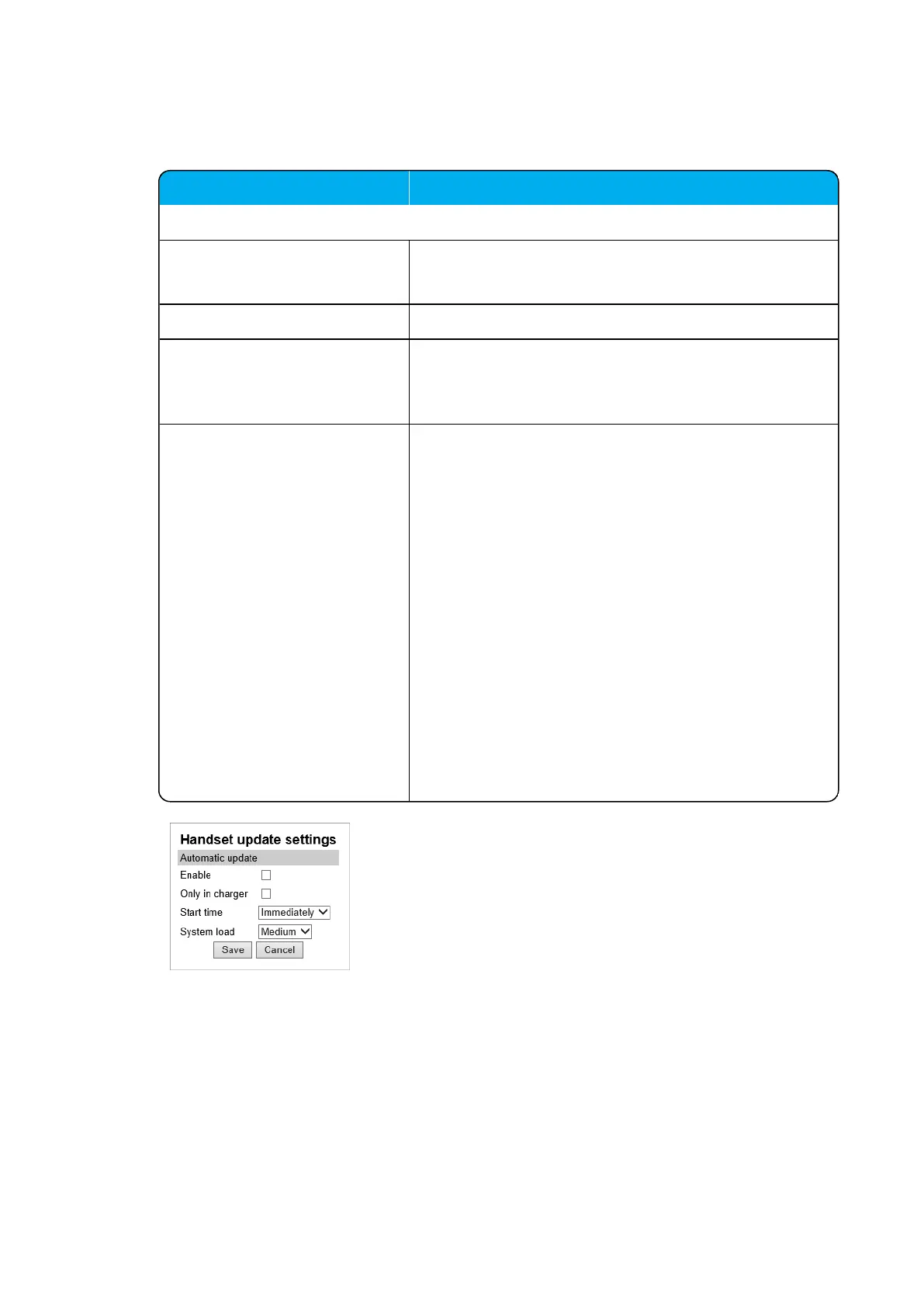
2. On the Handset update settings page, enter the following data:
Field Setting
Handset update settings - Automatic update
Enable (Optional) Enable.
This will make automatic update possible.
Only in charger (Optional) If enabled, only handsets in charger will be updated.
Start time (Optional) Default value: Immediately
If you want to upload later, select an appropriate time
within the next 24 hours.
System load (Optional) Select relevant upload capacity. The load corresponds to
the number of maximum simultaneous updates.
Possible values: Low, Medium or High.
Default value: Medium
Low: 1 handset at a time. Medium: 4 handsets per
media resource. High: 16 handsets per media resource.
Example: 2 media resources and High load = 2*16 = 32
simultaneous updates.
Note: If you schedule an upgrade during day hours, you
would typically choose Low to Medium load to avoid any
impact on Users. Upgrade after hours typically means no
User load, therefore, you can choose High priority.
Warning: If you set system load to High, then you risk
that the process allocates all MR channels, which will
block for new incoming and outgoing voice calls.
3. Click Save.




 To Next Page