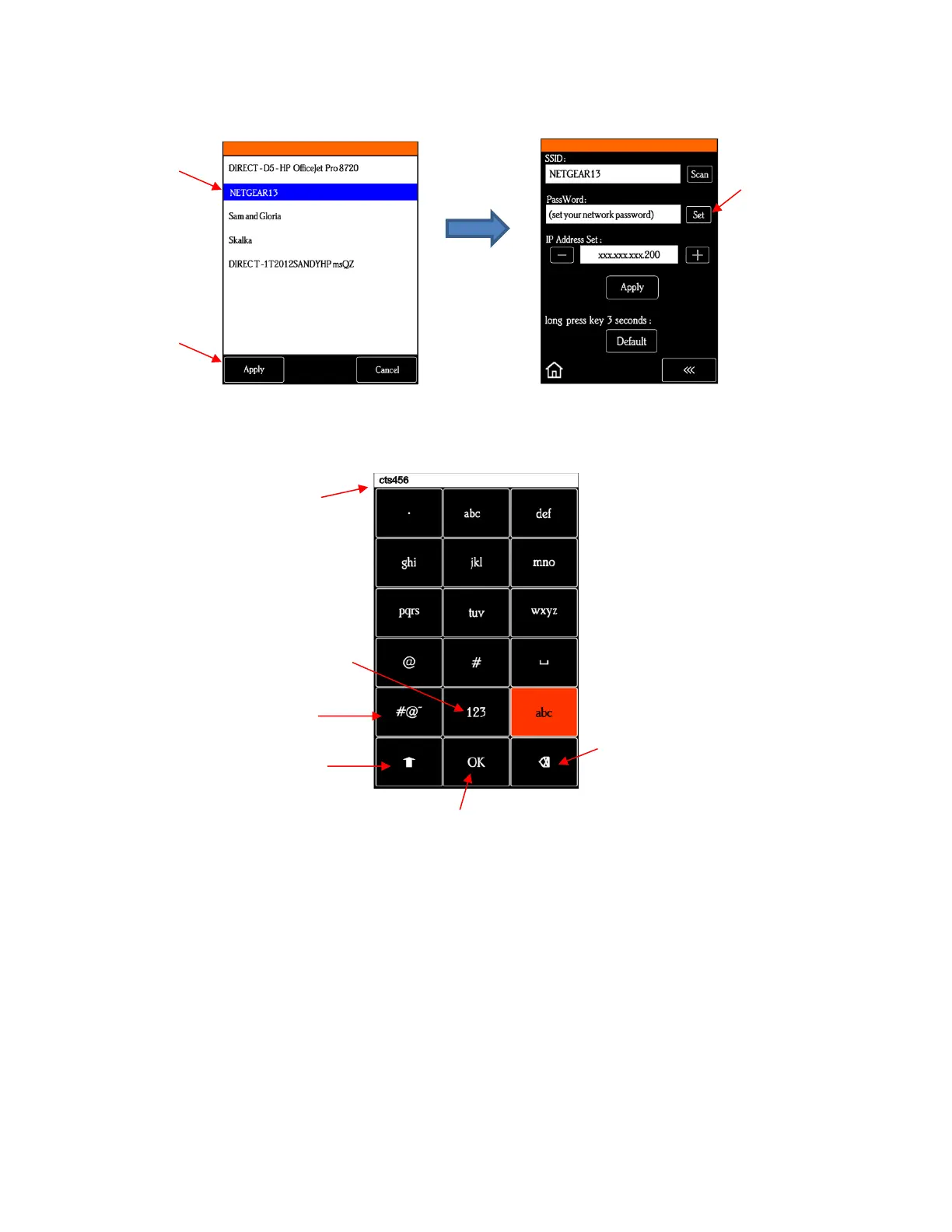
(3) Click on Set and the following screen will open:
(4) To enter the password, use the following tips if you are unfamiliar with this type of screen:
“Rapid tap” multiple times in succession to select a letter. For example, if your network password is
cts456, then to enter “c”, you would tap three times on “abc” because “c” is the third letter in “abc”.
Next you would proceed to “stu” and tap two times to enter “t”. Then you would only need to tap on
“stu” once to enter the letter “s.”
To enter numbers, click on “123” to open the number entry screen.
For punctuation, click on “#@~“ to open the extra characters screen.
To enter upper case letters, click on the up arrow in the lower left part of the screen.
(5) Once you have the password entered in the display box at the top, click on OK to return to the Wifi
screen:



 To Next Page