Color: Clicking the box to the right of Fill opens a window where you can set a new color, including
adding your own custom colors.
Pattern: CREATE comes with a choice of 7 patterns but you can upload your own images to use as
patterns.
Gradient: An infinite range of gradients in both color and distribution can be created to fill shapes and
lettering.
• Stroke: All shapes have a Stroke assignment using one of the following choices:
None: The shape will not have an outline. Note that if you also choose None for the Fill, then you will
not be able to see the shape at all unless you hover your mouse over it:
Color: Once Color is selected, click on the box to the right and the Color window will open. This is the
same window that opens when Color was selected under Fill.
Pen Color: Choose this if you are recoloring lines based on selecting actual pens or other tools to
switch out during the cut.
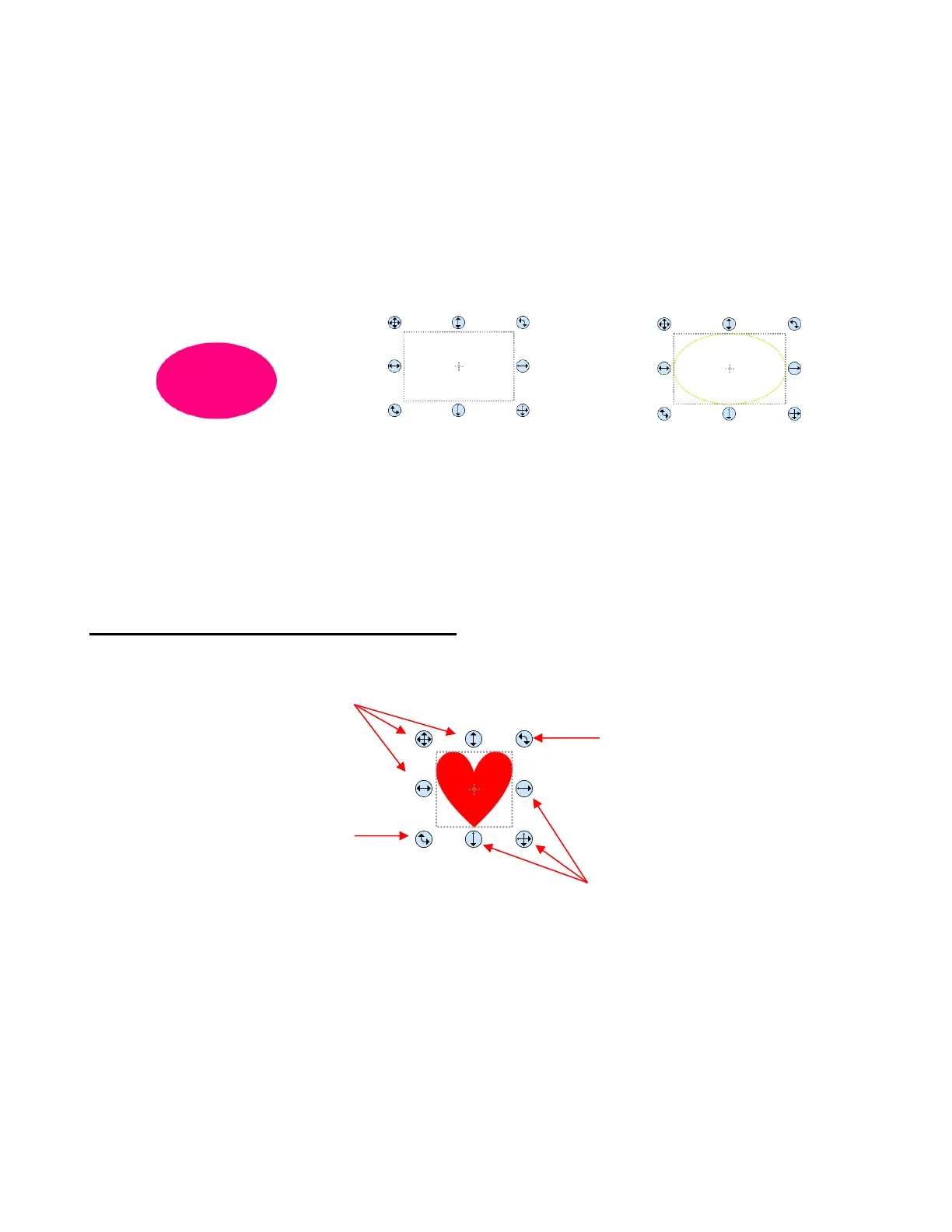
4.07.2 Resizing, Rotating and Moving Shapes
• A selected shape will have 8 handles surrounding it:
To resize proportionately, hold the Shift key while dragging any of the resize handles.
• You can also resize, move and rotate shapes using the Position & Size Panel:



 To Next Page