o Ignore: The text with the missing font will be converted to an outline (no longer editable as a text
object)
o Replace: The text will be replaced with the font shown or another font you select from the drop-
down menu
4.08.3 Text Panel Settings
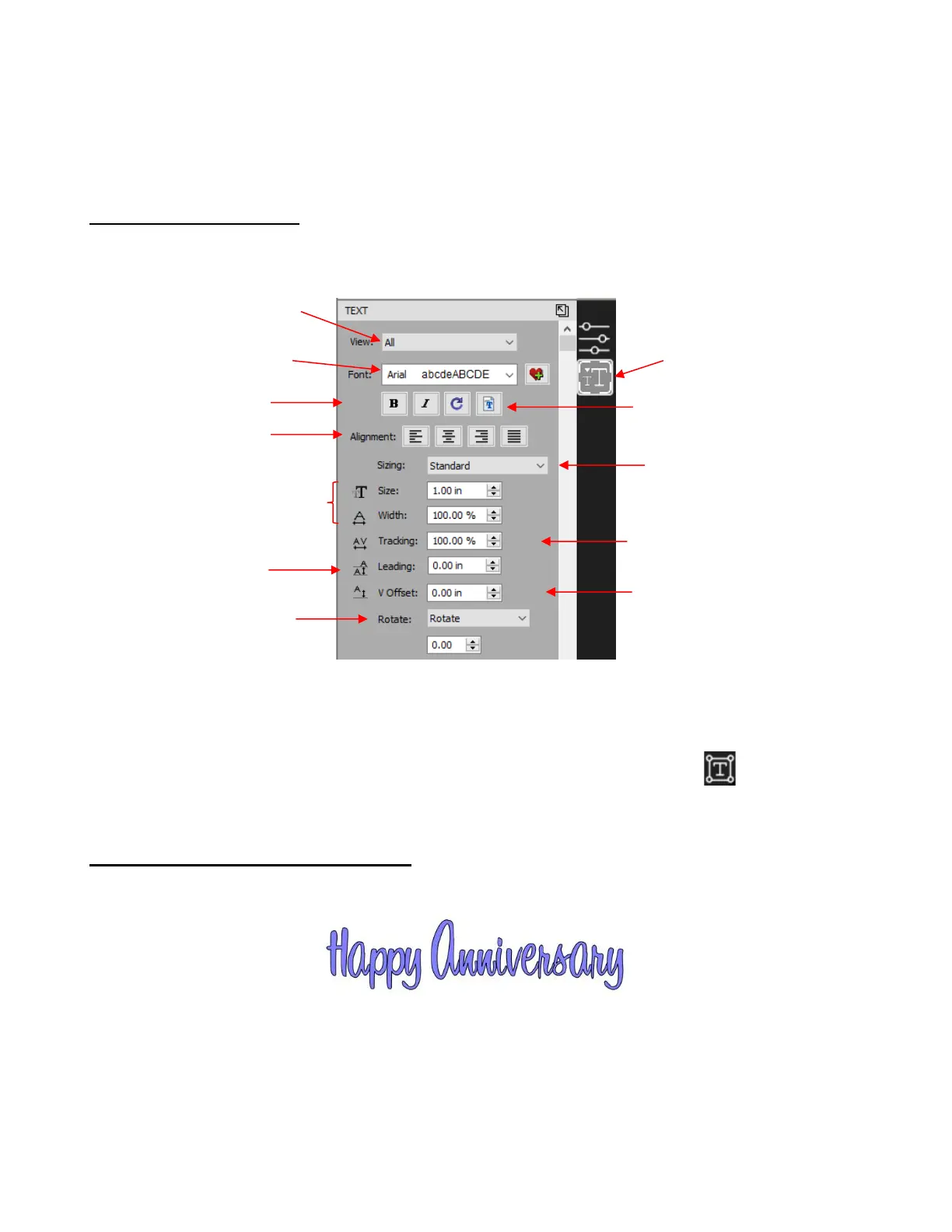
• The Text Panel offers an array of settings related to the creation and editing of text. To open, click on the
Text icon on the Properties Panel:
• To apply a change to any of these settings:
Type some text using the instructions in Section 4.08.1. With the text selected, you can now change any
of these various settings and the changes will immediately be applied to that selected text.
If you only want to apply a change to a portion of the text, click on the Type Tool icon on the Tools
Panel and drag your mouse to highlight whatever part you want to change.
4.08.4 Creating a Connected Letter Title
• Using the instructions from Section 4.08.1, type the letters of your title:
• Because you will be working with the letters individually, select the title and apply Object>Ungroup.
• With the letters split, you can now move one or several selected letters, overlapping as desired. You may
also want to enable the Show Outlines Only option on the Document Panel, to better view the overlap.
• Also, you should turn off Snap to options so that you can more freely move letters. This is located under
View>Snap To.
• Begin overlapping the letters. It’s usually advisable to move letters either by using the arrow keys on the
keyboard or by using the left center icon:



 To Next Page