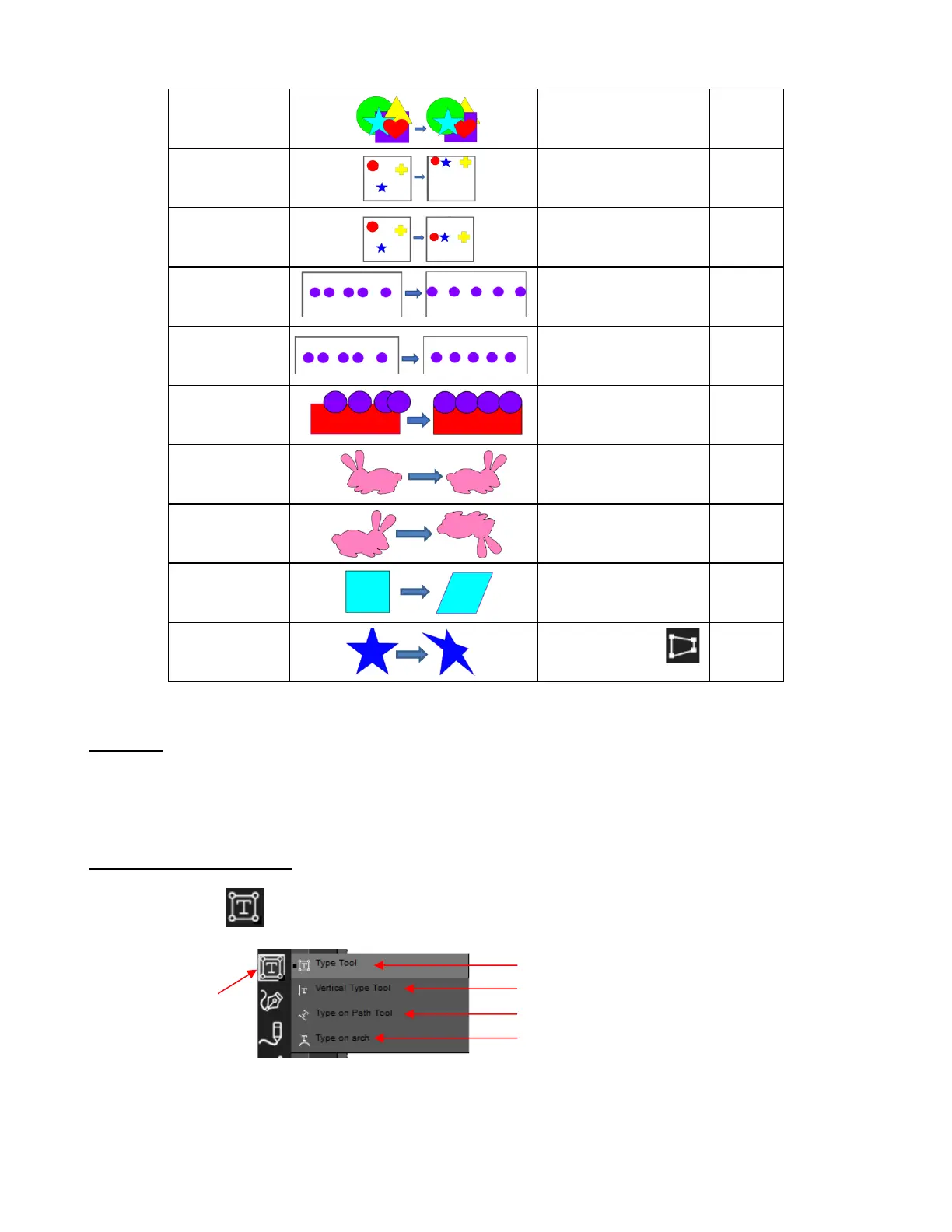
Arrange Object>Arrange 3.18
Align to Page Object>Align to Page 3.18.1
Align to Selection Object>Align to Selection 3.18.2
Distribute to Page Object>Distribute to Page 3.19.1
Object>Distribute to
Selection
Distribute to
Object Below
Object>Distribute to Object
Below
Object>Flip Horizontal
(Mirror)
Flip Vertical Object>Flip Vertical 7.08
Skew Object>Transform>Rotate 7.07.1
Distort Tools Panel on left 7.07.2
4.08 Text
• As with other CREATE functions, this manual only touches upon the basics. For more information on the
many customizing features you can apply to text, refer to Chapters 4 and 7 of the StarCraft CREATE User
Manual.
4.08.1 Type Tool Options
• The Type Tool on the Tools Panel has four modes in its menu:
• To use the Type Tool mode, left click once on the Page and begin typing.
Pressing the Enter key will move the cursor to a new line and you can continue typing.
Holding the Ctrl + Shift keys will temporarily select the text and allow you to resize it, if needed. Then
as you continue typing, the text will be at the new size.
Click and hold left
mouse button and
then select a mode
Type Tool: normal left-to-right text entry
Vertical Type Tool: vertical text entry
Type on Path Tool: text is aligned to a vector path
Type on arch: text is arranged in a circular pattern



 To Next Page