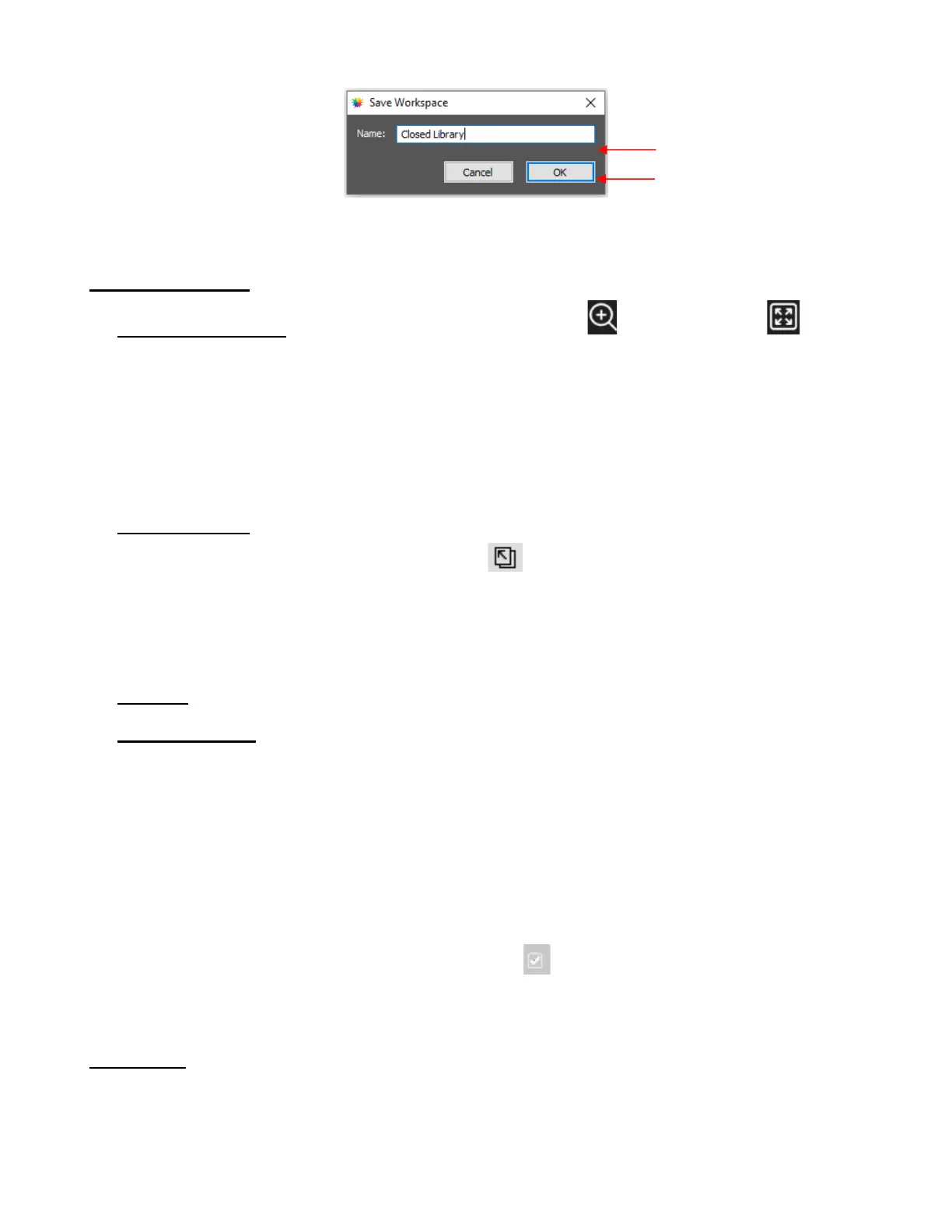
Before closing CREATE, make sure you select your new Workspace under Window>Spacespace.
4.02.2 Screen Tools
• Zooming and Panning: The Tools Panel offers both a Zoom Tool and a Panning Tool . There
are also some shortcut keys that you may prefer:
To zoom in and zoom out, hold down the Alt key (Mac: Option key) while rolling the mouse wheel
To zoom to a selected shape (or shapes), use the shortcut Ctrl+Shift+ (=) (Mac: Control+Shift+ (=))
To marquee-zoom, press Z and drag the mouse. Press V to then return to regular Select mode.
To zoom back to the Page, use the shortcut Ctrl+ F (Command + F on a Mac)
To pan, press and hold the Spacebar while dragging the left mouse button
• Properties Panel: A few tips regarding the various panels which make up the Properties Panel:
All panels can be popped out by clicking this icon to the right of the panel’s name. Once a panel is
popped out, the top or bottom can be dragged to make the panel larger and display more settings.
The Document Panel has various Show options to enable/disable for your convenience.
Double clicking any panel’s icon will insert a bar between it and the panel above. This panel will then
remain visible on the Properties Panel. Double clicking the bar will delete that bar.
• Snapping: Go to View>Snap To in order to enable/disable the various options for snapping in CREATE.
• Displaying Shapes: There are a number of settings to be aware of any time a shape doesn’t show a Fill
color or is invisible unless you hover your mouse over it:
Document Panel: Enabling Show outlines only will cause shapes to turn off their assigned Fill Color,
Pattern, or Gradient.
Document Panel: Setting Workspace Alpha to 0 will cause all shapes to turn off their assigned Fill
Color or Gradient.
Fill & Stroke Panel: If a shape has the Fill set to None or white (with the Page set at white), there will
be no Fill color displayed. The same is true if the Opacity is set to 0.
Fill & Stroke Panel: If both the Fill and the Stroke are set to None, the shape will be invisible unless
you hover your mouse over it.
Layers Panel: On the left side of each layer is an icon indicating it is set to Show. If that icon is
clicked to Hide, then that layer will become invisible.
4.03 Library
• CREATE’s Library provides a number of useful functions:



 To Next Page