6.02. Setting Up Two-Step Processes
Any time you are setting up a two-step process, such as a draw-and-cut or a score-and-cut, be sure to use the
following instructions.
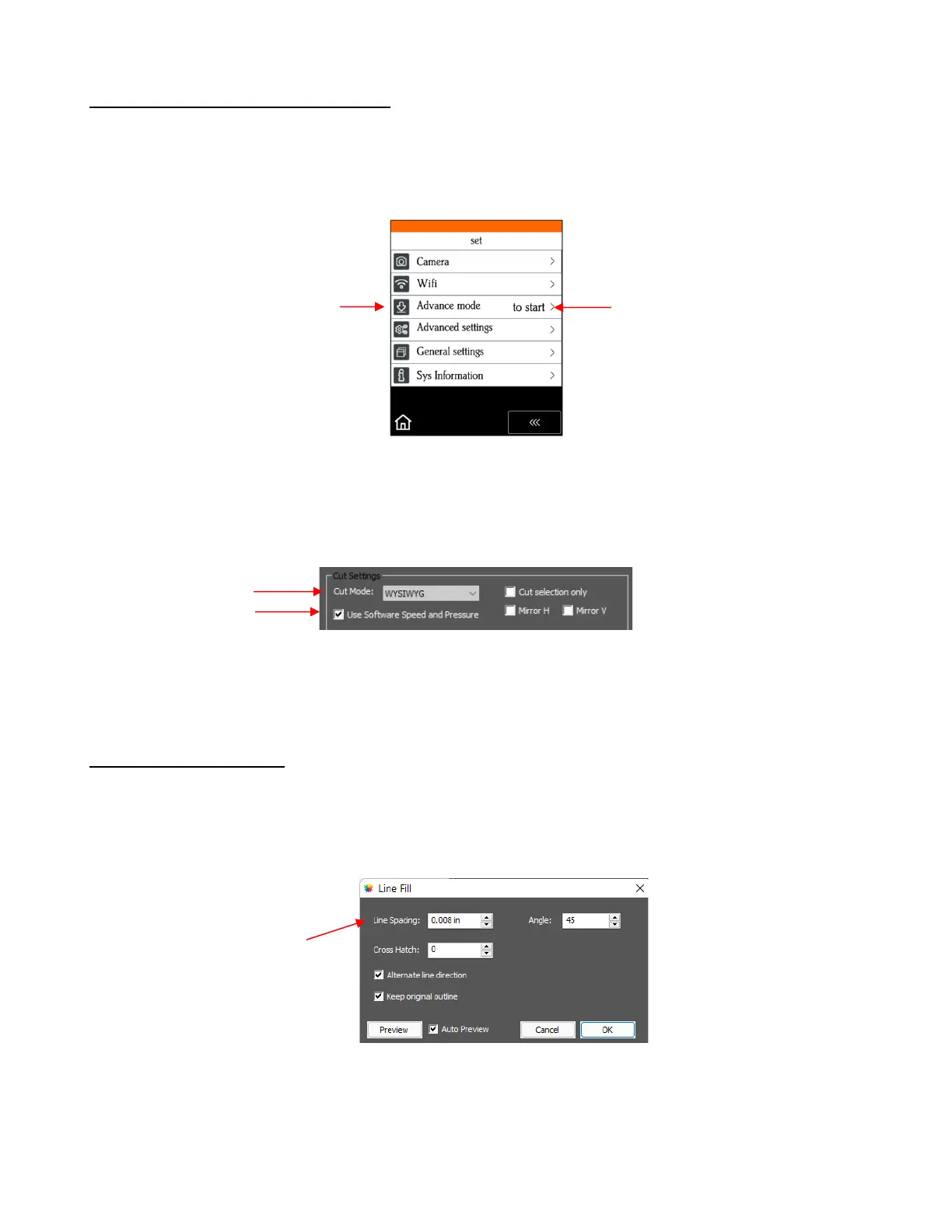
• On the control panel, press Set>Advance mode and choose to start. This will cause the first tool to return
to the same starting location as the first tool:
• For the same reason, you also need to use WYSIWYG mode in the Cut Settings window (see below).
• You further need to send the Speed and Pressure settings from the CREATE software since they will
typically be different for the two processes. Thus, enable the Use Software Speed and Pressure option in
the Cut Settings window.
• Finally, you will be using the Cut by Color tab in the Cut Settings window, so make the Fill color different
for one tool’s layers versus the other tool’s layers. This will be shown in the step-by-step tutorials.
6.03 Drawing with a Pen
• With the SOLO, you can draw shapes and lettering with the test pen or a pen/marker which fits into a 3
rd
party penholder.
• If you wish to fill in a drawn shape, select the shape and go to Effects>Line Fill. Here are suggestions on
settings to try in the Line Fill window when using the SOLO test pen:
If you want a more complete fill, two options will achieve that:
o Use a smaller Line Spacing, such as 0.004” (or 0.1 mm)
o Set a Cross Hatch of 1 which then fills in the shape from a different direction, as well



 To Next Page