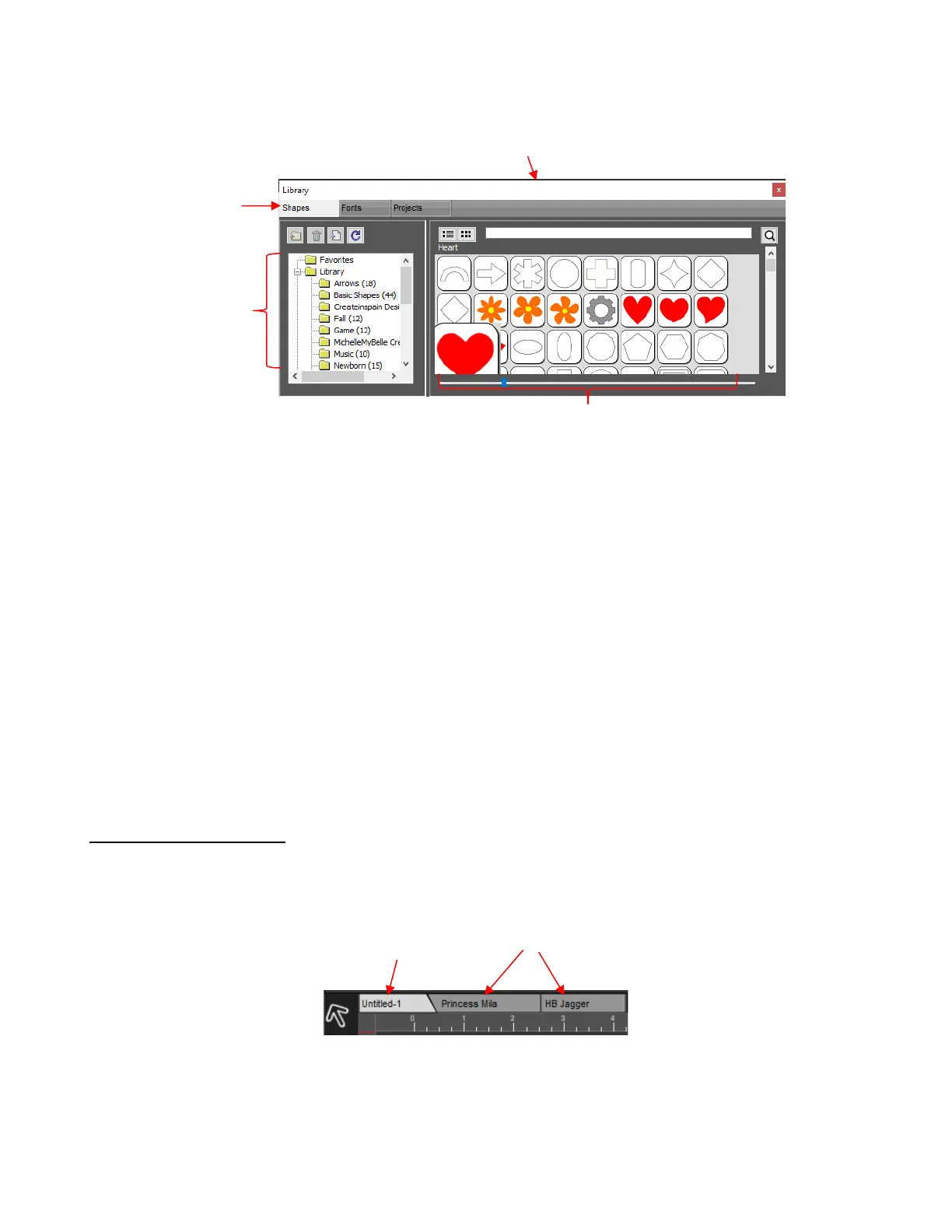
It contains a collection of over 300 pre-installed shapes, organized into 16 subfolders
It displays complete character sets for all fonts currently installed
You can organize your own shapes and projects into separate folders and view thumbnails for selecting
You can assign commonly-used shapes and projects to a Favorites folder for quicker access
It provides access to designs and projects downloaded from the Store
• The Library automatically opens every time you open CREATE unless you create a custom Workspace
(refer to Section 4.02.1).
• To add a shape from the Library to the Page, click on the thumbnail for that shape or drag the shape onto
the Page. Note there are other categories within the Library listed on the left side. Check out the various
subfolders of shapes as they are a great resource while learning CREATE and testing out your cutter.
• Further details on organizing and fully utilizing the Library are covered in Section 2.03 of the StarCraft
CREATE User Manual.
4.04 Projects and Pages
• The Project Bar is located right above the Ruler and shows what projects (files) are open and have been
saved and new projects that have been started but not named:
• Clicking on any Project Tab on the Project Bar will then access that project. Note that you can copy/paste
and cut/paste between open projects.
• Projects can contain one page or many pages. The option to add multiple pages can be convenient for
organizing projects with many shapes and or layers.



 To Next Page