6. Accessory Tools
6.01 Using Accessory Tools
• This chapter covers accessory tools that do not involve a blade, such as the SOLO engraver, test pen, and
scorer/debosser. Because they share some characteristics that are different from the blade holder, this first
section covers information to keep in mind when using any of them.
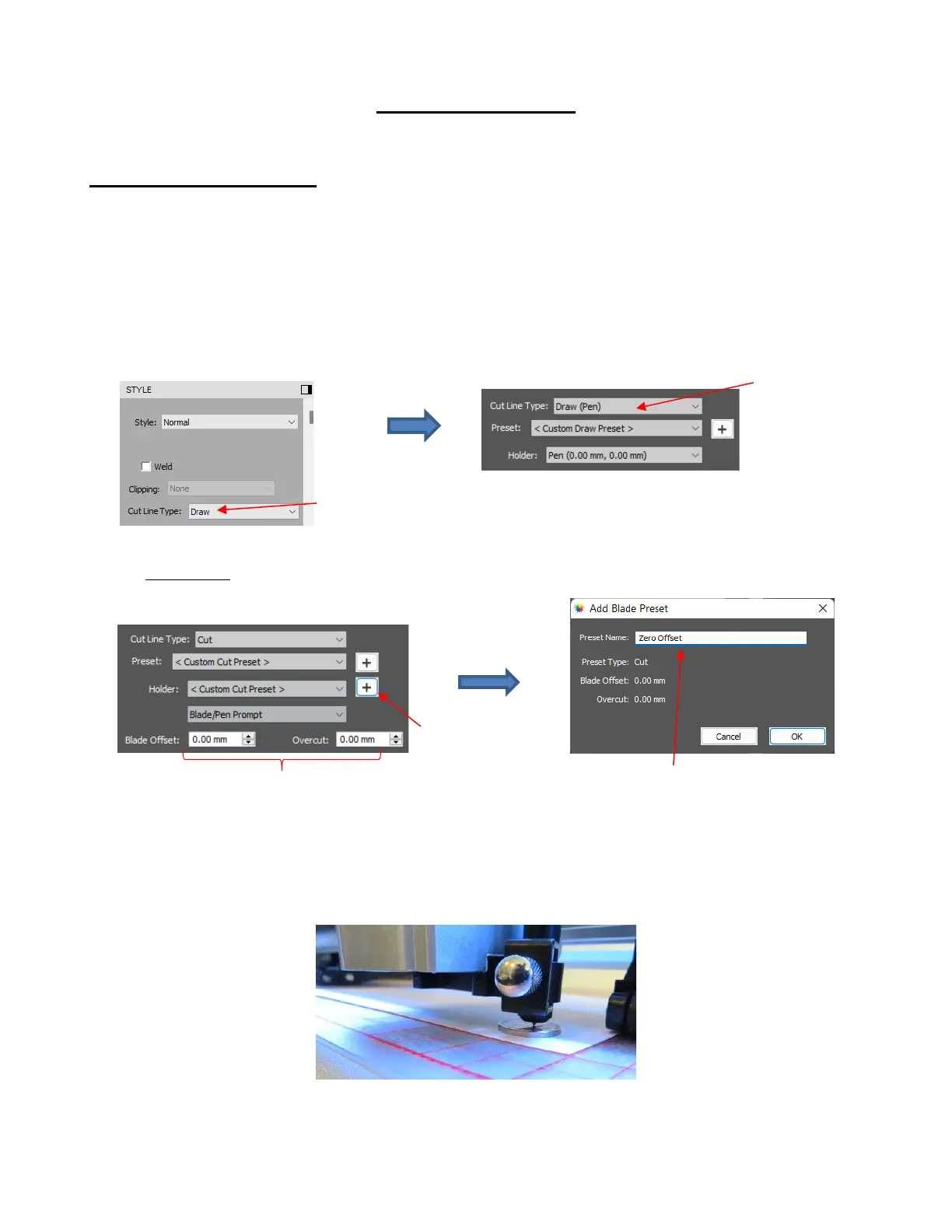
• Because the tip of an accessory tool is in aligment with the center of the tool, both Blade Offset and
Overcut should be set to 0. There are two ways to do this:
Assign the layer(s) on the Layer Panel to Draw in the Cut Line Type menu on the Style Panel and
then switch to Draw (Pen) in the Cut Settings window:
Alternatively, in the Cut Settings window, make both the Blade Offset and Overcut = 0 and then save
as a Preset next to Holder:
• Most of the accessory tools do not have a rim around the casing, thus you need a way to set a consistent
distance above the material so that the tool doesn’t scratch or mark the material below it. A spacer can be a
coin (such as nickel or a quarter) or anything else with about that thickness. Then, after loading your
material into the SOLO, place the spacer on top of the material and mount the accessory tool so that the tip
is touching the top of the spacer before you tighten the front screw:
• After firmly tightening the front screw, remove the spacer.



 To Next Page