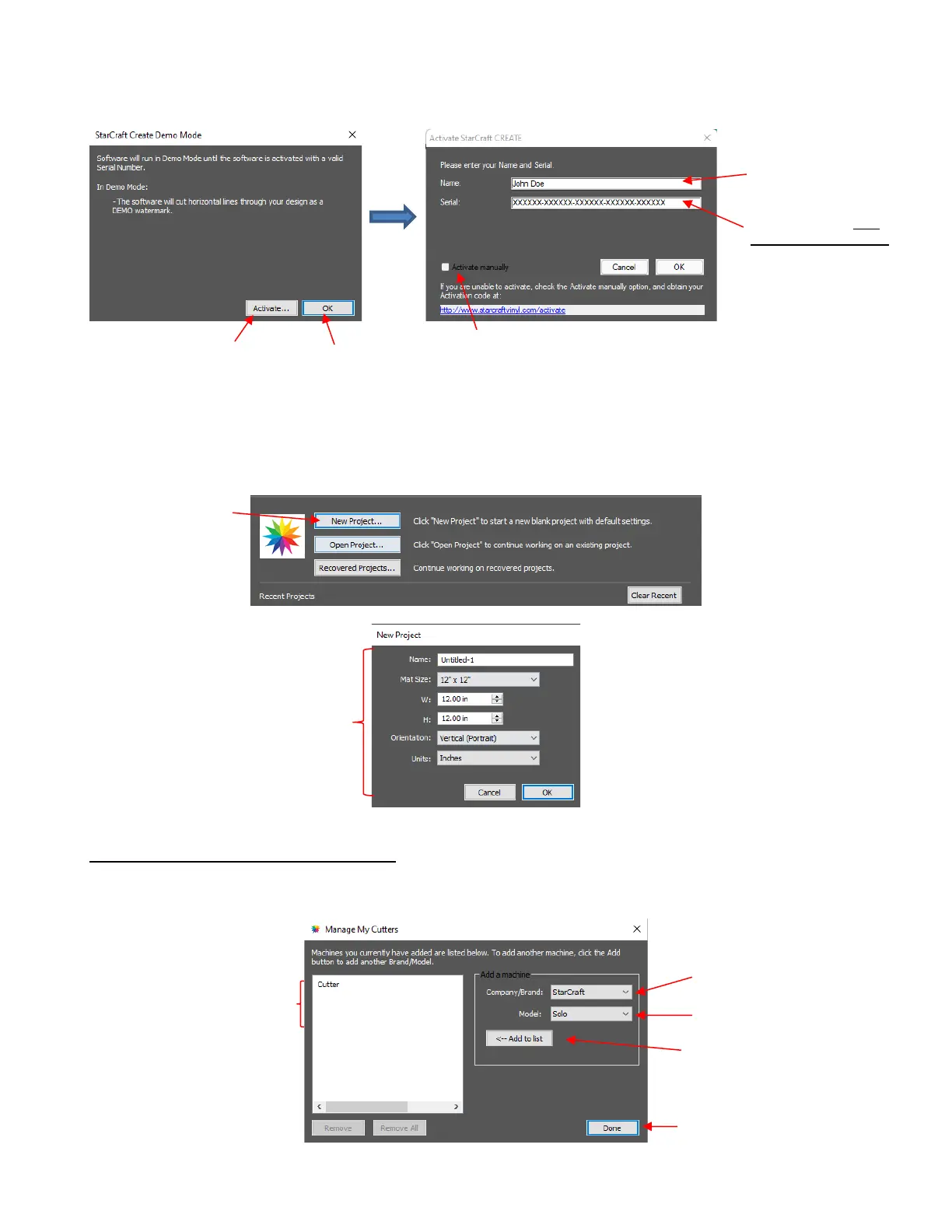
• After successfully registering the software, an initial window will open where you can choose if you are
starting a new project, opening an existing project, or recovering a project after a software crash. Because
this is the first time you are opening CREATE, choose New Project and accept the defaults shown:
1.06.2 Installing the SOLO in CREATE
• Go to Cutter>My Cutter>Manage Cutters and the following window will open:
• Click on Done to save and close the window.
Accept whatever settings are
shown. Details about these
settings will be covered in later
sections.



 To Next Page