Option 3: The Cut Line Type on the Style Panel can be used to control whether a shape can be printed
only, cut only, or both printed and cut. This is covered in Section 2.03.3.
Option 4: The Cut by Color tab in the Cut Settings window can be use to turn on or off shapes based
on their Fill color or their Stroke color. This is covered in Section 2.07.4.
2.03.2 Controlling Where Shapes Will Cut
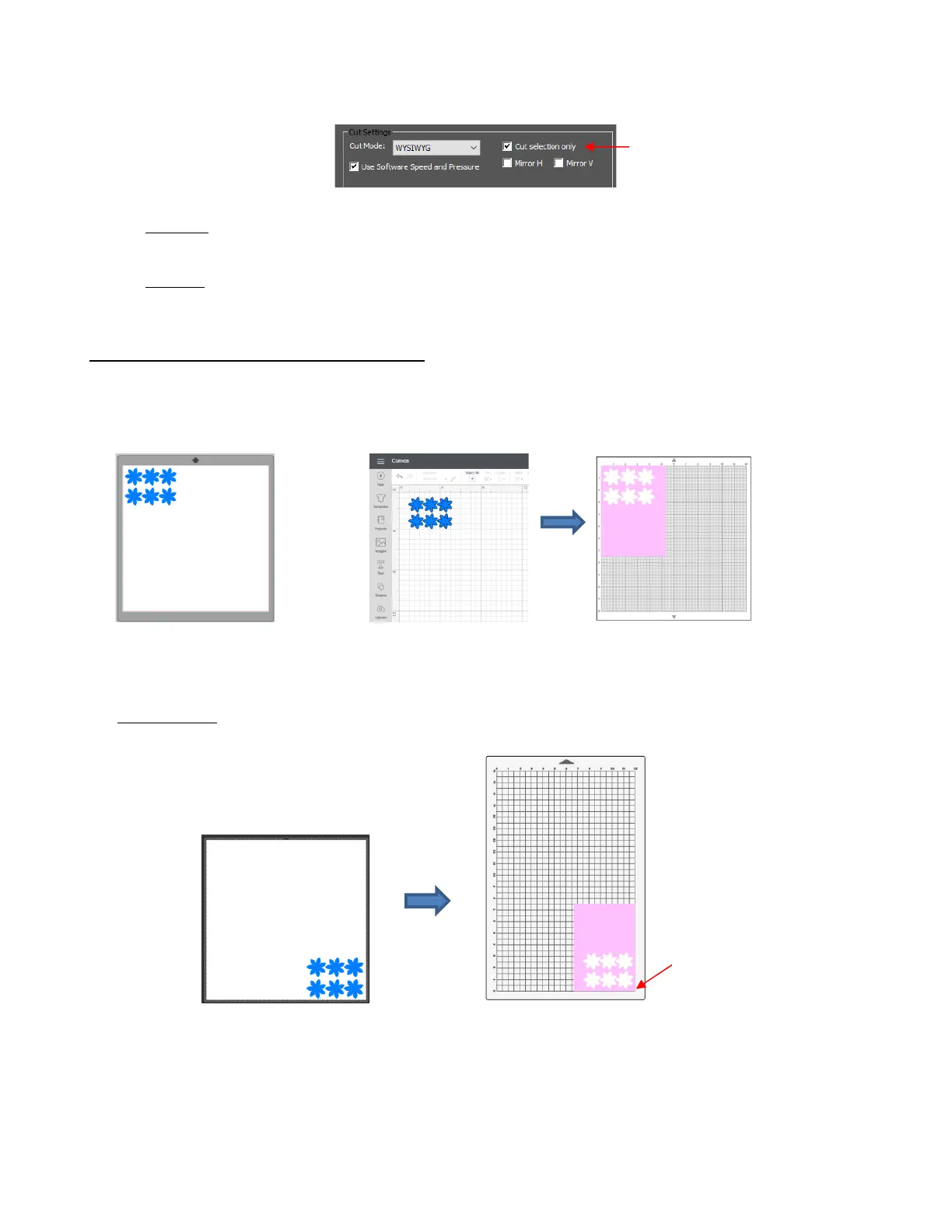
• Different brands of cutters have different home origins. For example, the Silhouette Cameos and Cricuts use
the top left corner. Thus, the design is located near the top left corner of the design area and the material is
typically aligned in the top left corner of the cutting mat and the mat is auto-fed into the cutter:
• The SOLO, on the other hand, has a home origin in the lower right corner (diagonally opposite). Thus, it is
recommended that the design be located near the bottom right corner in CREATE and the blade be placed
just inside the bottom right corner of the material before cutting:
• Note that IF your project is in the lower right corner (as shown above) and because you set an origin before
cutting, the material can be placed elsewhere on the cutting mat if you have located the design in the lower
right corner of the Page:



 To Next Page