4.11 Designing
• CREATE excels in providing many easy-to-use design functions to assist you in bringing to life that which
you wish to cut or print.
• Before showing samples of the amazing design functions available to you, here are three other functions
you may need to use at some point:
Window>Project Info: provides a window where you can enter information about your project as well
as check colors, fonts, and rhinestones used in your project. Refer to Section 7.02 of the StarCraft
CREATE User Manual.
Guidelines: Enable Show Guidelines on the Document Panel and click on Edit. You can then enter
locations for the guidelines. Alternatively, after you enable, guidelines can be freely dragged from the
rulers. Refer to Section 7.03 of the StarCraft CREATE User Manual.
Templates: add a background template by enabling on the Document Panel and clicking Set
Template. Templates can be resized and recolored based on the actual item being decorated. You can
also convert any SVG file into a template. Refer to Section 7.04 of the StarCraft CREATE User Manual.
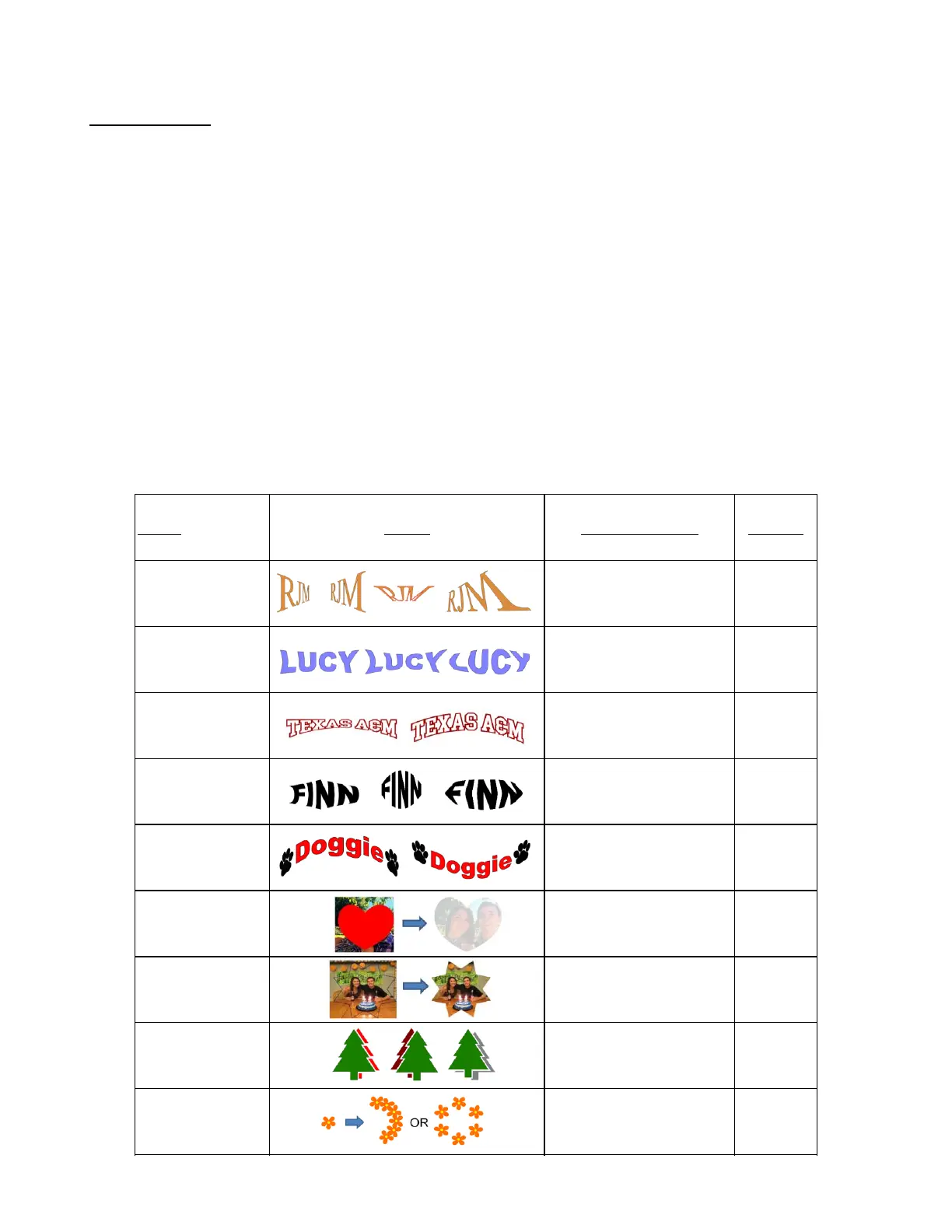
• The following table shows samples of the designing effects at your disposal. Note that with almost every
effect, there are unlimited ways to create variations by adjusting settings, colors, and/or selected images:



 To Next Page