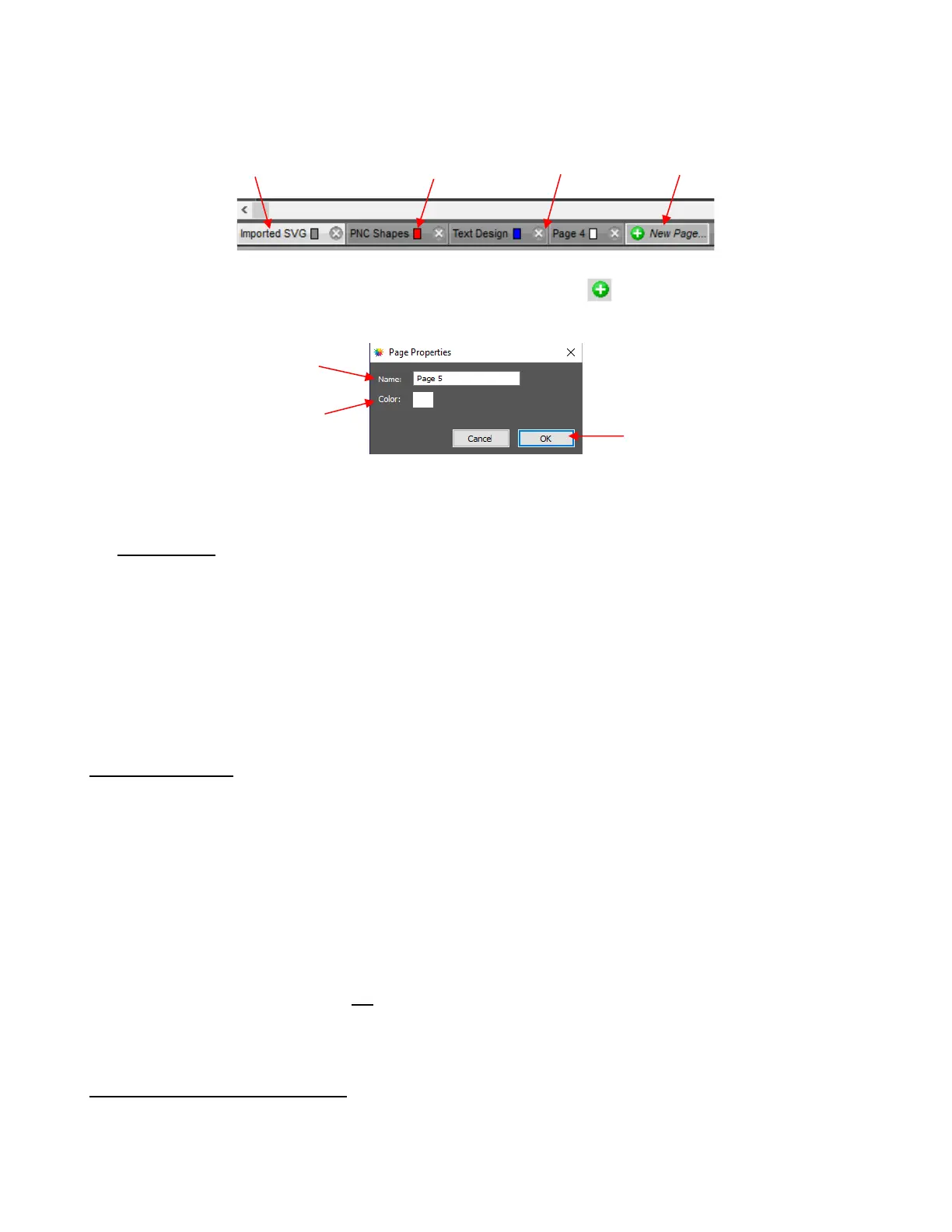
• The Page Bar is located just below the Page area and displays the current page, a color for quickly
identifying pages, and icons for adding and deleting pages:
• To add a page, either go to Page>Add Page or click the green icon on the Page Bar itself and the
following window will open:
Note: The color selected for a page tab will also be the color of the Page if you mark the Show Page
Color option on the Document Panel.
• IMPORTANT: You should always save your files using File>Save As versus only using the Export icon on
the Toolbar:
SVG exports only include shapes on the current page. Thus, you must remember to individually export
each page within a single project. Otherwise, any other pages will be lost.
SVG exports do not include some relevant information which could impact a cutting issue, such as
location of the shapes on the virtual mat or settings made on the Style Panel.
SVG exports do not show up in the opening screen where you can see thumbnails of your most recent
CREATE saved projects and easily click one to reload.
4.05 Layers Panel
• The Layers Panel is used for the following:
Assigning or grouping shapes into separate layers to better organize a project
More easily applying changes to a group of shapes (such as hiding, locking, coloring, line style)
Selecting one shape or a layer of shapes on the screen
Changing the order of shapes (i.e., which shapes should be on top of other shapes)
Controlling what is sent to the cutter or printer
• You do not have to worry about adding shapes to the Layers Panel. They will automatically be assigned to
new layers as you add them. You will want to learn how to move shapes to new layers or combine shapes
into the same layer, depending on the circumstances. This is covered in the following sections of this
manual, with more details in Section 2.04 of the StarCraft CREATE User Manual.
4.05.1 Parts of the Layers Panel
• This section will use the following simple project to illustrate the Layers Panel:



 To Next Page