Color layer alignment: In applications such as vinyl, where several layers will be cut from different
colors and aligned, choose this option for a layer that has alignment shapes that need to be cut from
every color along with that color’s shapes. The Cut by Color tab in the Cut Settings window can then
be used to select which colors will be cut and in which order. Refer to Section 2.07.4.
2.03.4 Preview the Project
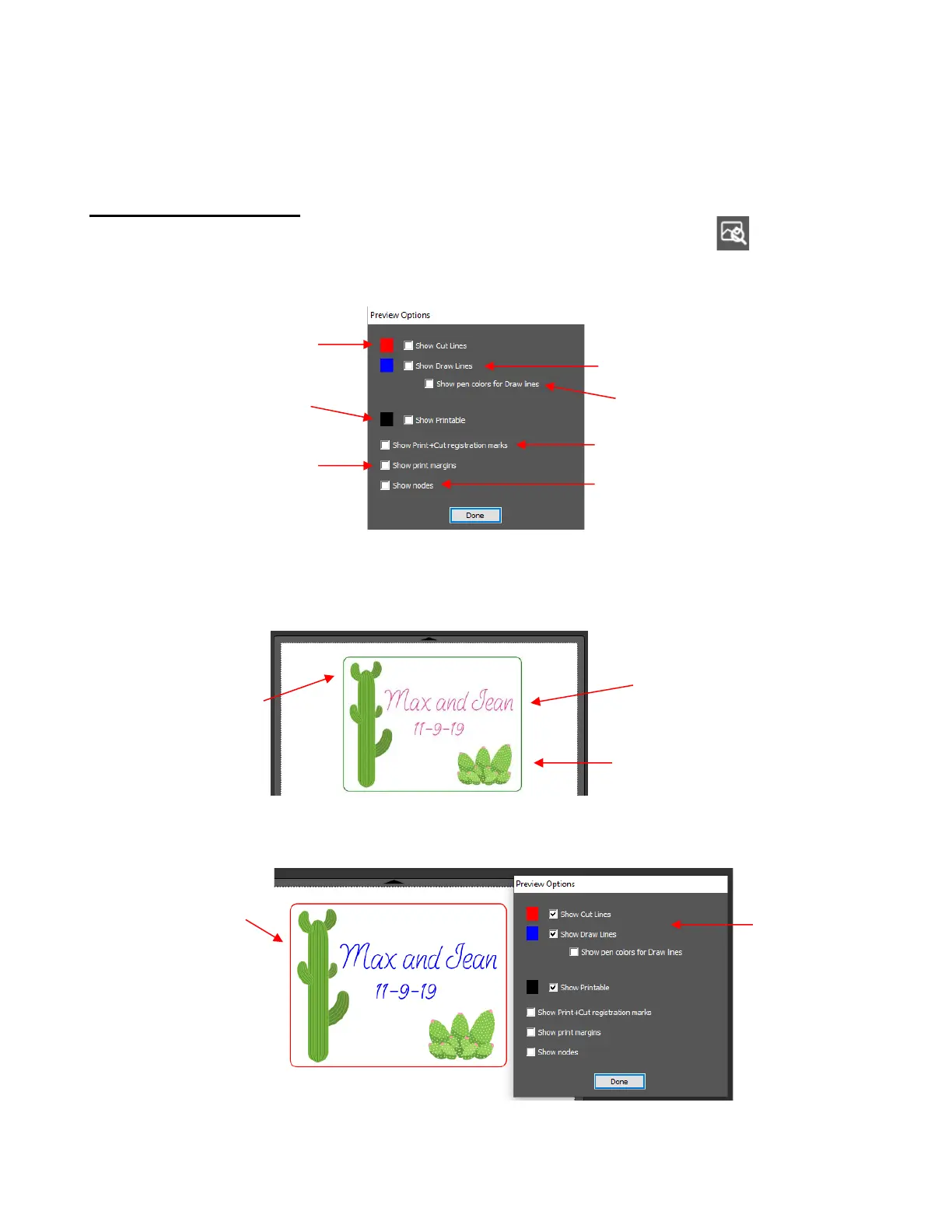
• To see what your cutter will cut or what your printer will print, click on the Preview icon on the
Toolbar. The following window will open. Note that settings applied on the Style Panel are reflected in the
Preview window:
• The following example shows what would be seen in the Preview window compared to how it appears
on the Page:
• For Print+Cut applications, you might wish to verify what will be printed, along with where it will be printed
and where the registration marks will print:



 To Next Page