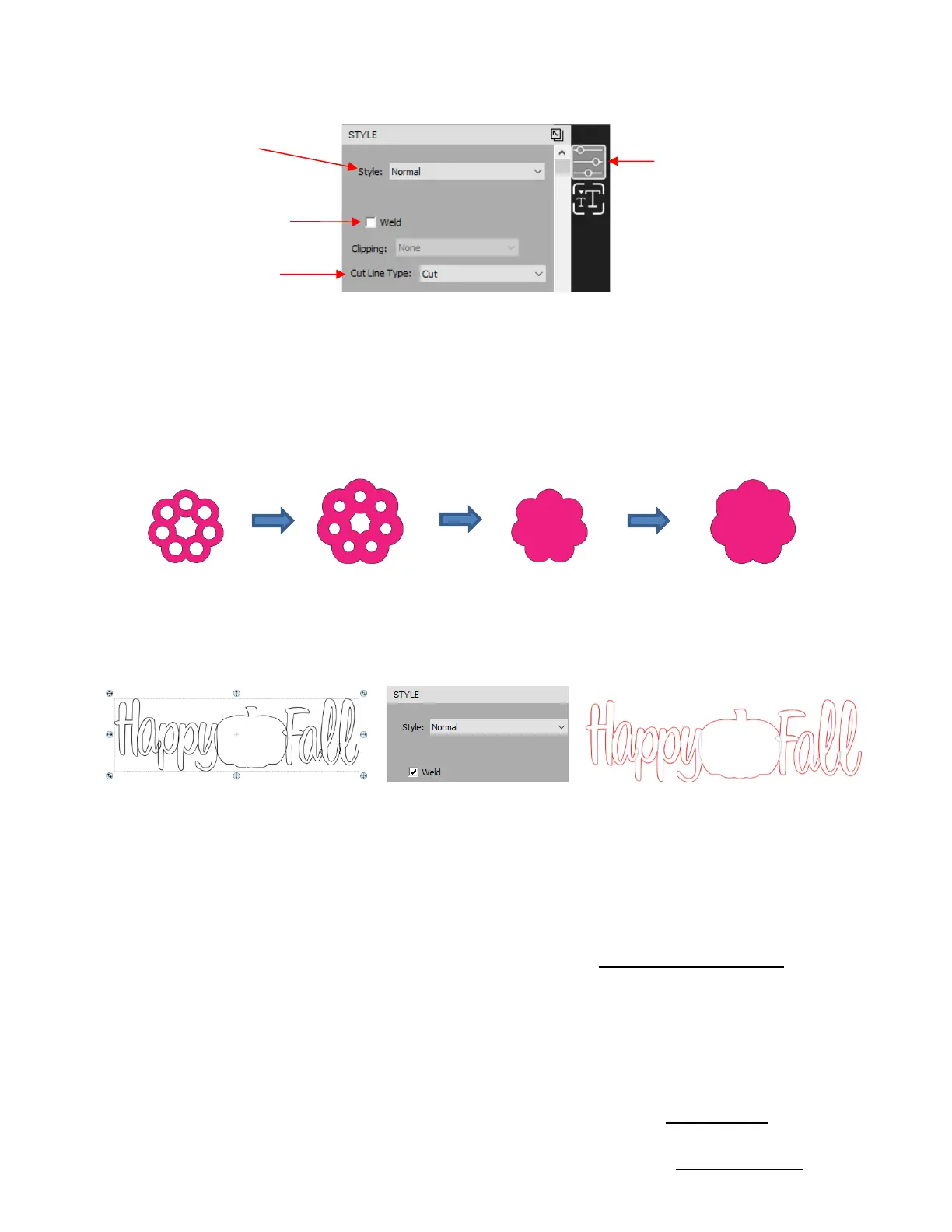
• Style: In this menu are various combinations of Shadow and Blackout applications. Any styles applied to a
shape can optionally be returned to Normal after cutting, thus not causing a permanent change to your
design.
Shadow will apply a contour cut (outline) to a shape which is a fast way to create one without making it
a permanent addition in your project (otherwise, refer to Section 7.05 of the StarCraft CREATE User
Manual).
Blackout will remove all interior paths from a closed shape.
• Weld: This option removes any overlap from cutting, such as when you want to cut a connected letter title.
Note that if the shapes are on different layers of the Layer Panel, the Weld option needs to be marked on
each layer:
• Clipping involves filling a shape with a portion of a raster image, such as a photo. Refer to Section 7.07 of
the StarCraft CREATE User Manual.
• Cut Line Type: There are five options in this menu:
Cut: choose this option for regular cutting. Because this is the default, you don’t normally need to select
it. In Print+Cut applications, choose this option for the layers that will be both printed and cut.
Draw: choose this option when using a pen, embosser, engraver, glue pen, rotary tool or other device
that doesn’t require a blade offset.
Score: choose this option when you want to apply a different pressure setting for one layer versus
another layer. For example, when cutting stickers, you can set a light pressure to kiss cut the top layer
only around the printed stickers but then use a heavier pressure when cutting lines to separate the
stickers from one another. Note that layers assigned as Score will not be printed.
Print+Cut Cut: in Print+Cut applications, choose this option for layers that will be cut only. They will not
be printed.
Print+Cut Print: in Print+Cut applications, choose this option for layers that will be printed only. They
will not be cut.


 To Next Page
 Loading...