3.04 Registration Mark Settings
• You have some control over the size and location of the registration marks. Under Cutter>Cutter Settings,
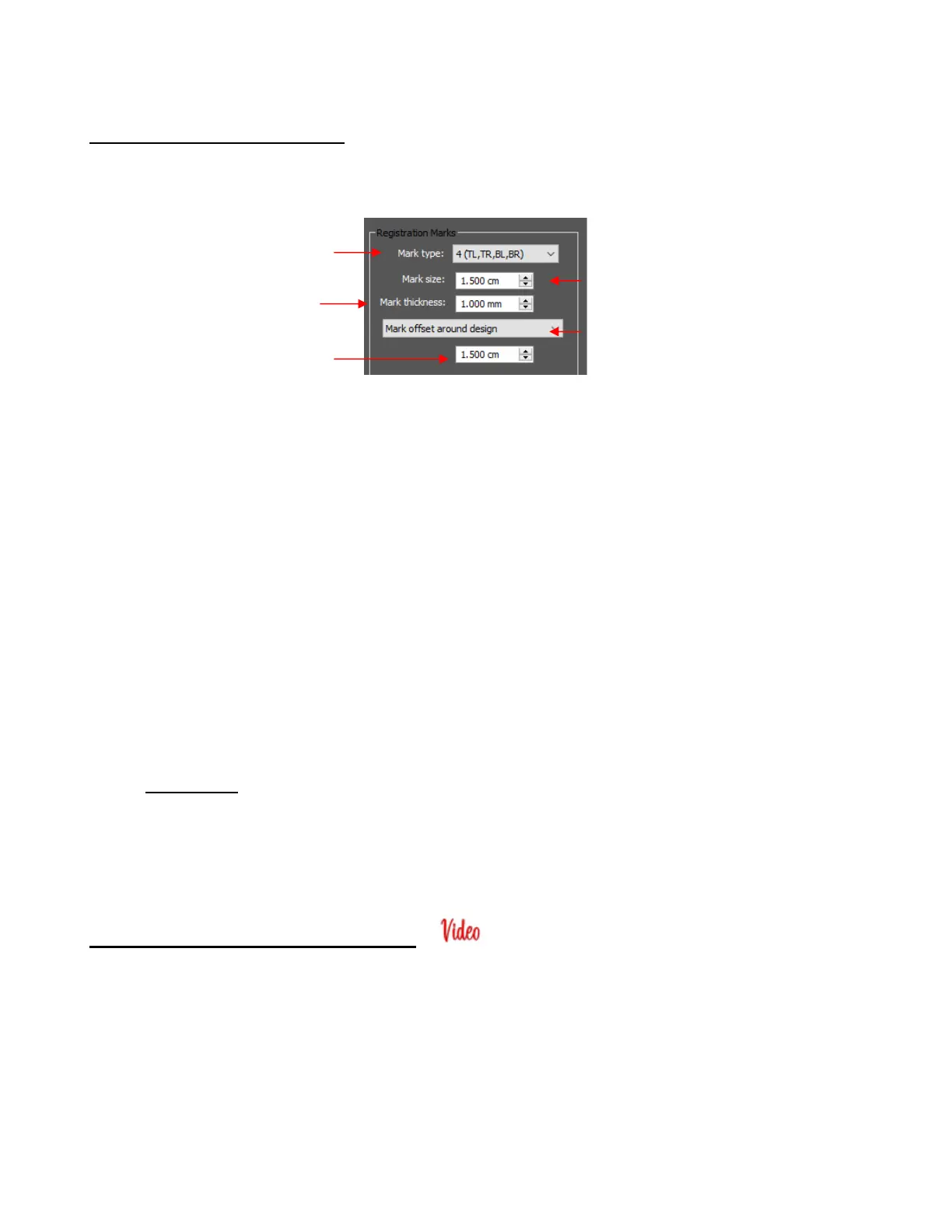
the upper right section of that window shows the default settings for creating registration marks:
Mark type: The SOLO’s camera uses four marks; thus, this option will always remain the same.
Mark size: The default size of 1.50 cm is advisable if the material is angled a bit with respect to the
cutter or if the material isn’t flat. Using a shorter size of, say, 0.5 cm will result in a quicker scan.
Mark thickness: Testing has shown that the lower limit is about 0.75 mm. Thinner than that and the
camera will fail to see the mark. It is recommended the setting remain at 1.0 mm.
Mark Offset Reference: Mark Offset or Inset Distance: This is the distance from the registration
marks to whatever reference point was selected. This can be reduced if you need more space on your
printout for your images. Note, however, that if you have images too close to the registration marks,
then the scanning process can fail.
Mark Offset Reference has three options:
▪ Mark offset around design: The marks will be positioned based on the bounding box around the
layer(s) that will be cut
▪ Mark inset from print bounds: The marks will be positioned based on the paper size specified in
your printer properties
▪ Mark inset from page bounds: The marks will be positioned based on the Mat Size specified on
the Document Panel
IMPORTANT: When using Mark inset from print bounds, you may need to turn on Borderless
printing in your printer properties window. This can introduce a problem with the reg marks being
relocated so you’ll also need to locate another setting in your printer’s properties typically called
Extension, Expansion, or Overspray (depending on the brand of printer) and change it the minimum
setting.
3.05 Setting an Origin Using the Camera
• There are several situations in which you must or just prefer to use the camera to set the origin:
If it’s not physically convenient for you to bend down to check where the blade tip is located
If you seem to have issues with the first reg mark not scanning successfully in a Print+Cut application
If you need an extremely precise origin for a Center Point cut or maximizing the use of your material or
other related applications
• To use the SOLO’s built-in camera for origin setting:
(1) If you haven’t already calibrated the camera, go to Section 3.02 and perform the camera calibration.



 To Next Page