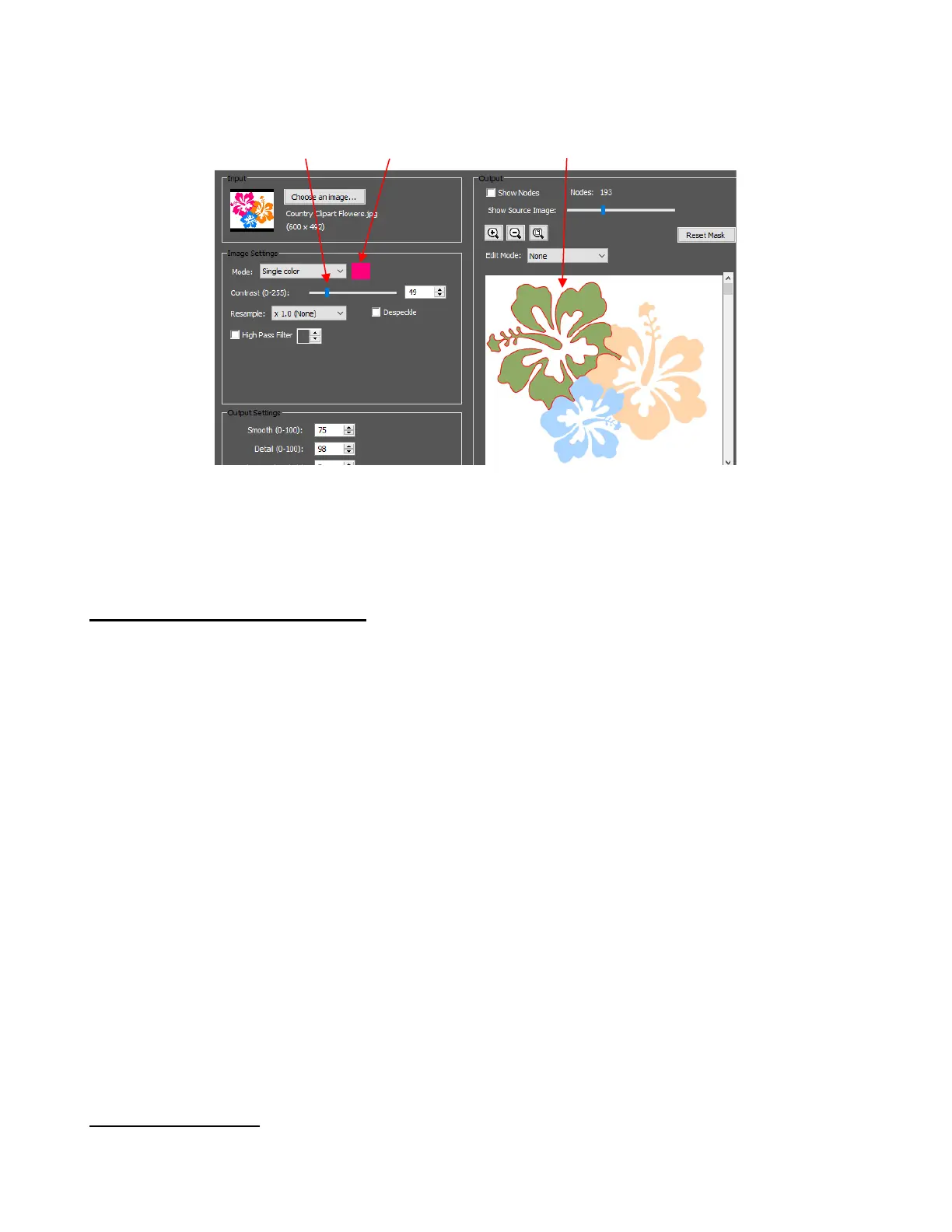
o Left click to select the color and Update. Increase Contrast until all of the desired color is fully
traced:
• Resample can be used to obtain a tighter trace. Despeckle can be used to remove tiny unneeded shapes
in an image, and High Pass Filter can be used with photographs and other challenging images, but
requires a considerable amount of tweaking. Examples of all three of these settings are covered in Section
5.03 of the StarCraft CREATE User Manual.
4.09.3 Output and Output Settings
• The Output section provides the following:
A preview of the tracing results based on current settings
Show Nodes and a Node count which can be used when adjusting the Contrast setting to make sure
smooth curves are being created (not an excessive number of nodes)
Show Source Image: Slide to the right to see more or the original image. Slide to the left to see more of
the trace lines (red) and closed traced shapes (filled with green).
Zoom tools so you can zoom in to see the smoothness and completeness of the trace lines
Crop function to remove outside images not needed in the tracing
Mask function for adding to or erasing parts of the trace
• The Output Settings section provides the following:
Smooth: increase for smoother traces; decrease for more angular traces
Detail: increase to include smaller shapes in the trace; decrease to filter out smaller shapes
Single Line Threshold: increase in order to avoid double lines in coloring book type images
Break Apart Outlines: apply Object>Break Apart to the trace lines
Blackout: remove any interior traced paths
Add Image Layer: include the original imported image with the trace lines
4.09.4 Drawing Tools
• CREATE offers several types of drawing tools, all of which are accessed on the Tools Pane. Details on
using these tools are covered in Section 5.04 of the StarCraft CREATE User Manual.



 To Next Page