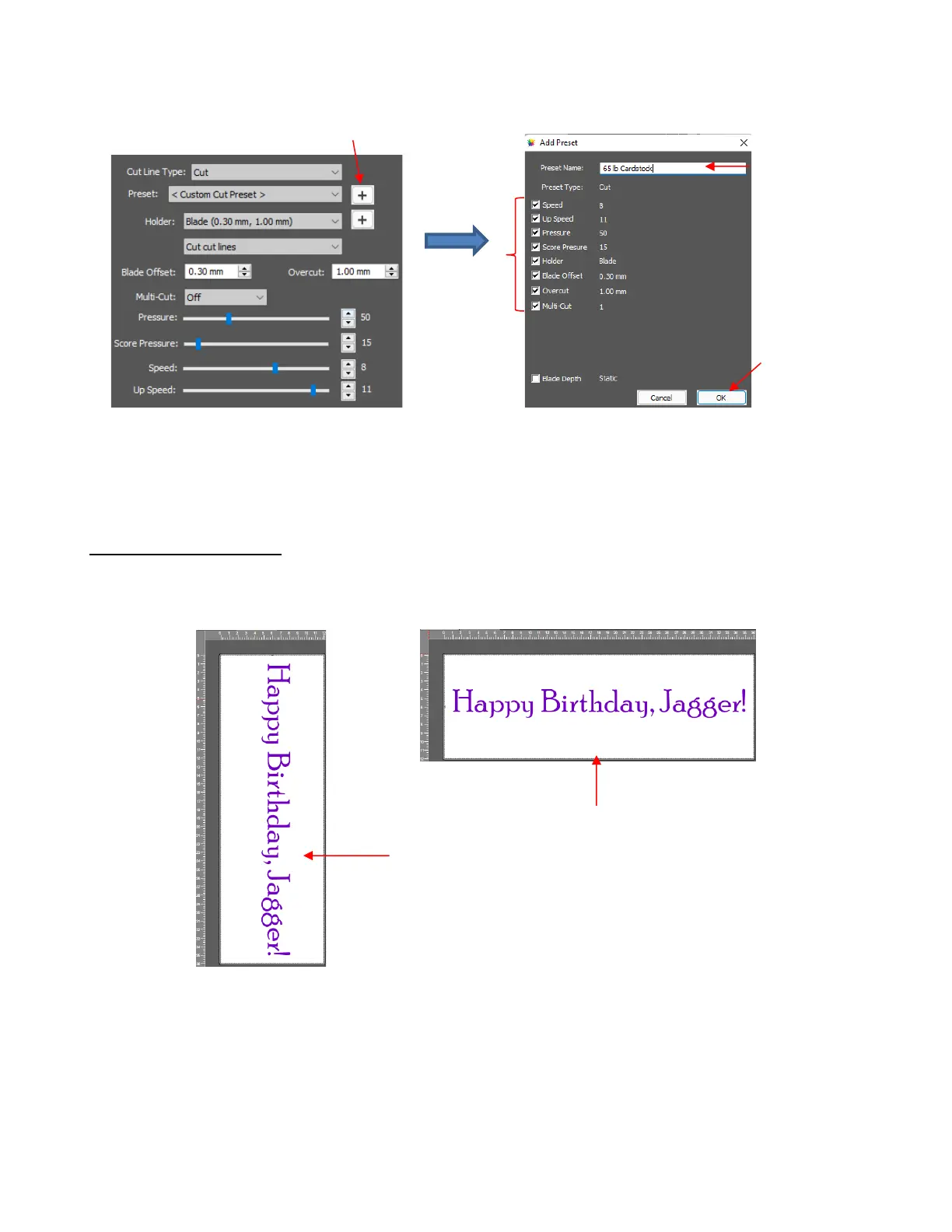
• After clicking on OK, the new preset will be found at the bottom of the list.
• Presets can also be saved on the SOLO control panel. Refer to Appendix D.
2.06 Landscape Cutting
• Landscape orientation works well when cutting long projects. It allows a better view of the project on the
main screen in CREATE and much easier editing of text, such as what is used in this example:
• The option to switch the Page Orientation from Vertical (Portrait) to Horizontal (Landscape) is located on
the Document Panel. You will be asked if you wish to adjust the objects to match the new orientation.
Answer Yes to have the project rotated as in the prior screenshot. Answer No to have the project remain the
same, as in the following screenshot. Note also that when you switch from Vertical (Portrait) to Horizontal
(Landscape) the triangle at the top of the Page moves to the left side:



 To Next Page