4.06 Handling Files
• File>Save (or File>Save As) is used to save the entirety of your project (including all pages and certain
Page settings) in a file that you can later Open again to make changes. The native file fomat used is
.create.
• The Export icon on the Toolbar is used to save certain parts of your project in other file formats, such
as SVG, PNG, JPG, PDF, and more. IMPORTANT: in all cases, ONLY the shapes on the current Page will
be exported. Thus, saving your designs in .create format is strongly urged.
• Use File>Open (or click on the icon of a recently-saved CREATE file in the opening screen of CREATE) to
open a .create file. Use File>Import or click the Import icon to import SVG, PNG files with a
transparent background, or 19 other formats available for vectors.
• To import a raster image such as JPG, BMP, and PNG, use File>Place Image, or drag and drop the image
onto the Page, or import within the Trace Image window.
4.07 Coloring and Manipulating Shapes
• As with other CREATE functions, this manual only touches upon the basics. For more information on the
many ways in which you can color and manipulate shapes, refer to Chapter 3 of the StarCraft CREATE
User Manual.
4.07.1 Fill & Stroke Panel
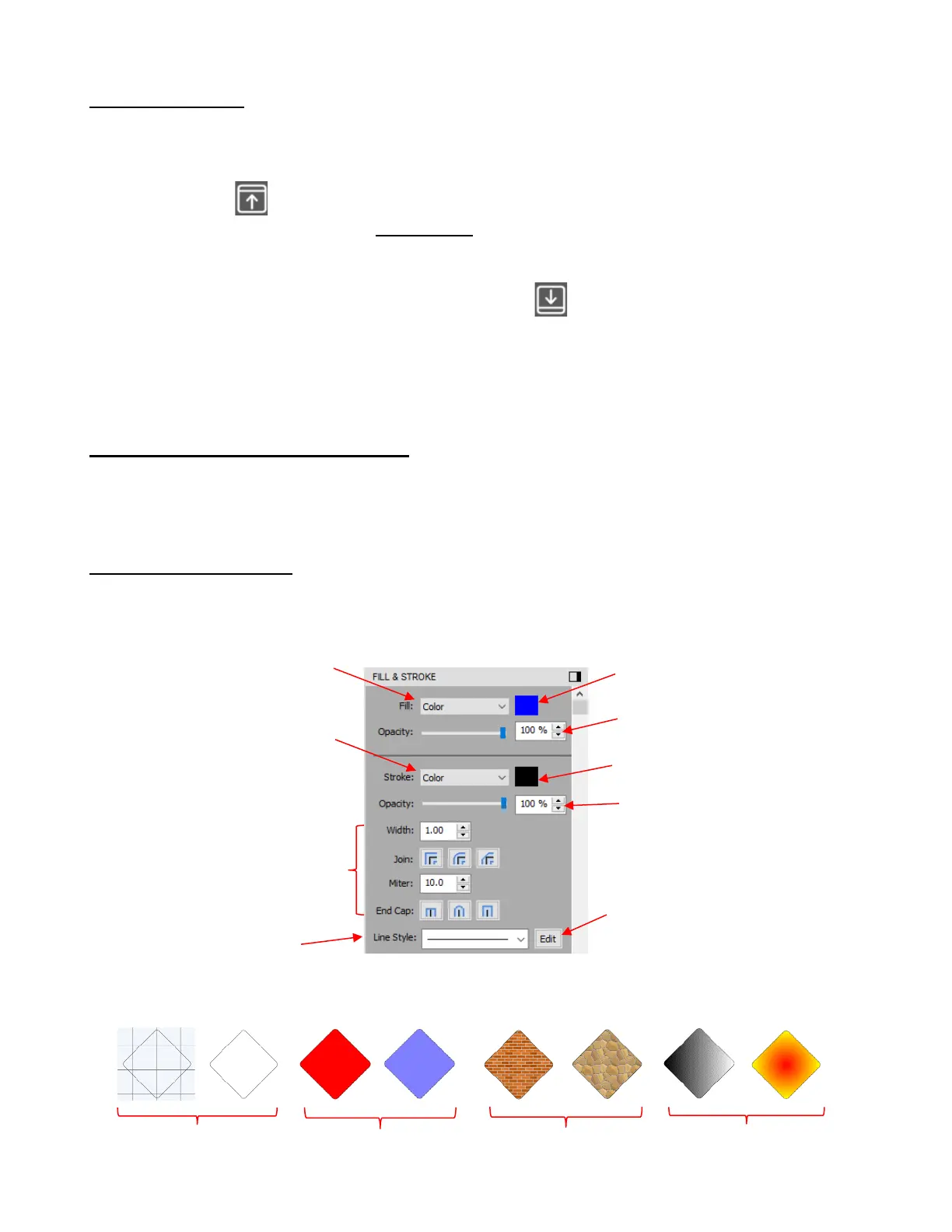
• Shapes can have both a Fill and an outline (aka Stroke). To change either one, select a shape and open
the Fill & Stroke Panel:
• The Fill can be set to None, Color, Pattern, or Gradient:



 To Next Page