Back
1.06 Installing StarCraft CREATE
• To obtain your free CREATE Serial Code, go to the following web site and register your new SOLO:
https://starcraftvinyl.com/create
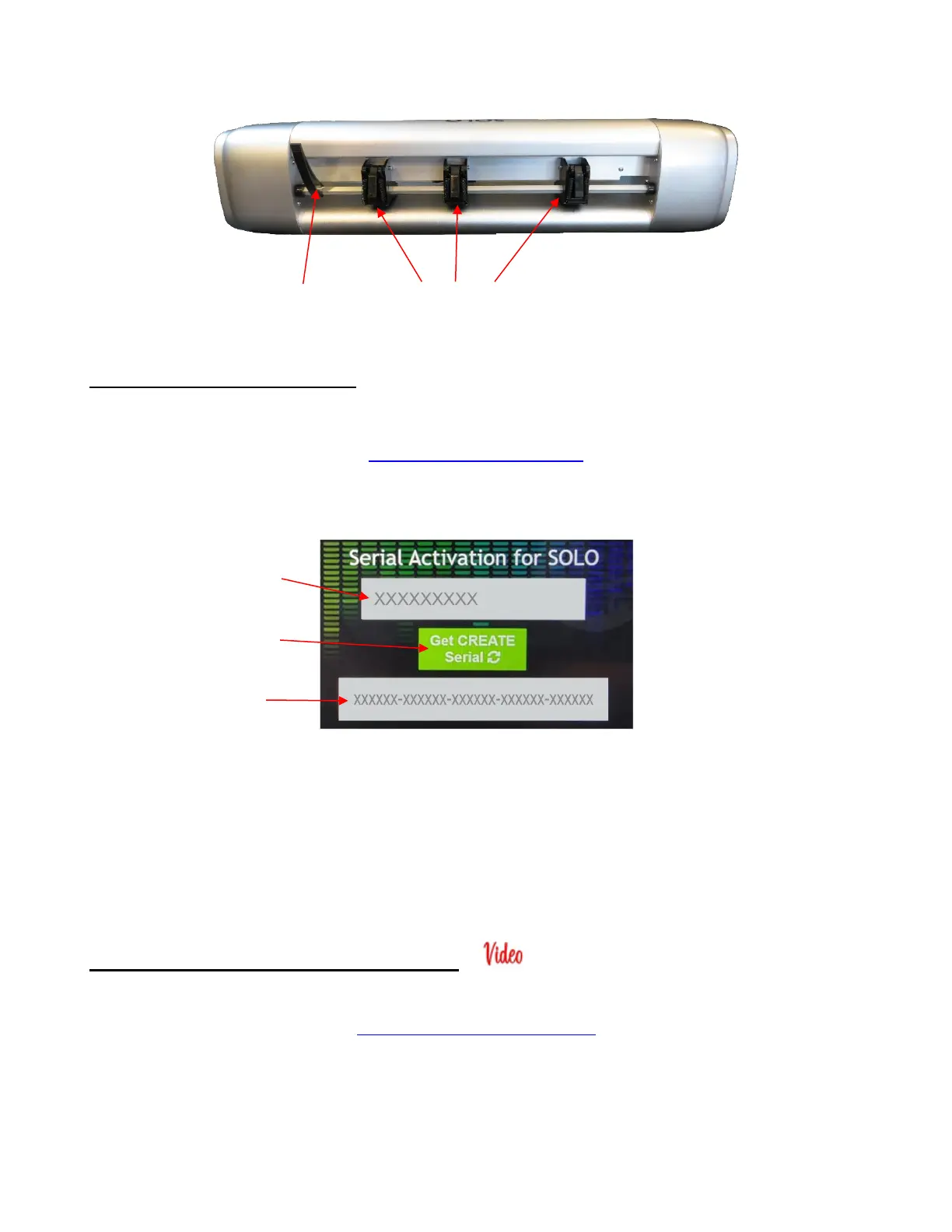
• Write down your SOLO’s serial number which is on the bottom of the cutter. In the registration window, enter
this 9-digit serial number in the upper gray field. Click on Get CREATE Serial and a 30-digit CREATE
Serial Code will appear:
• This new CREATE Serial Code can be used on any two computers you own. If you want to activate
CREATE on a new computer, go to Help>Deactivate (inside CREATE) on the computer no longer needing
CREATE and confirm you wish to deactivate.
• If you choose to not register CREATE right away, it will run in DEMO mode only. This mode will have the
following limitations:
When cutting, horizontal (watermark) lines will be added across the design.
Exporting will produce a DEMO file without your design shapes included.
1.06.1 Downloading and Registering CREATE
• StarCraft CREATE can be downloaded from the following link. Note that there are two choices - Mac or PC:
https://www.starcraftvinyl.com/solo
• Install the downloaded file and open CREATE. Immediately following the StarCraft CREATE splash screen,
a window will open. Click on Activate to open the software registration screen:



 To Next Page