EasyManua.ls Logo

Starcraft SOLO - Page 41

Starcraft SOLO
114 pages
Print Icon
To Next Page IconTo Next Page
To Previous Page IconTo Previous Page
Loading...
41
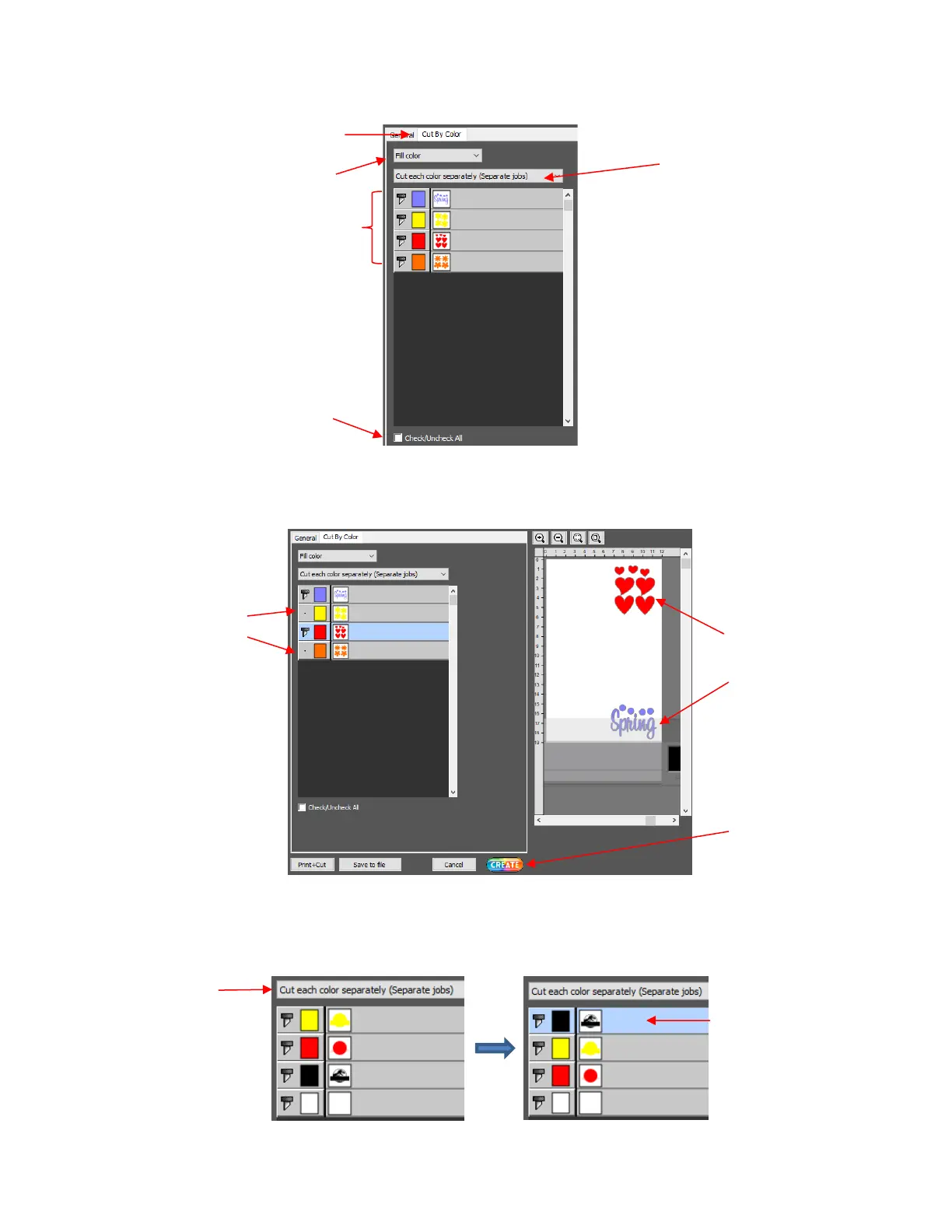
Cut all colors (Single job): In this mode all of the colors marked in this window will be cut at one time. You
can click on the blade icon to turn off any color(s) not to be used in the cut. For example:
Cut each color separately (Separate jobs): In this mode, you can still turn on/off colors for cutting but you
will also be prompted, by color, before each cut. You can also drag colors up/down in the menu to control
the order in which each color will be cut:
Upon selecting CREATE, the following Job window opens:

Fill colors used in
the project
Option to Check All or
Uncheck All colors listed
Select either Cut all colors or
Cut each color separately
Click on this tab
Fill color or Stroke
color option
Both yellow and
orange are
turned off
The Preview
shows only red and
purple shapes
Click on
CREATE to cut
Switch to
this option
The black layer was
dragged to the top
to cut first

Table of Contents