Black plate (276,1)
一般Model "A2520GE-A" EDITED: 2015/ 10/ 22
5-34
Audio/Media operation
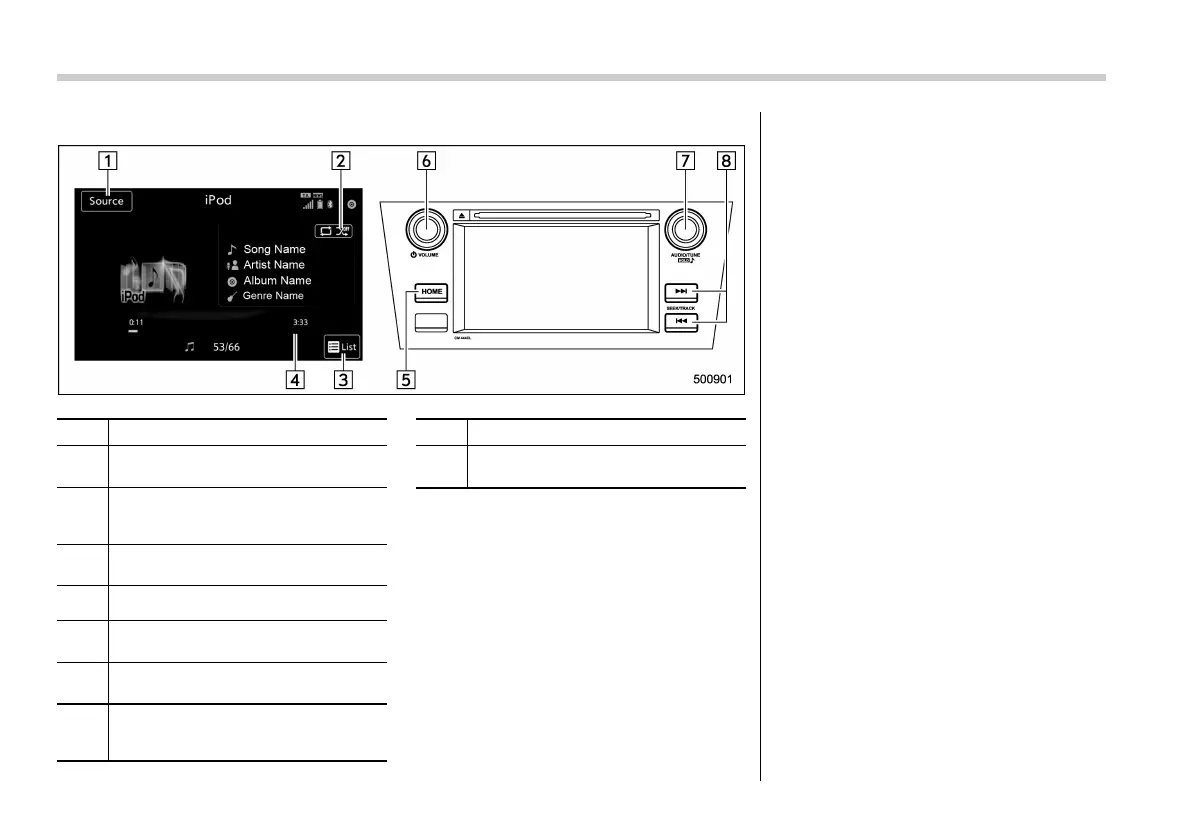
! Control screen and panel
No. Function
&
1
Select to display the audio source
selection screen.
&
2
Select to display the play mode
currently selected. Refer to “Select
play mode” F5-35.
&
3
Select to display iPod List. Refer to
“iPod settings” F5-35.
&
4
Shows progress.
&
5
Select to display the sound setting
screen. Refer to “Unit settings” F5-18.
&
6
Turn to adjust volume.
Press to turn the audio system on/off.
&
7
Turn to select a track/file.
Press to select an audio source. Refer
to “Selecting an audio source” F5-17.
No. Function
&
8
Press to select a track/file.
Press and hold to fast forward/rewind.
NOTE
. When an iPod is connected using a
genuine iPod cable, the iPod starts
charging its battery.
. When an iPod is connected and the
audio source is changed to iPod mode,
the iPod will resume playing from the
same point it was last used.
. Depending on the iPod that is con-
nected to the system, certain functions
may not be available.
. Files/tracks selected by operating a
connected iPod may not be recognized
or displayed properly.
! Connecting the iPod
You can connect an iPod to the vehicle
USB port using the USB cable. Refer to
“Connect ing and disconnecting a USB
memory/portable device” F5-13.
! How to change the source
The iPod o peration screen c an be
reached by the following methods:
. Connect an iPod. Refer to “Connecting
and disconnecting a USB memory/porta-
ble device” F5-13.
. Select the “USB/iPod” key on the
source select screen. Refer to “Selecting
an audio source” F5-17.











 To Next Page